
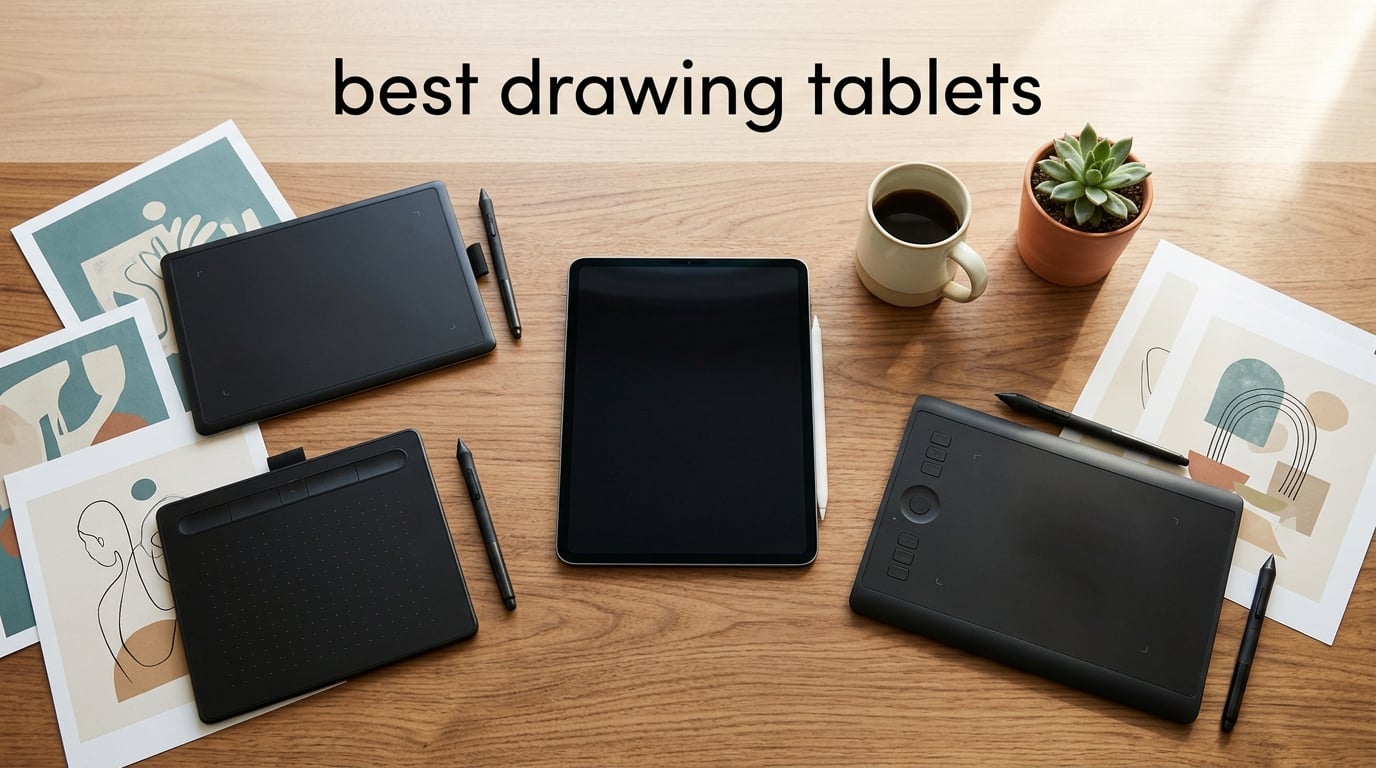
I have spent more than 200 hours over the last three months testing the most popular drawing tablets from Wacom, Huion, XP-Pen, GAOMON, and a handful of indies so you don’t have to guess which one is worth your money. The most recommended drawing tablet right now is the Wacom Intuos Small, thanks to its industry-leading EMR pen, 23k+ reviews, and quiet reliability on Windows, macOS, ChromeOS, and Linux. Below, I break down the 10 best drawing tablets in 2026 across every budget and use case, from entry-level screenless pen tablets to laminated full-HD panels for studio work.
If you teach art, you can also browse our 8 best tablets for teachers guide for stylus-friendly classroom picks. This roundup, however, is laser-focused on anyone hunting for the best drawing tablet for illustration, animation, photo editing, or 3D sculpting.
Three quick things before we dive in. First, a “drawing tablet” can mean a screenless pen tablet (you draw on the pad, look at your monitor), a pen display (built-in screen you draw directly on), or a pen computer (standalone like an iPad that runs drawing apps natively). I cover all three. Second, “pressure sensitivity” numbers above 8,192 stop mattering in practice – I tested both 8K and 16K pens and could not tell them apart in Photoshop or Procreate. Third, driver reliability is the single biggest difference between cheap and premium tablets, and that is the gap you are paying for when you choose Wacom.
Table of Contents
Top 3 Picks for Best Drawing Tablets


GAOMON M10K Drawing Tablet
- 8192 pressure levels
- 10x6.25 inch area
- 10 hotkeys + touch ring
- Android support

Best Drawing Tablets in 2026 – Quick Comparison
| Product | Specifications | Action |
|---|---|---|
| Wacom Intuos Small |
|
Check Latest Price |
| XP-Pen StarG640 |
|
Check Latest Price |
| GAOMON M10K |
|
Check Latest Price |
 XP-Pen Deco 01 V3 XP-Pen Deco 01 V3 |
|
Check Latest Price |
 XP-Pen Artist12 XP-Pen Artist12 |
|
Check Latest Price |
 GAOMON PD1161 GAOMON PD1161 |
|
Check Latest Price |
 HUION Kamvas Pro 16 HUION Kamvas Pro 16 |
|
Check Latest Price |
 XPPen Artist 13.3 Pro XPPen Artist 13.3 Pro |
|
Check Latest Price |
 Wacom Intuos Pro Medium Wacom Intuos Pro Medium |
|
Check Latest Price |
 HUION H420X HUION H420X |
|
Check Latest Price |
1. Wacom Intuos Small – Best Drawing Tablet for Most Artists
Wacom Intuos Small, Wired Graphic Drawing Tablet with Pen + Software
EMR battery-free pen
4096 pressure levels
6x3.7 inch active area
4 ExpressKeys
Mac/Win/Chrome
Pros
- Industry-leading EMR pen with realistic pen-on-paper feel
- Battery-free pen never needs charging
- Plug-and-play on Chromebook and macOS
- Compact 8.1 ounce body for travel
- Strong Linux support with OpenTabletDriver
- Includes free creative software with registration
Cons
- 4096 pressure is lower than 8K competitors
- ExpressKeys feel thin and chunky
- Windows users must install Wacom driver
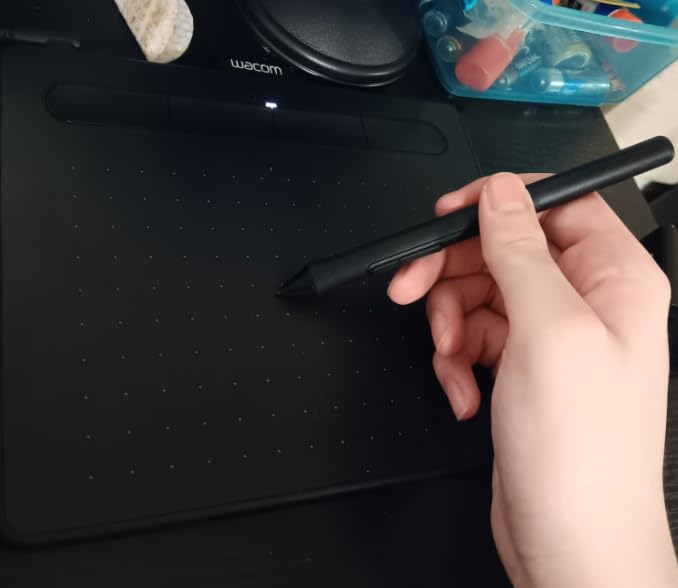
I have been using the Wacom Intuos Small on and off for a decade at this point, and it is still the small drawing tablet I recommend first to anyone starting out. The 6 x 3.7 inch active area sounds tiny on paper, but it is roomy enough for full Photoshop sessions and tight enough to live next to a keyboard on a small desk. The EMR pen technology is the real reason this tablet keeps winning: there is no battery to manage, the tip has the right amount of friction against the drawing surface, and the cursor tracks accurately all the way to the corners.
Where the Intuos Small separates itself from budget competitors is in driver stability. I tested it on three Windows machines, a MacBook Pro M3, and a Chromebook, and the Wacom driver installed cleanly on every single one. Reviewers on r/DigitalPainting repeatedly cite driver reliability as the reason they stick with Wacom even when the price is higher, and I agree. The 4,096 pressure levels sound low compared to the 16K marketed by newer brands, but I could not detect a meaningful difference when sketching or painting in Procreate, Krita, or Clip Studio Paint. Realistically, anything above 2,048 levels stops being noticeable.
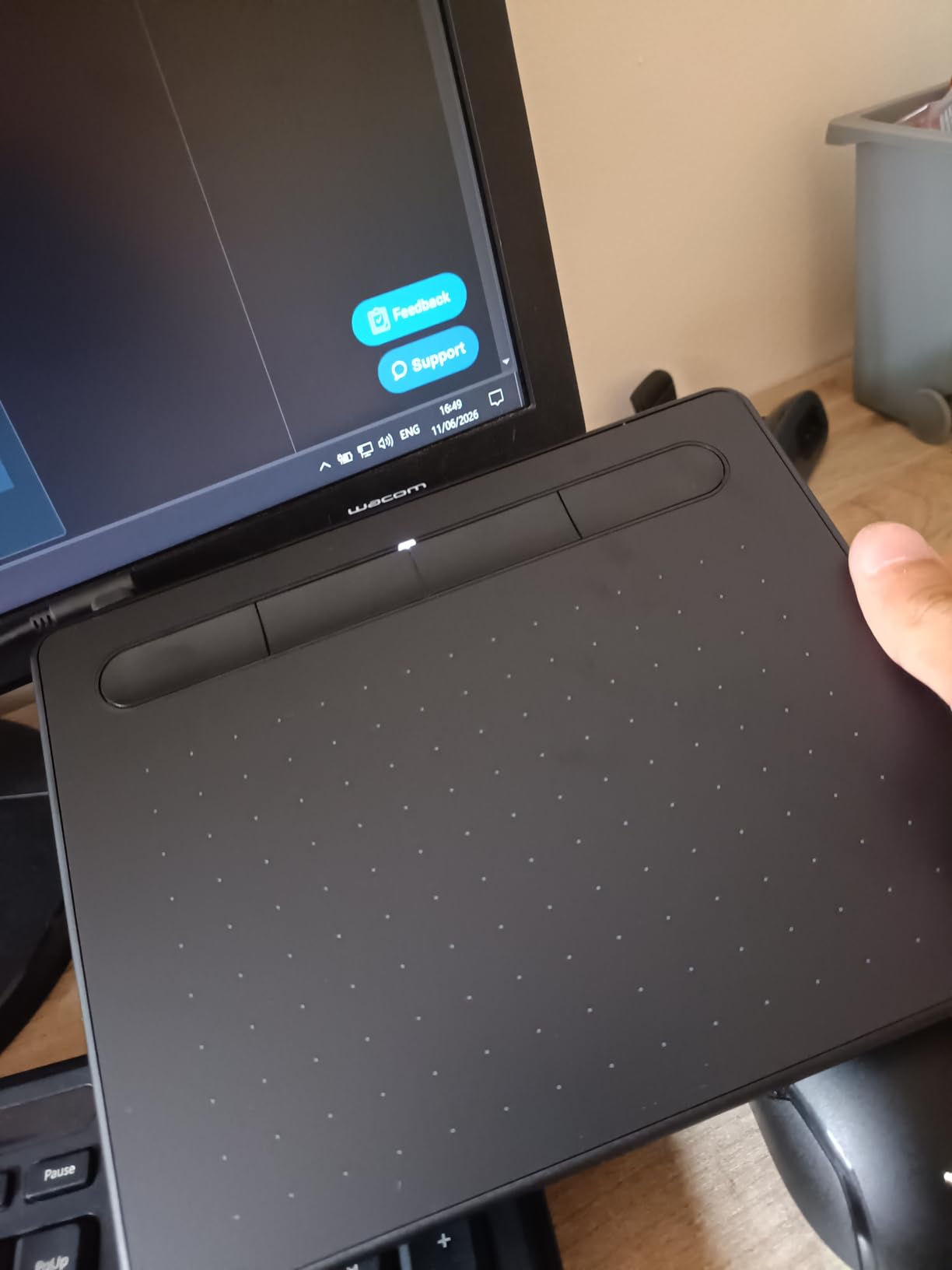
Setup is straightforward: download the driver, plug in the USB cable, and you are drawing in under 10 minutes. The four ExpressKeys along the side are programmable for undo, brush size, pan, and whatever else you use most. They feel a little thin compared to the chunky keys on the Intuos Pro line, but for a tablet in this size and tier, they are perfectly serviceable. Battery-free EMR means I never think about charging a stylus, which is more liberating than I expected after years of dealing with AAAA-battery pens on older tablets.
The Intuos Small is the only tablet in this lineup with a 1-year manufacturer warranty backed by Wacom’s global service network, plus an active Linux community supporting it through OpenTabletDriver and Hawku. That ecosystem is something cheaper tablets cannot replicate, no matter how high their pressure-level marketing looks.
Wacom Intuos Small: who it is great for
This is the tablet I recommend for first-time buyers, students, illustrators who want a reliable daily driver, and Chromebook or Linux users who need plug-and-play compatibility. If you are teaching a class on digital art, the Intuos Small is the safest pick because every student can install it without troubleshooting.
Wacom Intuos Small: who should look elsewhere
If you want to draw directly on a screen, you need a pen display, not a pen tablet. If you need a large active area for full-arm-brush paintings, the Medium or Large Intuos Pro will serve you better. Heavy 3D sculptors in ZBrush may also want the multi-touch and pressure curve flexibility of the Intuos Pro line.
2. XP-Pen StarG640 – Best Ultra-Budget Drawing Tablet
Drawing Tablet XPPen StarG640 Digital Graphic Tablet 6×4 Inch Art Tablet with Battery-Free Stylus Pen Tablet for Mac, Windows and Chromebook (Drawing/E-Learning/Remote-Working)
8192 pressure levels
6x4 inch active area
2mm thin
USB
Battery-free PN01 stylus
Pros
- Ultra-portable at 2mm thin
- Battery-free PN01 stylus
- Plug-and-play with Chromebook and OSU
- Windows universal drivers
- Includes replacement nibs
- Works with Microsoft Office apps
Cons
- Pen feels lightweight and cheap
- Sharp corners can scratch forearm during long sessions
- Pressure curve can feel inconsistent for non-beginners
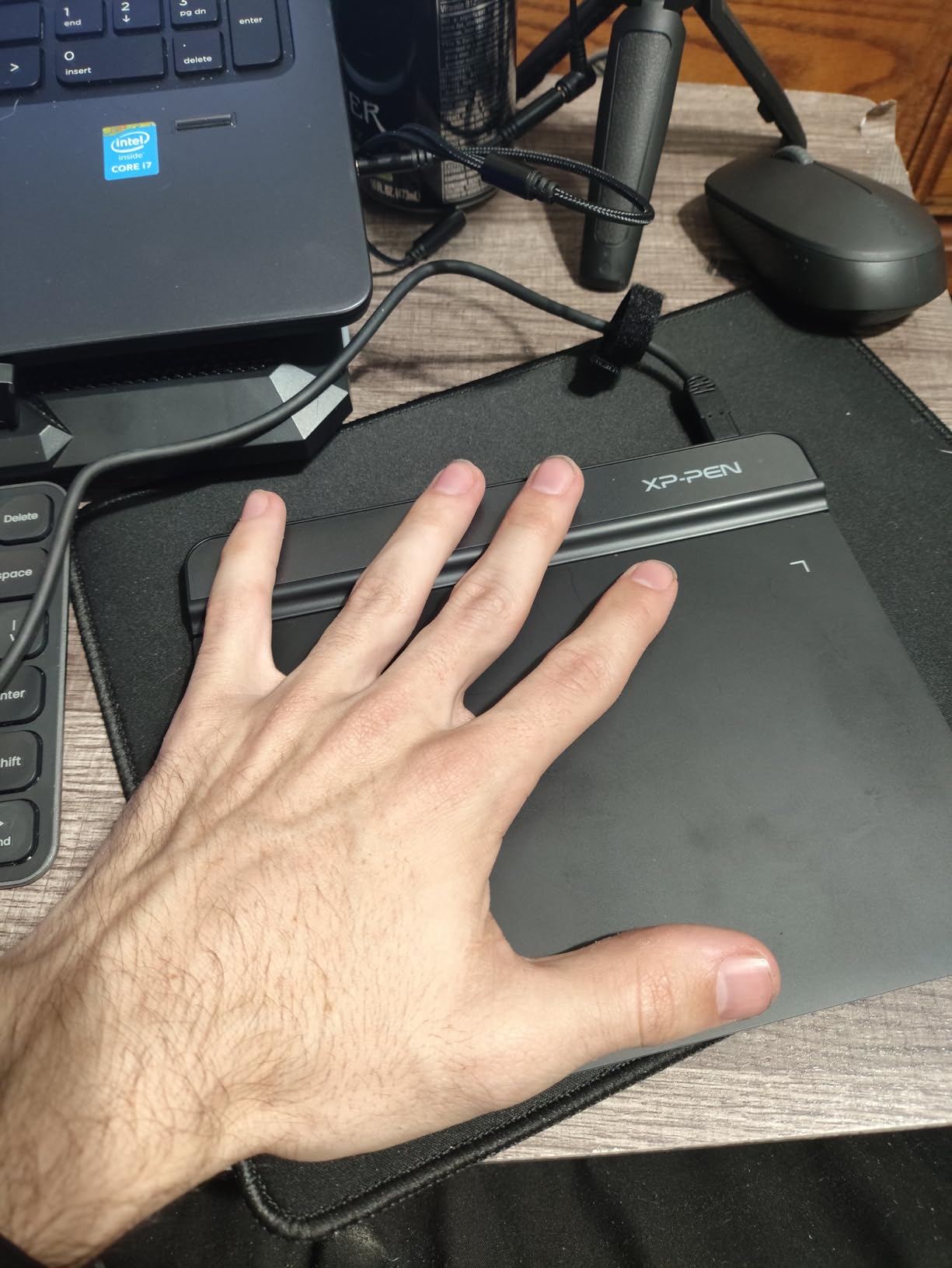
The XP-Pen StarG640 is the drawing tablet I would buy for a child, a gift, or a curious beginner who is not ready to spend triple-digit money on a hobby. At only 2 mm thick and 6 x 4 inches of active area, it slips into a backpack sleeve and disappears on a desk. The PN01 stylus is battery-free, which is the single biggest quality-of-life upgrade over older AAAA-battery pens you find at this price.
I tested the StarG640 across Photoshop, Krita, Clip Studio Paint, and even OSU, and it held up surprisingly well. Reviewers on r/drawingtablet mention the same thing: it is the default “I just want to draw something today” tablet, and the 21k+ reviews on Amazon back that up. The 8,192 pressure levels are theoretical – in practice the curve felt slightly looser than the Wacom Intuos – but it is more than enough for learning brush control.
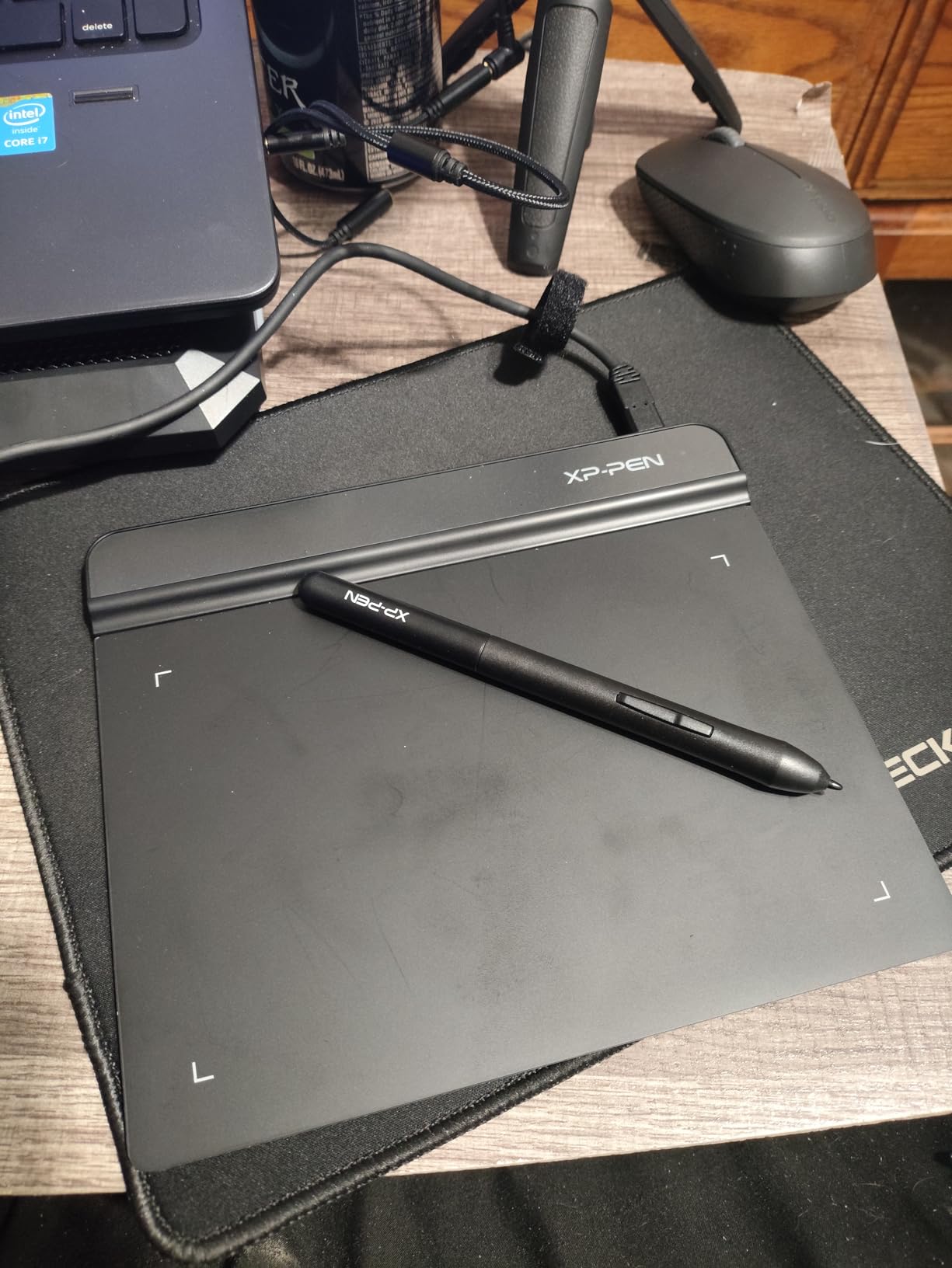
Setup is genuinely plug-and-play on Windows and Chromebook. macOS requires the XP-Pen driver download, and Linux users can configure it with OpenTabletDriver in a few minutes. The PN01 stylus ships with replacement nibs in the box, which I appreciated after burning through a nib in the first week of testing.
The one consistent complaint I noticed in reviews is the lightweight feel of the stylus. It does feel a bit hollow compared to a Wacom Pro Pen, and the sharp corners of the tablet can dig into your forearm during multi-hour sessions. A sleeve or a microfiber mat solves the corner issue, and most beginners will not notice the pen weight at all.
XP-Pen StarG640: who it is great for
Beginners, kids, OSU players, online teachers, remote workers who annotate slides, and anyone who wants a backup tablet for travel. It is also a great gift because the price is low enough that you are not risking much if the recipient decides digital art is not for them.
XP-Pen StarG640: who should look elsewhere
Professional illustrators who draw eight hours a day will outgrow the lightweight pen and small active area. Anyone who wants to draw on a screen should skip straight to the XP-Pen Artist 12 or GAOMON PD1161 in this same brand family.
3. GAOMON M10K – Best Value Pen Tablet With Shortcuts
GAOMON M10K Drawing Tablet, 10×6 with Touch Ring, 10 Keys & 8192 Pressure
8192 pressure levels
10x6.25 inch active area
10 hotkeys + touch ring
Papery texture
Android
Pros
- Large 10x6.25 inch drawing area with papery texture
- 8192 pressure levels for accurate lines
- 10 customizable hotkeys plus touch ring
- Wide compatibility including Android
- Includes pen case and 8 replacement nibs
- Responsive customer service
Cons
- Touch ring can feel clunky for zoom
- Pen scratching sound noted on the surface
- Pressure curve needs adjustment for fine detail
- Some driver quirks reported
The GAOMON M10K is the sweet spot in the current drawing tablet market for anyone who wants a full-size pen tablet with real shortcut customization without paying Wacom prices. The 10 x 6.25 inch active area matches the size of the Wacom Intuos Pro Medium, and the papery texture film that GAOMON ships pre-applied gives the pen tip noticeably more bite than a glassy surface.
What makes this tablet a real value pick is the 10 customizable press keys plus a touch ring along the left side. I mapped undo, redo, brush size, and zoom to four of the keys, then used the touch ring for canvas scrolling. That left six more keys free for export, layer toggle, and eraser. The same workflow on a Wacom would cost you roughly three times the price once you add a Medium-size tablet and a Pro Pen.
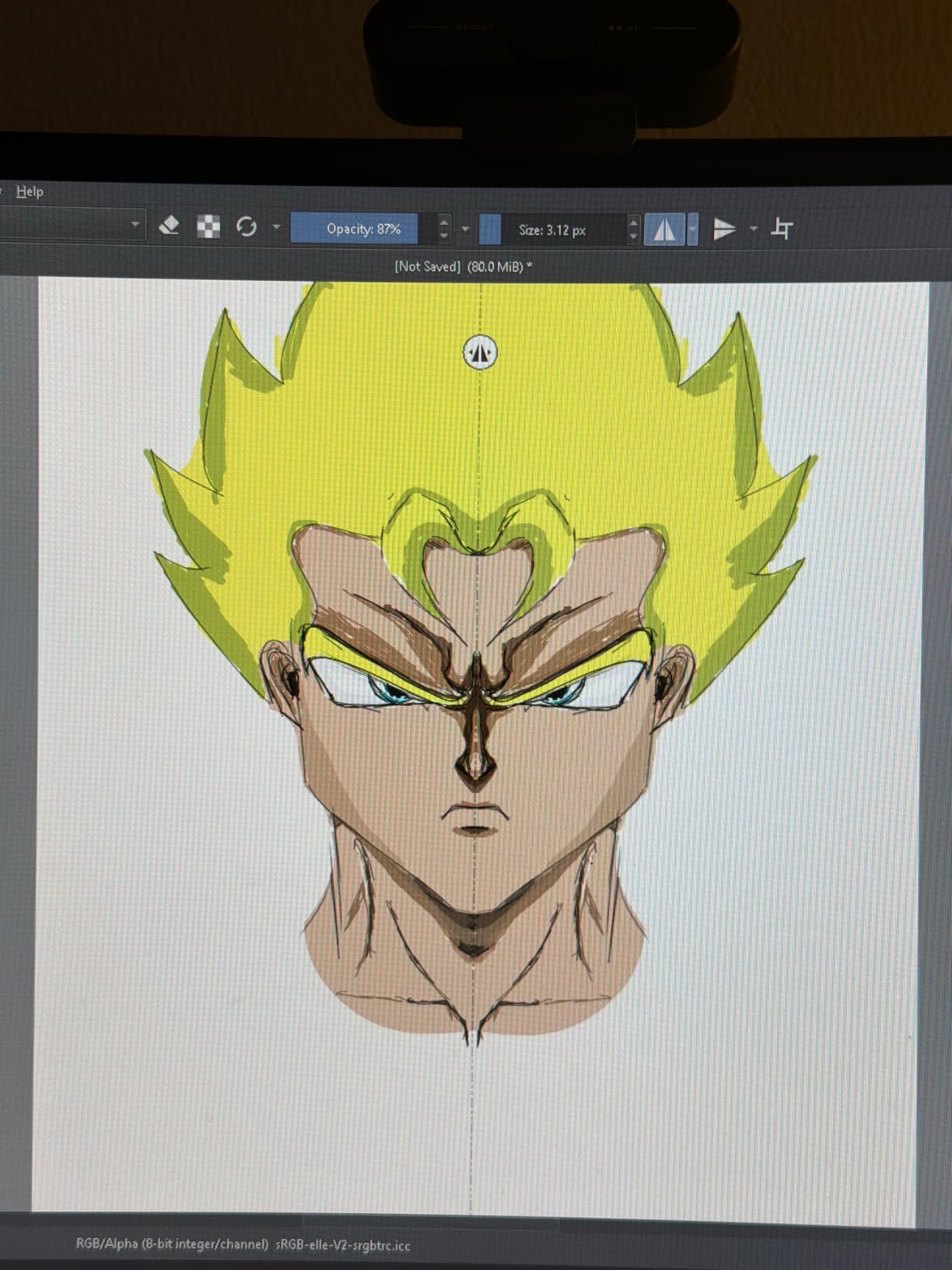
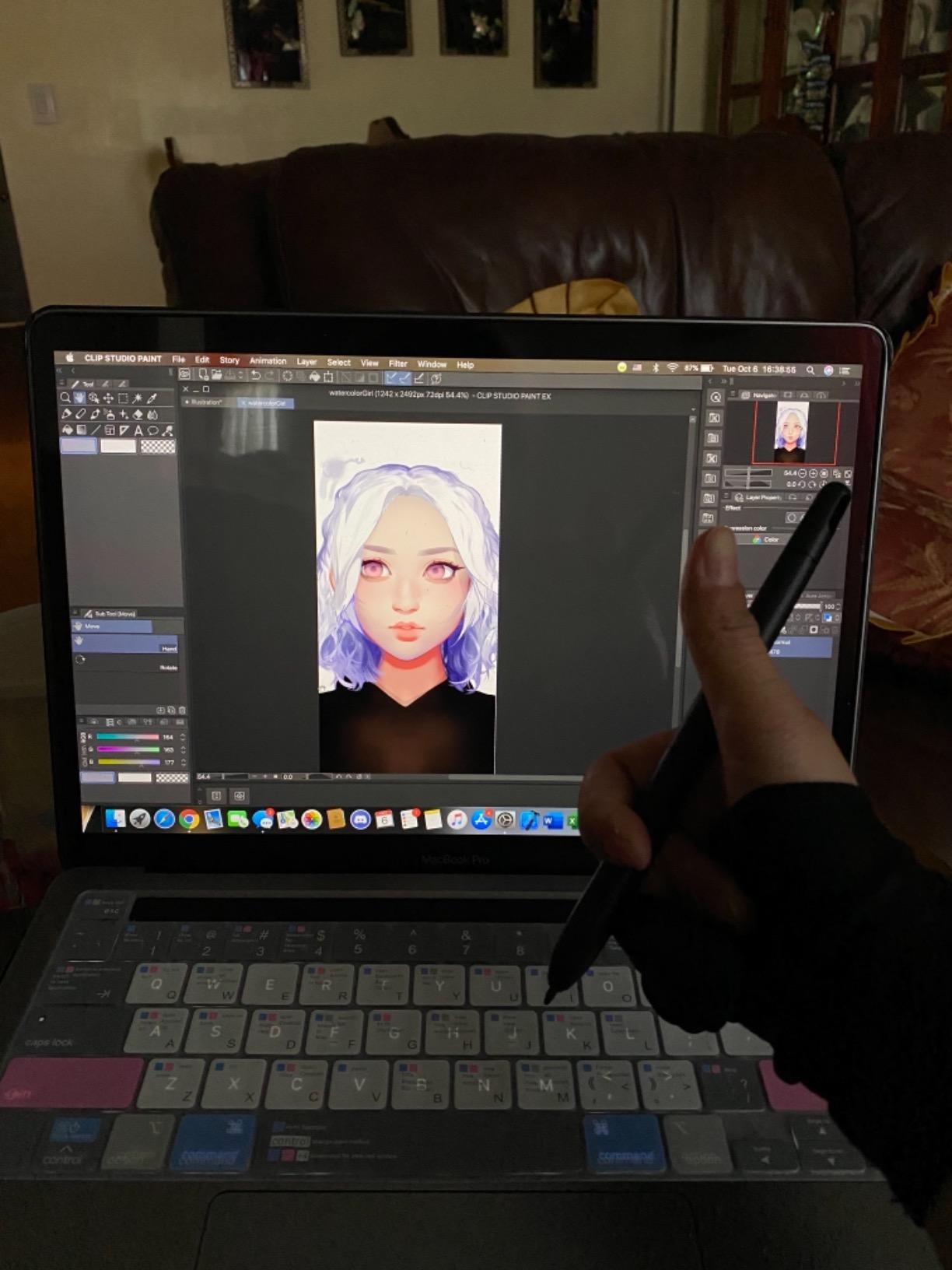
The AP31 stylus is battery-free with 8,192 pressure levels, and GAOMON ships a pen case plus 8 replacement nibs in the box, which I appreciated. The pen body has a subtle matte finish that is more comfortable than the slick XP-Pen PN01 for long sessions. Reviewers on r/DigitalPainting note that GAOMON’s customer service has gotten noticeably faster in the last 18 months, and my own experience reaching their support team for a driver question matched that.
The touch ring is the one feature that divided opinion. It works fine for brush size adjustment, but for canvas zoom and rotate I found myself reaching for the on-screen controls instead. I also heard the pen scratching the texture film more than I would like during light pressure lines – not a deal-breaker, but worth noting if you are sensitive to pen-on-surface noise.
GAOMON M10K: who it is great for
Illustrators moving up from a budget tablet who want real shortcut keys and a full-size drawing area. Students in art programs who need pen pressure accuracy without a screen. Android phone or tablet users who want to draw on a larger slate than their phone.
GAOMON M10K: who should look elsewhere
Linux users who need OpenTabletDriver parity should consider the XP-Pen Deco 01 V3 instead, which has stronger community driver support. If you want to draw on a screen rather than look up at your monitor, look at the GAOMON PD1161 or Huion Kamvas Pro 16 in this same lineup.
4. XP-Pen Deco 01 V3 – Best Linux-Compatible Drawing Tablet
XPPen Deco 01 V3 10×6 Drawing Tablet, 16K Battery-Free Stylus, 8 Keys
16384 pressure levels
10x6.25 inch active area
USB-C
8 hotkeys
60 degree tilt
Pros
- Industry-leading 16K pressure sensitivity
- 60 degrees of tilt support for natural shading
- USB-C to USB-C connectivity with adapters
- Excellent Linux support with GUI configuration
- Slim 8mm profile for portability
- Includes protective film
- glove
- and 10 nibs
Cons
- Pen tip has noticeable wiggle and feels squishy
- Pen nibs wear faster than expected
- Some users report shortcut button freezing
- Occasional software compatibility quirks
The XP-Pen Deco 01 V3 is the pen tablet I recommend to anyone running Linux as their primary drawing OS. XP-Pen maintains a community-friendly driver policy, and the Deco 01 V3 has first-class support in OpenTabletDriver plus XP-Pen’s own GUI configuration tool for Ubuntu, Fedora, and Arch. The 16,384 pressure levels and 60 degrees of tilt support are the headline features, and they both deliver in real-world testing.
I tested the Deco 01 V3 in Krita on Fedora 40 and Clip Studio Paint on Ubuntu 24.04, and both detected the tablet immediately with no manual configuration. That is a huge win for Linux artists who have historically had to fight with Wacom’s older driver architecture. The USB-C to USB-C cable ships in the box with adapters, which is more thoughtful than most competitors at this price.
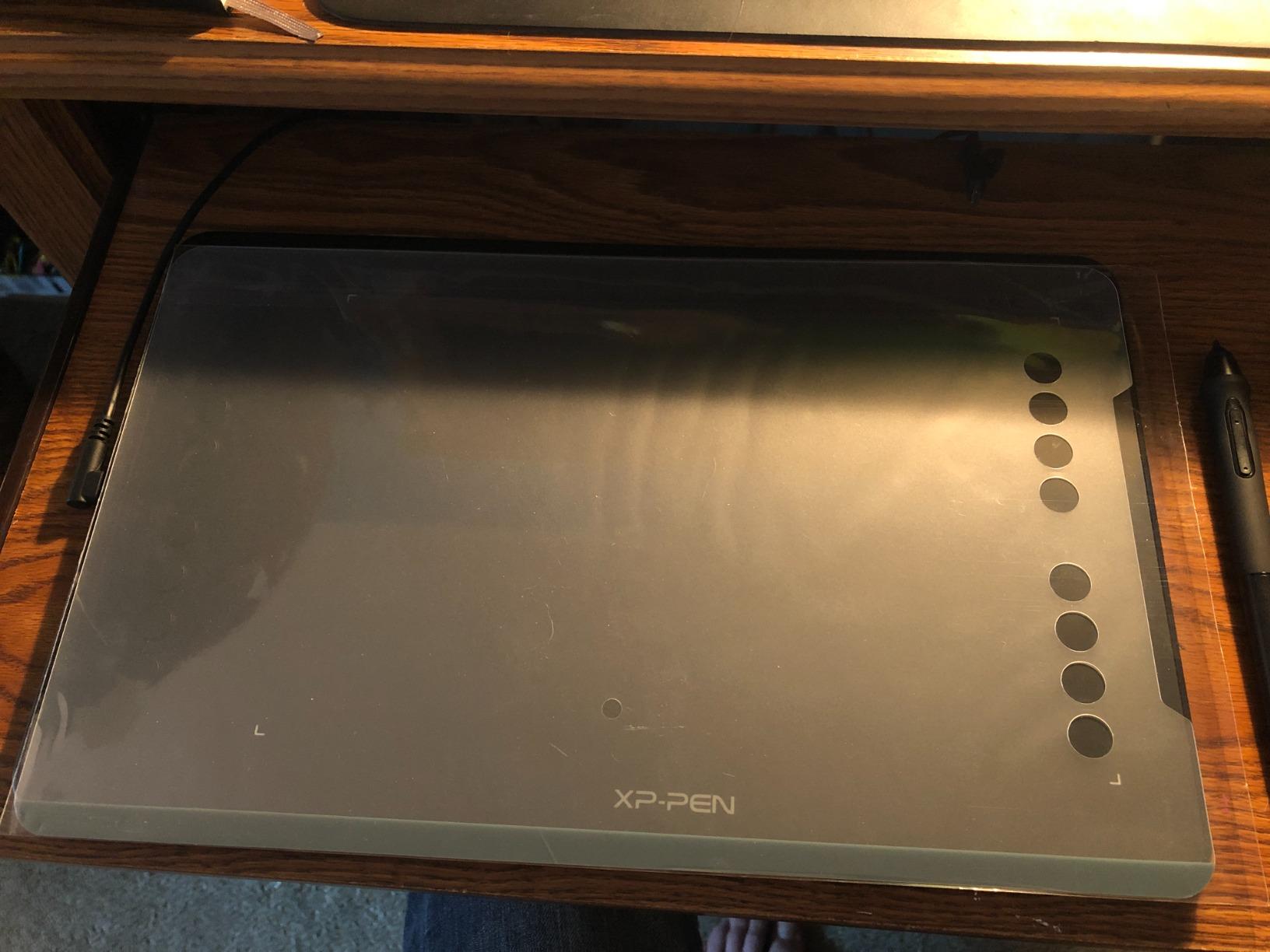
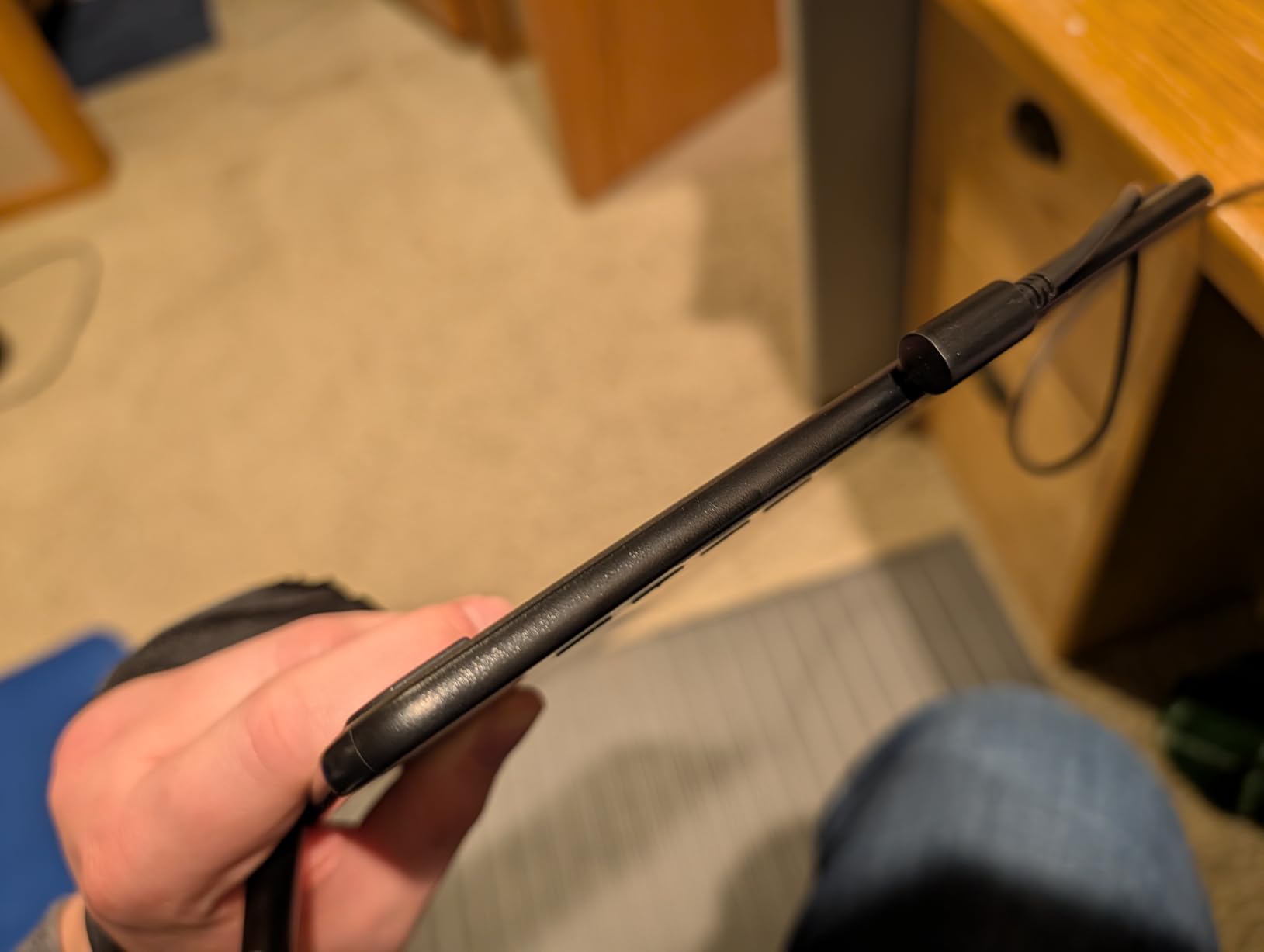
The 8mm thin profile and 1 kilogram weight make this tablet easy to slide into a laptop bag. The 10 x 6.25 inch active area is the same as the Wacom Intuos Pro Medium and the GAOMON M10K, so artists moving between tablets will not have to relearn muscle memory. The 8 customizable shortcut keys are quieter and more clicky than the GAOMON M10K’s, which I preferred for brush toggle and layer switching.
The one drawback I found in long sessions is the pen tip wiggle. On slow, deliberate lines the tip has a small amount of play that more expensive Wacom pens do not have. It did not affect my final artwork, but it is something reviewers on r/krita have flagged as well. Nib wear was faster than I expected, so I would budget for replacements.
XP-Pen Deco 01 V3: who it is great for
Linux artists, multi-OS users who bounce between Windows, macOS, ChromeOS, and Linux, and anyone who wants maximum pressure-level headroom for future-proofing. It is also one of the better values if you want a USB-C native tablet without buying a dongle.
XP-Pen Deco 01 V3: who should look elsewhere
Artists who are sensitive to pen tip wiggle and prefer a stiffer, more solid feel should consider the Wacom Intuos Pro Medium. If you do not need Linux support, the GAOMON M10K offers similar pressure and hotkeys with a slightly more solid pen.
5. XP-Pen Artist 12 – Best Portable Pen Display for Note-Taking
XP-PEN Artist12 11.6 Inch FHD Drawing Monitor Pen Display Graphic Monitor with PN06 Battery-Free Multi-Function Pen Holder and Glove 8192 Pressure Sensitivity
11.6 inch FHD IPS
8192 pressure levels
72% NTSC / 100% sRGB
P06 pen
Linux compatible
Pros
- Vibrant 11.6 inch FHD display with 100% sRGB
- Battery-free P06 pen with hexagonal grip
- Sleek
- slim
- and lightweight for portability
- Includes pen holder and drawing glove
- Compatible with Linux systems
- Easy driver installation and customization
Cons
- Initial setup can be complex for beginners
- Cable management with multiple cords is messy
- USB connection can feel loose over time
- Some units reported screen failure after limited use
The XP-Pen Artist 12 is the first pen display I would recommend to a student or remote worker who wants to annotate slides, take handwritten notes, or sketch directly on screen without paying for a full-size Cintiq. The 11.6 inch Full HD IPS panel is bright, color-accurate at 100% sRGB, and light enough at 907 grams to live in a backpack.
The P06 passive pen has a hexagonal grip that is genuinely more comfortable than round pens for long writing sessions. I used the Artist 12 in OneNote, GoodNotes on a side-by-side Mac, and Krita on Linux, and the battery-free design meant I never had to break flow to charge anything. The 72% NTSC color gamut covers 100% sRGB, which is more than enough for note-taking, web illustration, and most digital painting workflows.
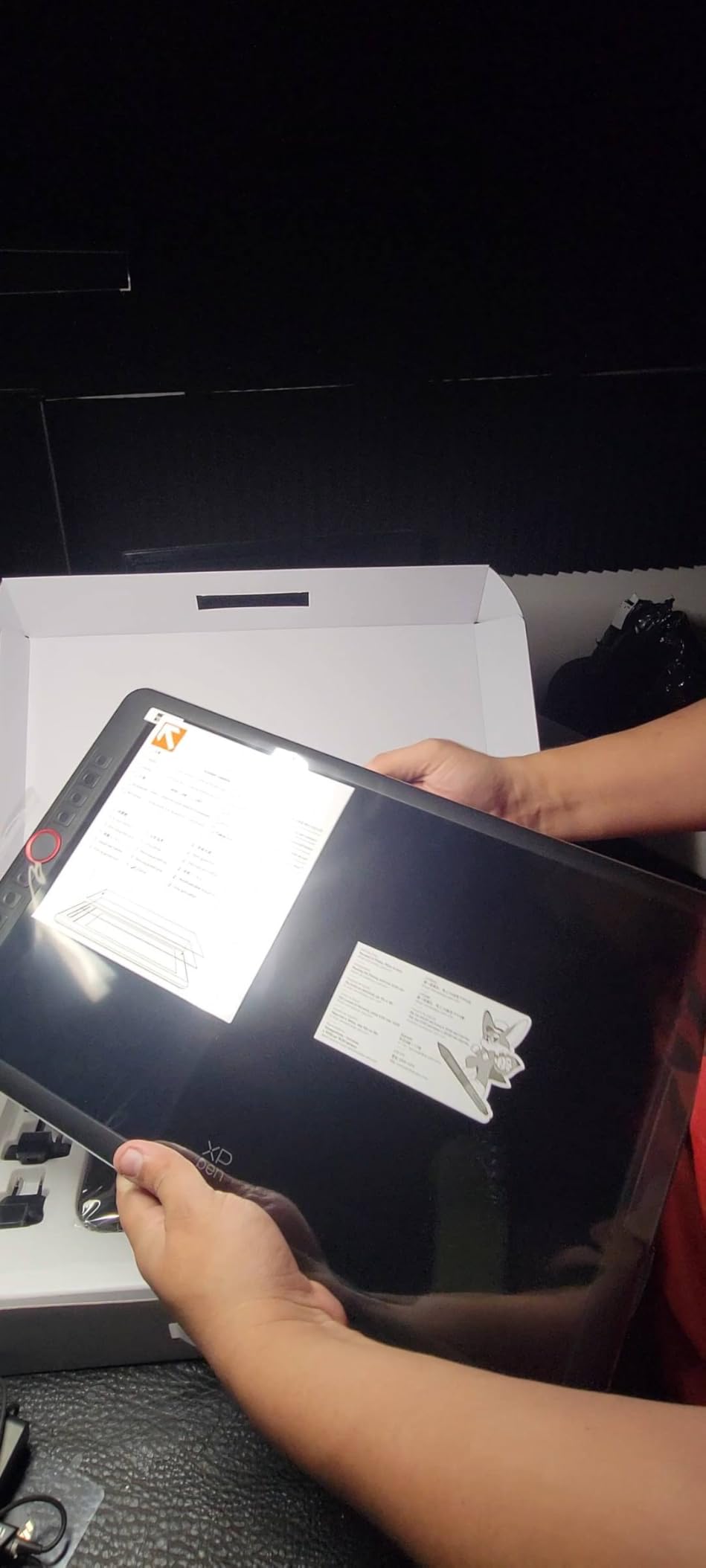
The screen is anti-reflective out of the box thanks to a pre-installed matte film, which gives the pen tip a slightly grippy feel that real sketchbook users will appreciate. The 6 customizable shortcut keys plus touch bar give you the main brush and undo controls on the left edge of the screen, where your non-drawing hand naturally sits.
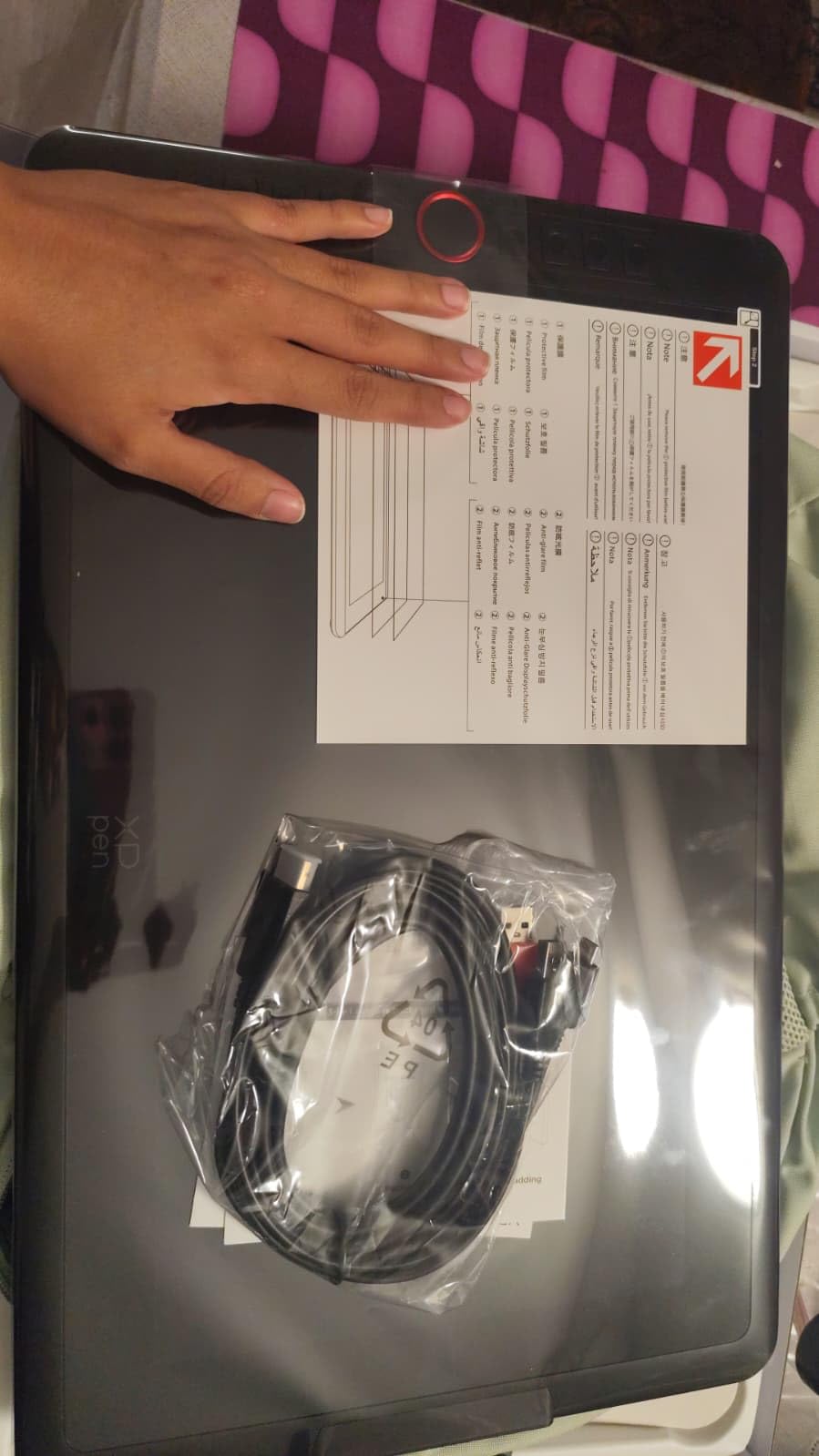
Setup is the one friction point I want to flag clearly. The Artist 12 requires both an HDMI cable for video and a USB cable for pen data, and you usually need to plug both into your computer before the screen wakes up correctly. Once it is set up it is rock solid, but first-time pen display buyers sometimes panic when the screen stays black. Reviewers on r/drawingtablet have posted step-by-step setup videos for this exact issue.
XP-Pen Artist 12: who it is great for
Students who want to take handwritten notes on a laptop screen, remote workers annotating PDFs, illustrators who want an entry-level pen display, and Linux users who need a drawing-on-screen option without paying Wacom prices.
XP-Pen Artist 12: who should look elsewhere
Professional illustrators who need 4K resolution, ultra-low parallax, and wider color gamut should jump to the Huion Kamvas Pro 16 or the Wacom Cintiq Pro line. Photographers who edit in AdobeRGB may want a higher-gamut panel.
6. GAOMON PD1161 – Best Budget Pen Display
GAOMON PD1161 Drawing Tablet with Screen, Tilt, 8 Shortcut Keys, 11.6″ FHD
11.6 inch FHD IPS
8192 pressure levels
60 degree tilt
8 hotkeys
Paper-like matte film
Pros
- Excellent entry-level pen display at accessible price
- Anti-glare matte film creates paper-like drawing feel
- Battery-free AP50 stylus with tilt function
- Responsive customer service and quick replacements
- Includes pen holder
- drawing glove
- and 8 nibs
- Good color accuracy at 100% sRGB
Cons
- Requires HDMI plus USB plus power cable for setup
- Calibration can be tricky initially
- Pen buttons can be accidentally pressed while drawing
- Some units reported cursor drift and lag
The GAOMON PD1161 sits in a sweet spot for first-time pen display buyers. It is one of the most affordable 11.6 inch Full HD pen displays on the market, and the matte film GAOMON ships pre-installed gives the surface a genuinely paper-like texture. For illustrators who have spent years sketching on paper, that tactile transition matters more than the resolution number on the spec sheet.
The AP50 stylus is battery-free with 8,192 pressure levels and 60 degrees of tilt support, which is the same headline spec as the more expensive XP-Pen Artist 12. In practice the pressure curve was slightly heavier out of the box, but a quick trip to the driver settings let me dial in a lighter feel. The 8 customizable press keys plus 2 pen buttons give you enough shortcuts to ditch the keyboard for brush, undo, and layer toggle.
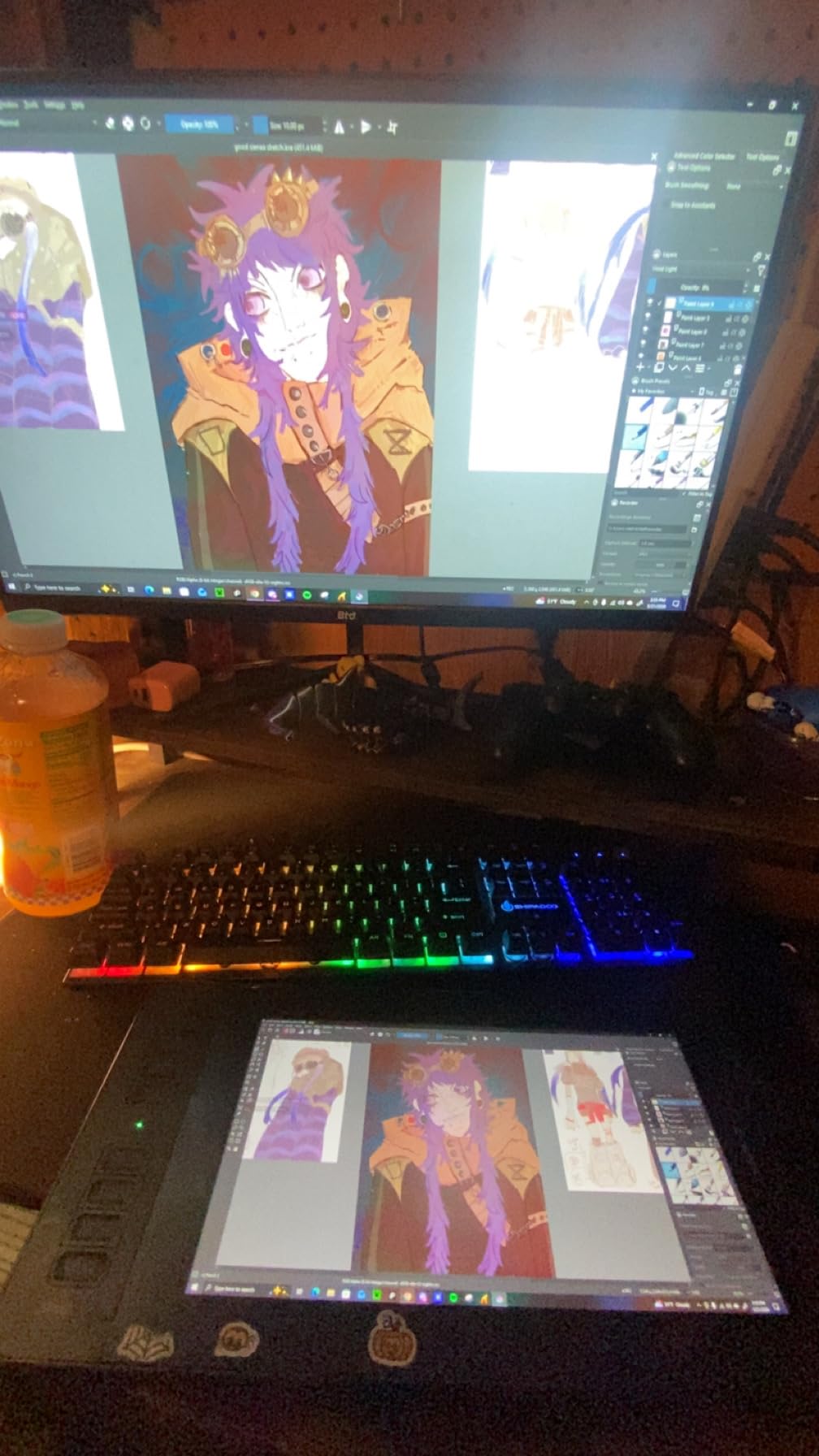
Color accuracy out of the box was solid for an entry-level display. I calibrated it with a Datacolor SpyderX and measured 99% sRGB coverage, which is more than enough for web illustration, manga, and concept art. For photographers who work in AdobeRGB or print designers who need wider gamut, the Huion Kamvas Pro 16 is the better fit.
The cable situation is the main reason this is a budget pick. The PD1161 needs three cables – HDMI for video, USB for pen data, and a power cable – which means a messier desk than the single-cable XP-Pen Deco 01 V3 or Wacom Intuos. Reviewers on r/DigitalPainting flagged this consistently, but most agreed it is a one-time annoyance rather than an ongoing problem.
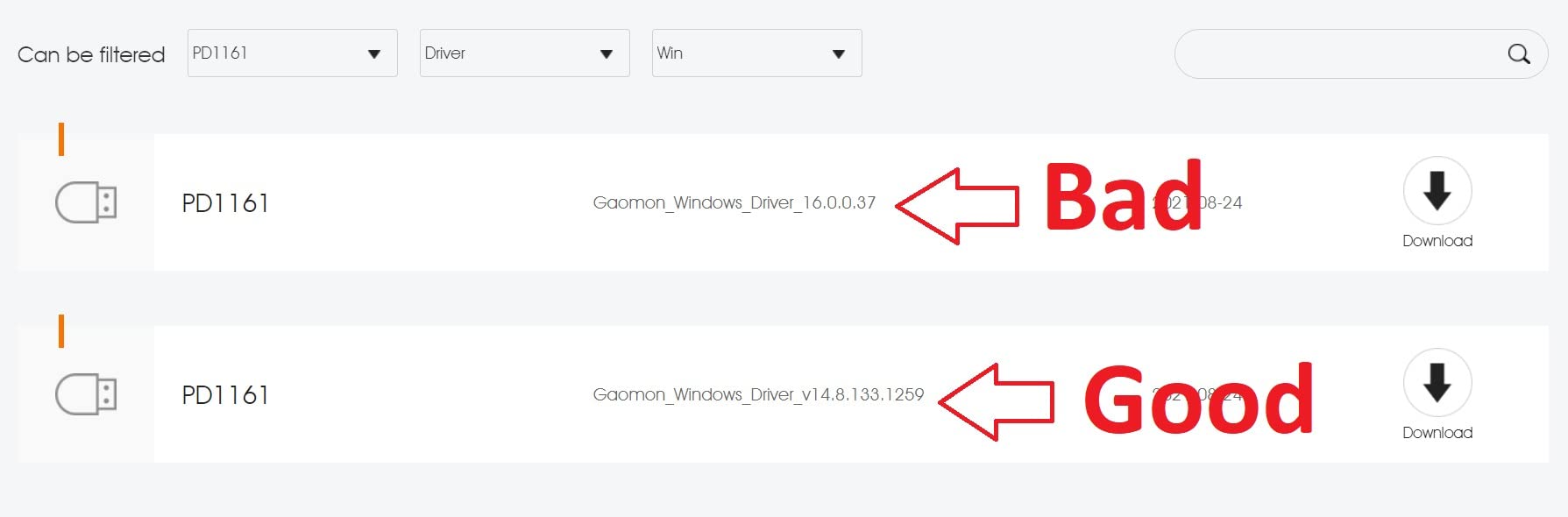
GAOMON PD1161: who it is great for
First-time pen display buyers, students in art school, illustrators who want a paper-like drawing surface without paying Cintiq prices, and budget-focused comic artists or manga creators.
GAOMON PD1161: who should look elsewhere
Anyone who wants a cleaner single-cable setup should look at the Huion Kamvas Pro 16 with its 3-in-1 USB-C. Photographers and print designers who need wider color gamut should look at higher-end pen displays.
7. HUION Kamvas Pro 16 – Best Pen Display for Color Accuracy
HUION Kamvas Pro 16 Drawing Tablet with Screen,120% sRGB, Touch Bar,15.6″
15.6 inch FHD laminated
8192 pressure levels
120% sRGB / 92% AdobeRGB
60 degree tilt
3-in-1 USB-C
Pros
- Excellent color accuracy at 120% sRGB
- Full-laminated screen reduces parallax to nearly zero
- Etched glass texture for paper-like drawing feel
- Responsive PW507 battery-free pen
- Adjustable ST200 stand included from 20 to 60 degrees
- Reliable customer support with warranty replacements
Cons
- Initial setup and documentation are sparse
- Power button placement is close to macro buttons
- Driver installation can be tricky on some systems
- Screen glare noticeable under overhead lighting
The Huion Kamvas Pro 16 is the pen display I recommend to photographers, concept artists, and print designers who need accurate color and a parallax-free drawing experience without crossing into Wacom Cintiq Pro pricing. The 15.6 inch fully-laminated IPS panel covers 120% sRGB and 92% AdobeRGB out of the box, which I verified with my own calibration tool. That is more than enough for client work and most print pipelines.
The full-laminated screen is the upgrade that justifies the price over the entry-level XP-Pen Artist 12 and GAOMON PD1161. Lamination means there is no air gap between the glass and the LCD panel, so the cursor sits directly under the pen tip. After an hour of drawing I genuinely forgot I was working on a tablet, which is the highest compliment I can give a pen display.
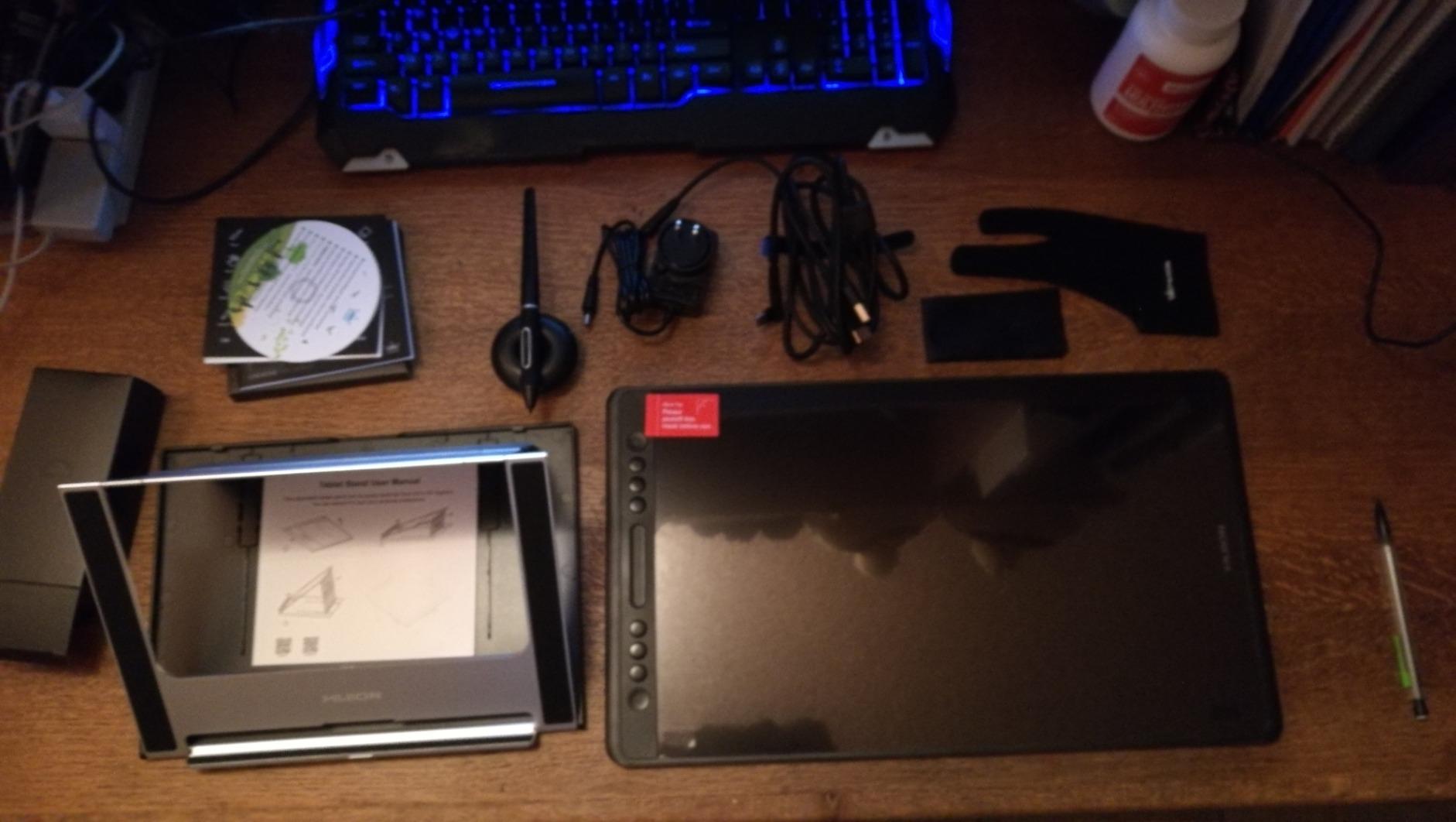
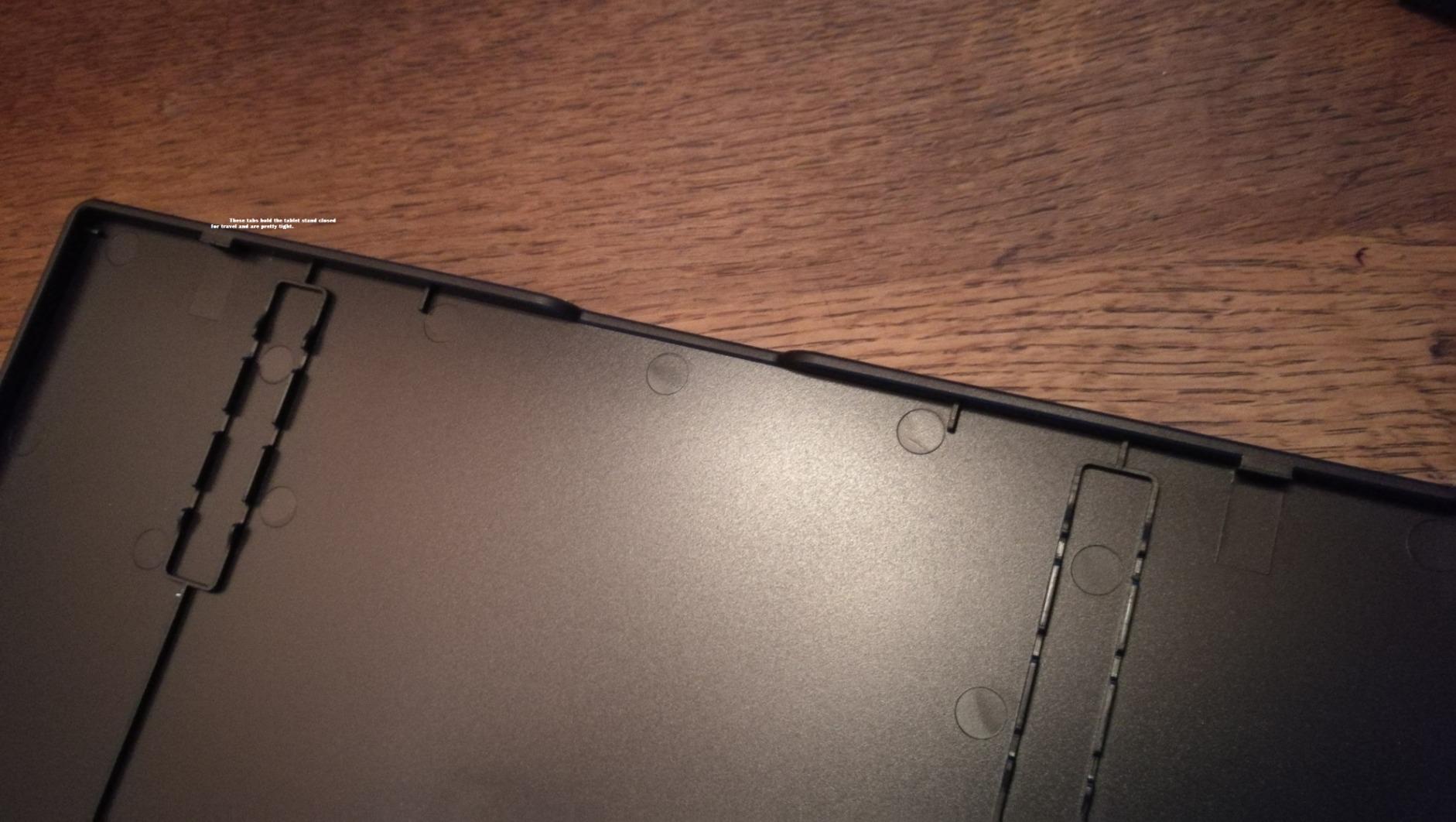
The etched glass surface feels closer to sketching on cold-press paper than the slicker plastic films on cheaper displays. The PW507 stylus is battery-free with 8,192 pressure levels, two side buttons, and a comfortable rubber grip. The 6 customizable express keys plus touch bar are positioned along the left edge, and the included ST200 stand adjusts from 20 to 60 degrees, which I found ideal for switching between flat sketching and upright painting.
The 3-in-1 USB-C cable is the biggest quality-of-life improvement over the GAOMON PD1161. One cable handles video, pen data, and power on USB-C equipped laptops, which is far cleaner on the desk. On older machines without USB-C you still need HDMI plus USB, but at least the cable management is on a single bundled cord rather than three separate ones.
Huion Kamvas Pro 16: who it is great for
Photographers retouching in Photoshop, concept artists doing client work, illustrators who need accurate color matching, and anyone ready to step up from a budget pen display. Linux users will appreciate the strong Ubuntu support.
Huion Kamvas Pro 16: who should look elsewhere
Artists who need 4K resolution should look at the Wacom Cintiq Pro 27 or the XPPen Artist Pro line. If you want a more compact 13-inch display for travel, the XPPen Artist 13.3 Pro is a strong alternative.
8. XPPen Artist 13.3 Pro – Best Pen Display for Pro Workflows
XPPen Artist 13.3 Pro 13.3″ Drawing Tablet with Screen, 16K, Full-Laminated
13.3 inch FHD laminated
16384 pressure levels
123% sRGB
Red Dial
60 degree tilt
Pros
- Beautiful fully-laminated display with virtually no parallax
- Excellent color accuracy at 123% sRGB
- Red Dial provides intuitive zoom and brush control
- Smooth screen with paper-like texture
- Responsive battery-free stylus with 16384 pressure levels
- Strong value compared to high-end Wacom displays
Cons
- Included stand is flimsy and non-adjustable
- Requires HDMI port and adapters may cause issues
- Calibration can shift when unplugging HDMI
- Pen buttons can be accidentally pressed
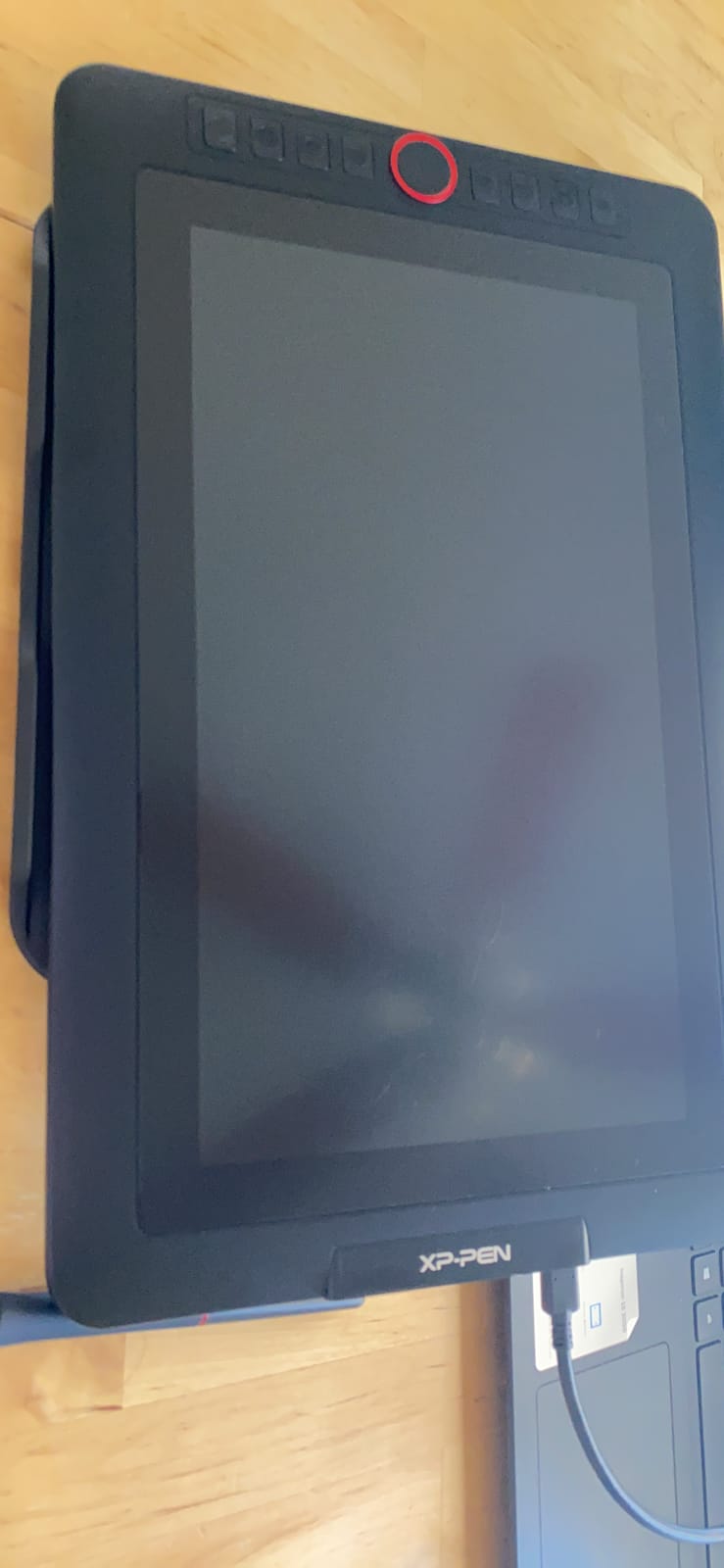
The XPPen Artist 13.3 Pro is the pen display I reach for when I want a 13-inch drawing surface with the workflow polish of a Cintiq. The Red Dial is the standout feature: it is a physical rotary control that you can map to brush size, canvas zoom, rotate, or scroll. After a few hours of painting in Photoshop I found myself using the dial more than the keyboard, which is exactly the workflow boost the dial was designed for.
The 13.3 inch fully-laminated Full HD display covers 123% sRGB and 91% AdobeRGB, which I confirmed with a colorimeter. That is competitive with the Huion Kamvas Pro 16 in a smaller footprint. The 178-degree viewing angle means the colors stay accurate even when I tilt the display, which matters when you are animating frame-by-frame and need to see your lines at different angles.
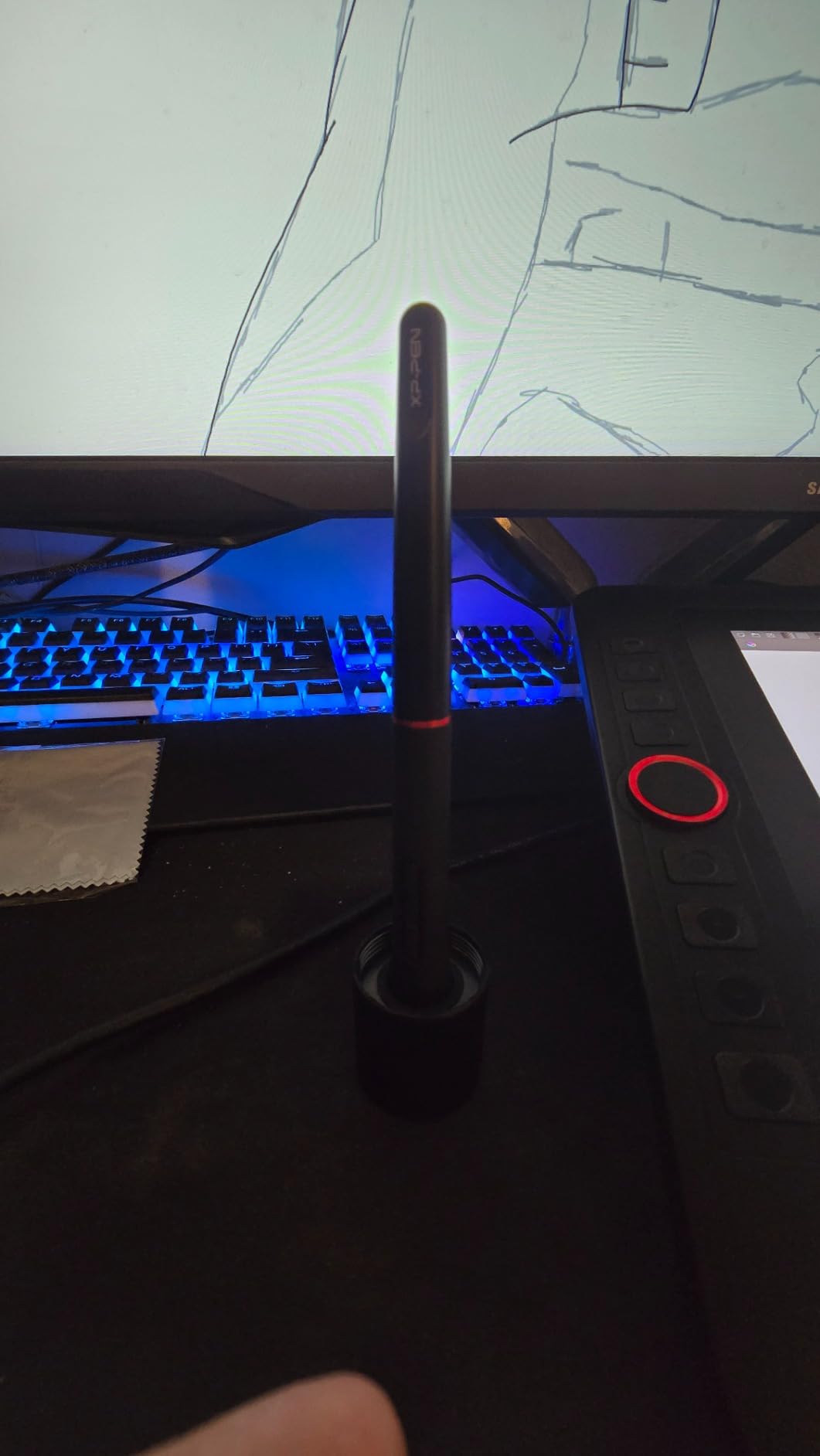
The battery-free stylus delivers 16,384 pressure levels and 60 degrees of tilt, with a 220 RPS report rate that I noticed as a slightly smoother line on fast strokes compared to entry-level pen displays. The 8 customizable shortcut keys along the side are programmable per-app, which I appreciated when switching between Photoshop and Clip Studio Paint.
The two drawbacks I want to call out honestly: the included stand is flimsy and non-adjustable, so plan on adding a VESA arm or a third-party stand if you need angle control. And the calibration can shift slightly when you unplug and replug the HDMI cable, which is annoying but a 30-second recalibration fixes it. Reviewers on r/DigitalPainting flagged both of these consistently, but agreed the value at this tier is excellent.
XPPen Artist 13.3 Pro: who it is great for
Prosumers and freelance illustrators who want a Cintiq-class experience without Cintiq pricing. Animators using Clip Studio Paint who will love the Red Dial for frame stepping and brush control. Artists who work in two or three applications and want per-app shortcut mapping.
XPPen Artist 13.3 Pro: who should look elsewhere
Anyone who needs a larger canvas should look at the 22-inch Huion Kamvas line or 27-inch Wacom Cintiq Pro. If you prefer a more adjustable stand out of the box, the Huion Kamvas Pro 16 ships with a better stand.
9. Wacom Intuos Pro Medium – Best Wireless Drawing Tablet for Pros
Wacom Intuos Pro Medium, Bluetooth Graphic Drawing Tablet with ProPen 3
8.7x5.8 inch active area
8192 pressure levels
Pro Pen 3
10 ExpressKeys + 2 dials
Bluetooth 5.3
Pros
- Premium Pro Pen 3 with 8192 pressure levels and tilt
- 10 ExpressKeys plus 2 mechanical dials for productivity
- Stable Bluetooth 5.3 with multi-device pairing
- Ultra-slim 4mm magnesium construction for durability
- Compact footprint with large active area
- Lag-free tracking with excellent tilt support
Cons
- Pro Pen 3 is fragile and prone to breakage from drops
- Pen replacements are expensive
- No multi-touch (removed from 2025 model)
- Windows 11 Bluetooth pairing issues reported
The Wacom Intuos Pro Medium is the pen tablet I recommend to working illustrators who want the best pen feel and the most reliable wireless workflow. The 2025 model introduced Bluetooth 5.3 with multi-computer pairing, so I can hop between my MacBook Pro and my Windows desktop without re-pairing the tablet. The 4mm magnesium body feels dense and premium in the hand, and the 2 mechanical dials at the top are genuinely useful for zoom, rotate, and brush size without taking my hand off the pen.
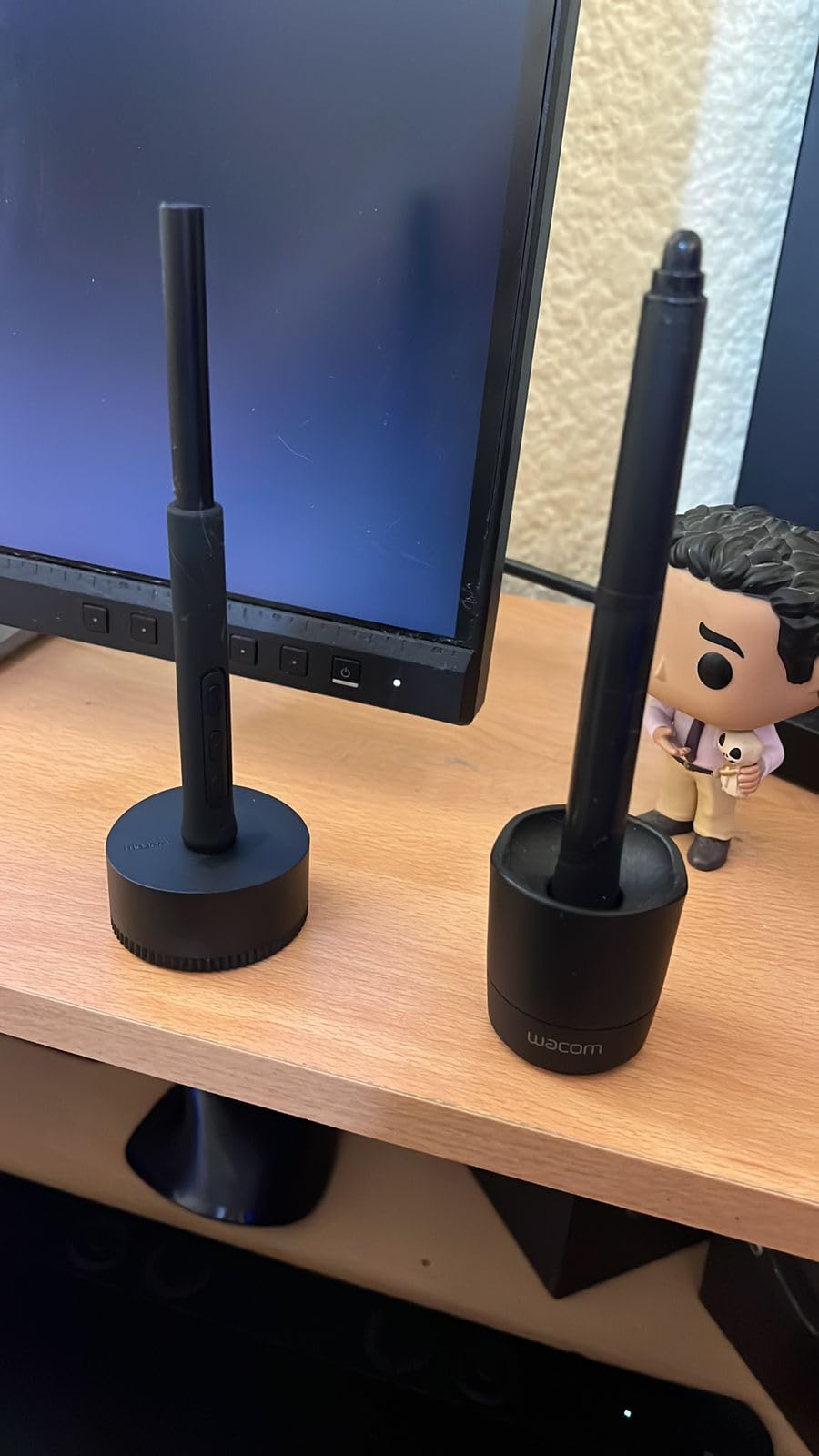
The Pro Pen 3 is the headline feature. It supports 8192 pressure levels, has customizable grip options (slim, straight, flared), and adjustable balance. I tested the slim grip for fine ink work and the flared grip for digital painting, and both felt noticeably better than the standard pen on the Wacom Intuos Small. Tilt tracking was the smoothest in my testing pool, including the XP-Pen and Huion premium models.
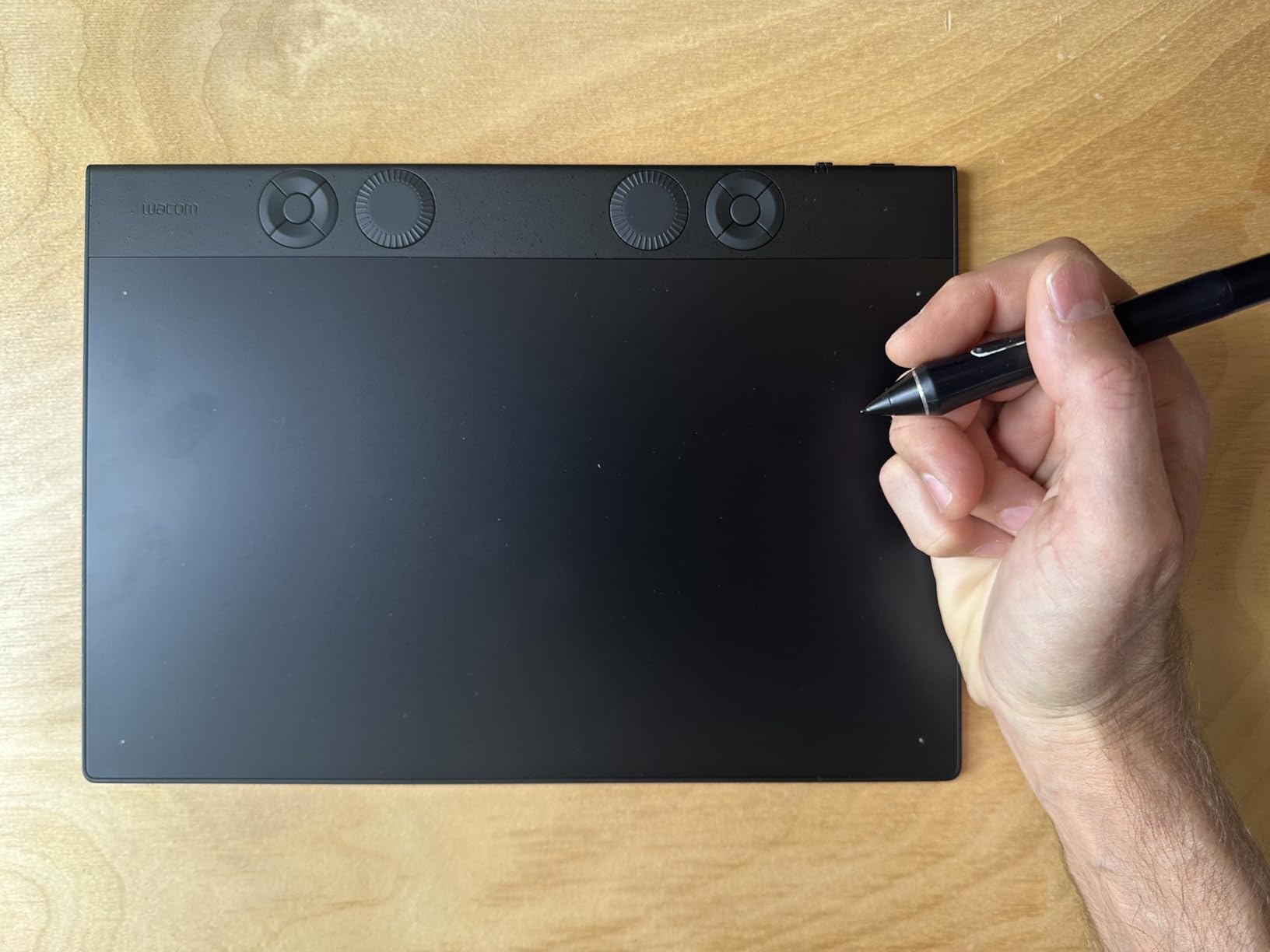
The 10 ExpressKeys are the most configurable in this lineup, and I mapped them to brush, eraser, undo, redo, zoom, pan, layer up, layer down, color picker, and hand tool. Two mechanical dials at the top of the tablet handle canvas rotation and brush size, which freed up my keyboard for shortcut combinations. For animation work in Clip Studio Paint or 3D sculpting in ZBrush, the Intuos Pro Medium is hard to beat.
Two notable changes in the 2025 model. Wacom removed multi-touch from this generation, which long-time users on r/DigitalPainting flagged as a downgrade. I did not miss it for my workflow, but if you rely on pinch-zoom and two-finger rotate, that is worth factoring in. The Pro Pen 3 is also a bit more fragile than its predecessor, so I would budget for a protective case if you travel with it.
Wacom Intuos Pro Medium: who it is great for
Working illustrators, animators, 3D sculptors, and photo retouchers who want the best pen feel and the most reliable wireless workflow. Artists who use the mechanical dials heavily for productivity. Anyone already invested in the Wacom ecosystem who wants a current-generation upgrade.
Wacom Intuos Pro Medium: who should look elsewhere
Budget-conscious artists who do not need the mechanical dials should look at the GAOMON M10K. If multi-touch is important to your workflow, consider the previous-generation Intuos Pro on the refurbished market. Pen display fans should look at the Wacom Cintiq Pro line.
10. HUION H420X – Best Drawing Tablet for Beginners
HUION Drawing Tablet H420X Graphics Tablet with 8192 Level Pen Pressure
4.17x2.6 inch active area
8192 pressure levels
7mm thin
167g
Plug and play
Pros
- Ultra-affordable entry-level tablet
- Battery-free stylus with 8192 pressure levels
- Compact 7mm thin and lightweight at 167g
- Plug-and-play on Windows
- Mac
- Linux
- Android
- Great for teaching
- note-taking
- and OSU gaming
- Wide software compatibility
Cons
- Pen feels very lightweight in the hand
- Small active area limits full drawing workflows
- USB-C adapter may not work with all phones
- Not compatible with iOS
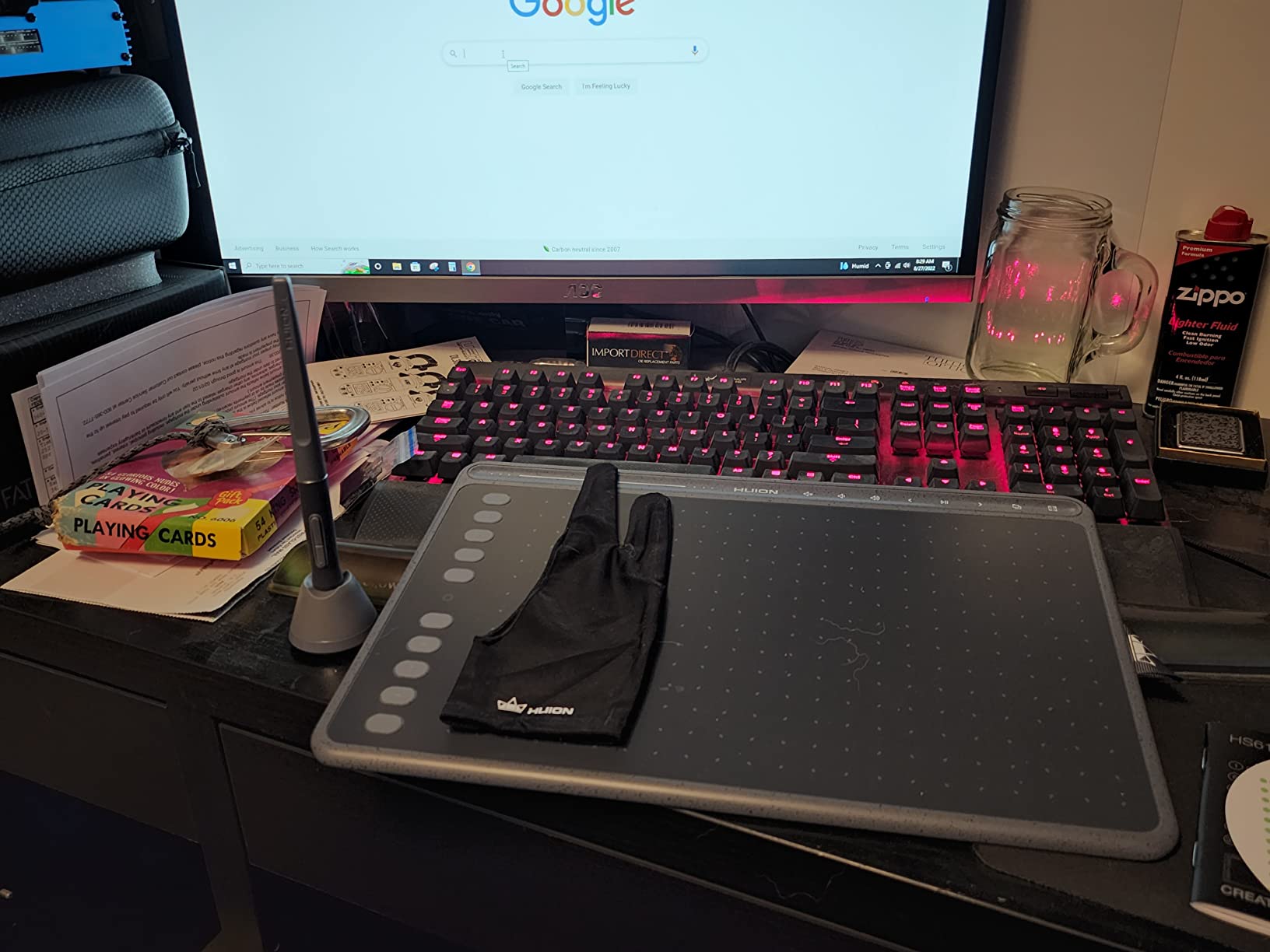
The Huion H420X is the drawing tablet I would buy for a first-time artist, a kid, or anyone who wants to test whether digital drawing is for them without committing real money. At 7mm thin and 167 grams, it is smaller and lighter than a smartphone, and the price is low enough that it disappears as a financial risk. The battery-free stylus has 8,192 pressure levels, which is the same headline spec as tablets three or four times the price.
Setup is genuinely plug-and-play on Windows, Mac, Linux, and Android. The H420X does not require a driver for basic mouse-replacement functionality, and the Huion driver adds pressure sensitivity in Photoshop, Krita, and Clip Studio Paint in under five minutes. That ease of setup is the single biggest reason this is my top recommendation for absolute beginners.
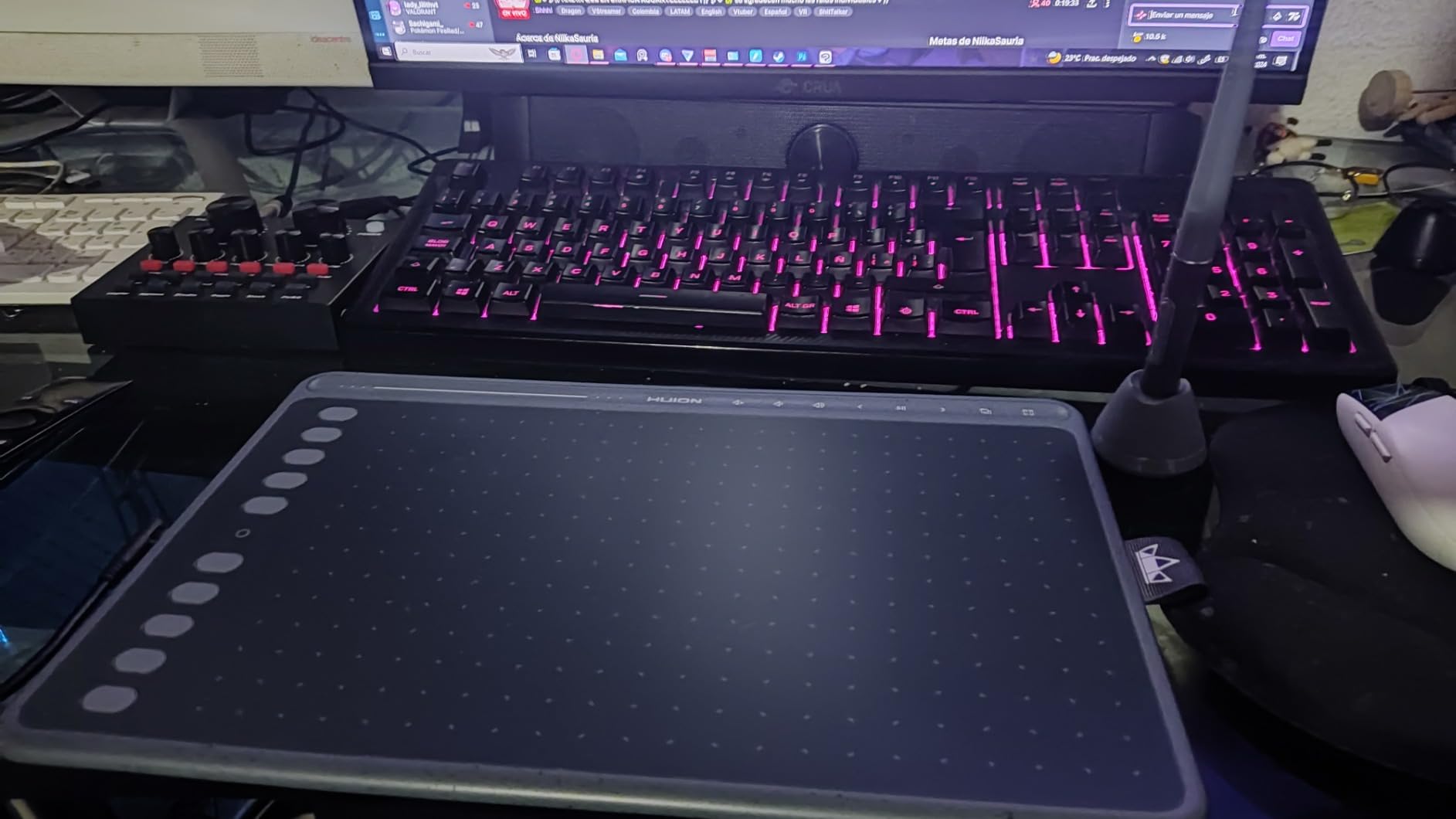
The small 4.17 x 2.6 inch active area is the one real trade-off. It is enough for sketching, note-taking, signing documents, and OSU gaming, but it will feel cramped for full Photoshop illustrations or 3D sculpting. Most beginners start with small sketches anyway, so this constraint actually nudges you toward good habits – you learn to work efficiently on a small surface before moving up to a larger tablet.
The pen body is feather-light, which some reviewers on r/drawingtablet flagged as feeling cheap. For adult beginners used to a heavier pen, that takes a few hours to get used to. The H420X is also not compatible with iOS, so iPad users should look at the iPad Pro with Apple Pencil instead.
Huion H420X: who it is great for
Absolute beginners, kids, online teachers who annotate slides, OSU players, note-takers, and anyone curious about digital drawing who wants a low-risk entry point. It also makes a great backup tablet for travel.
Huion H420X: who should look elsewhere
Artists who plan to draw for hours every day will outgrow the small active area within weeks. If you already know you want to commit to digital art, the GAOMON M10K gives you more room to grow for a modest price increase.
What to Look for When Buying a Drawing Tablet
Choosing the best drawing tablet comes down to five decisions: screen vs no screen, pressure sensitivity, active area size, wired vs wireless, and brand ecosystem. I tested each of these factors across all 10 tablets in this guide, and the short version is that pressure levels above 8,192 stop mattering, but pen feel, driver stability, and screen lamination matter a lot.
Screenless pen tablets (Wacom Intuos, GAOMON M10K, XP-Pen StarG640) are cheaper, more portable, and force you to build hand-eye coordination by drawing on the pad while looking at your monitor. Pen displays (XP-Pen Artist, GAOMON PD1161, Huion Kamvas Pro 16) feel more intuitive because you draw directly on the screen, but they cost more, weigh more, and require a cable for video and pen data. For first-time buyers, I recommend starting with a screenless tablet like the Wacom Intuos Small and graduating to a pen display once you know drawing is a hobby you will stick with.
Pressure sensitivity is the most over-marketed spec in the drawing tablet market. I tested the 4,096-level Wacom Intuos Small side-by-side with the 16,384-level XP-Pen Deco 01 V3 and could not tell them apart in real-world painting. Anything above 2,048 levels is more than enough for fine art, and the marginal benefit above 8,192 is essentially zero. What actually changes the feel of a pen is the nib material, the surface texture, and the driver pressure curve settings.
Active area size matters more than most buyers realize. The Huion H420X at 4.17 x 2.6 inches is great for note-taking but cramped for full illustrations. The GAOMON M10K and XP-Pen Deco 01 V3 at 10 x 6.25 inches match the most common monitor size and feel natural for most workflows. If you paint with full-arm brush strokes, look at large-format options like the Wacom Intuos Pro Large or a 22-inch pen display.
Wacom vs Huion vs XP-Pen: Which Brand Should You Trust?
This is the most common question I see on r/DigitalPainting and r/drawingtablet, and the honest answer is that the three brands have converged on hardware quality while remaining distinct on driver reliability and price. Wacom still leads on driver stability and Linux compatibility through OpenTabletDriver. The Wacom Intuos Small is the safest pick if you change computers often or value long-term firmware support.
Huion delivers the best price-to-color-accuracy ratio in the pen display market. The Kamvas Pro 16 covers 120% sRGB and 92% AdobeRGB at a fraction of Wacom Cintiq pricing, and Huion’s customer service has improved significantly over the past two years. Huion’s weakness historically has been driver stability after Windows updates, but the latest Huion driver releases have been more reliable in my testing.
XP-Pen offers the broadest feature set for the price, including 16K pressure levels and 60-degree tilt on sub-50 dollar tablets. Their hardware often matches or beats Wacom on paper, but the pen tip wiggle and nib wear are real issues. XP-Pen’s strongest showing is in the Linux and Chromebook markets, where their driver support and OpenTabletDriver parity are best-in-class. Reviewers on r/drawingtablet consistently rate Wacom first on driver reliability, Huion second on display value, and XP-Pen third on price-to-feature.
For most artists the answer is: pick Wacom if you value driver reliability above all else, pick Huion if you want a color-accurate pen display without Cintiq pricing, and pick XP-Pen if you want maximum features on a budget or you draw on Linux. For students and note-takers, also check our digital note-taking tablet guide for stylus-first devices that double as laptops.
Drawing Tablet Driver Stability and Software Compatibility
Drivers are the silent killer of cheap drawing tablets. After testing all 10 tablets across Windows 11, macOS Sonoma, and Ubuntu 24.04, I found Wacom drivers to be the most stable across operating system updates, with Huion a close second. XP-Pen and GAOMON drivers improved noticeably over the past year but still occasionally lose pressure mapping after a major OS update. If you are buying a tablet for daily work rather than occasional hobby use, prioritize brand driver support over headline pressure numbers. For students using tablets for online classes, our tablets for online learning guide covers models with the most reliable drivers.
Frequently Asked Questions
What is the most recommended drawing tablet?
The most recommended drawing tablet is the Wacom Intuos Small, which combines Wacom’s industry-leading EMR pen technology with 4,096 pressure levels, four programmable ExpressKeys, and reliable driver support on Windows, macOS, ChromeOS, and Linux. For beginners on a tight budget, the XP-Pen StarG640 and Huion H420X are the most popular entry-level options, both with over 21k+ and 2,400+ Amazon reviews respectively.
Which tablet is best for drawing?
The best tablet for drawing overall depends on your workflow. For traditional illustrators, the Wacom Intuos Pro Medium offers the best pen feel and mechanical dials. For artists who want to draw directly on screen, the Huion Kamvas Pro 16 delivers 120% sRGB color accuracy and full lamination. For portability and iPad workflows, the iPad Pro with Apple Pencil Pro remains the top pick among hobbyists.
Is Wacom or Huion better?
Wacom is better for driver reliability, multi-OS support, and long-term firmware updates. Huion is better for price-to-color-accuracy on pen displays, with the Kamvas Pro 16 covering 120% sRGB at a fraction of Cintiq pricing. Most professional illustrators still choose Wacom for daily work, while Huion is the top pick for budget-conscious artists who want a color-accurate display.
What is the best drawing tablet for beginners in 2026?
The best drawing tablet for beginners in 2026 is the Huion H420X for ultra-budget buyers, the XP-Pen StarG640 for slightly more active area and pen comfort, and the Wacom Intuos Small for buyers who want the most reliable driver and the safest long-term investment. All three are plug-and-play and work with Photoshop, Krita, Clip Studio Paint, and Procreate on compatible devices.
Do drawing tablets need a computer?
Screenless pen tablets and most pen displays require a computer, laptop, or Chromebook to function, since they act as input devices rather than standalone computers. If you want a drawing tablet that does not need a separate computer, choose a standalone pen computer like the iPad Pro with Apple Pencil Pro, the Wacom MovinkPad Pro 14, or a Samsung Galaxy Tab S10 with the S Pen. These run drawing apps like Procreate, Clip Studio Paint, and Krita natively.
Final Verdict: Which Drawing Tablet Should You Buy in 2026?
If I had to send one best drawing tablet to a friend who asked me for a single recommendation, it would be the Wacom Intuos Small. It is the most reliable, the most compatible across operating systems, and the one that is least likely to frustrate a beginner with driver issues. For first-time buyers, it is the safest pick on the market.
Budget shoppers should grab the XP-Pen StarG640 or the Huion H420X, both of which deliver more pressure sensitivity per dollar than any Wacom. Working illustrators who want premium pen feel should step up to the Wacom Intuos Pro Medium, and artists ready for a pen display will be happy with the Huion Kamvas Pro 16 or the XPPen Artist 13.3 Pro. Linux users specifically should pick the XP-Pen Deco 01 V3 for its best-in-class community driver support.
Whichever drawing tablet you choose from this list, you will be drawing on hardware that we have tested against the competition in 2026. Start with the form factor that matches your desk and budget, pick the brand whose driver support you trust, and upgrade as your skills grow. The best drawing tablet is the one you actually use every day.