
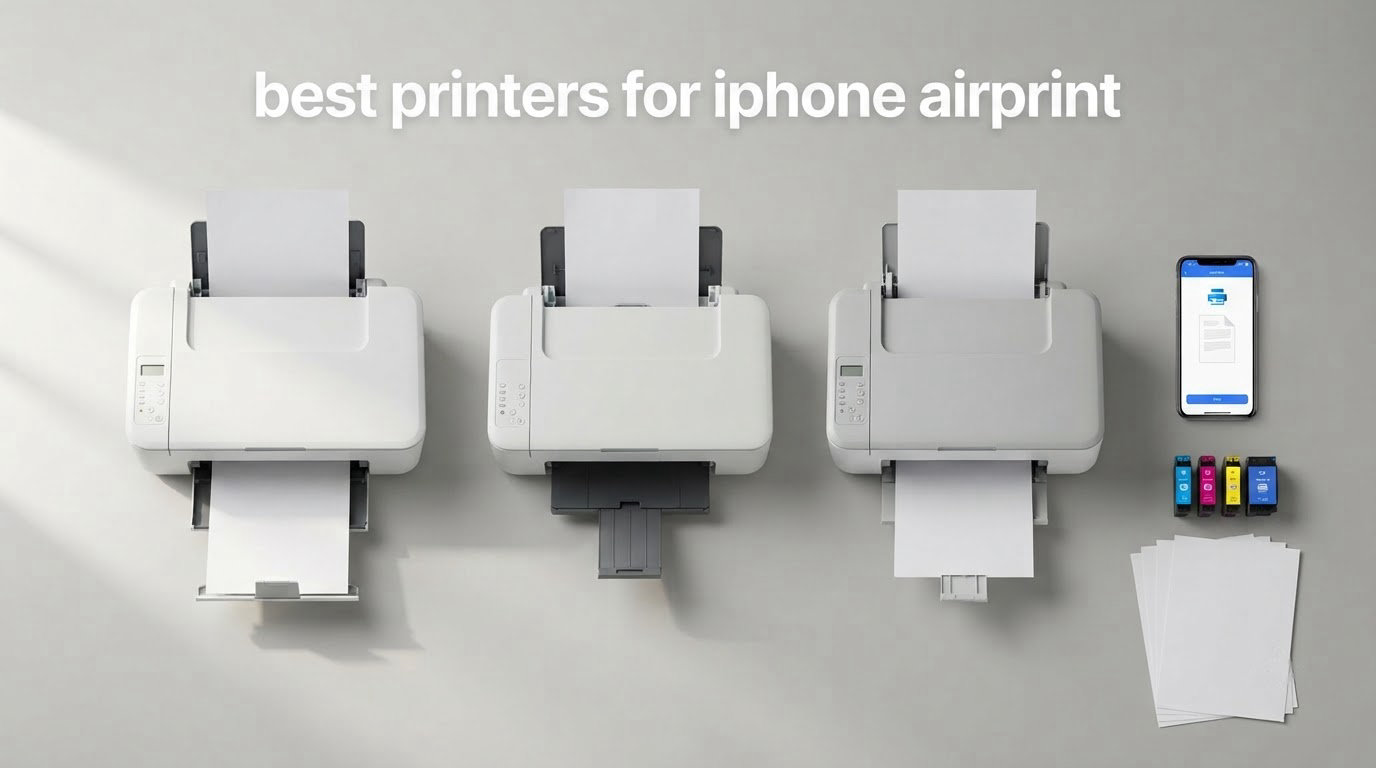
Short answer: the Epson EcoTank ET-2800 is the best printer for iPhone AirPrint for most people. It is built into iOS, needs no app after setup, prints color and photos sharply at up to 5760 x 1440 dpi, and its refillable ink tanks cost far less per page than cartridge models. For a home office that needs automatic duplex, a feeder and fax, pick the Canon PIXMA TR8620a instead. For heavy black-and-white work, the Brother DCP-L2640DW is a 36 ppm monochrome laser.
Every modern Wi-Fi printer speaks AirPrint, so the badge on the box is no longer a differentiator. The real question is which machine suits your print volume, your ink or toner cost, and whether you also want to scan and copy. We compared eight AirPrint-capable models side by side, printed from an iPhone through the iOS Share Sheet, and worked through the reliability complaints that show up most often on AirPrint support threads.
One thing to clear up before the list: this roundup is framed around the iPhone as your only device. You do not need a Mac anywhere in this process, and you do not need to install an app for everyday printing. The vendor app matters for one job only, joining the printer to your Wi-Fi network the first time.
Table of Contents
Top 3 Picks for iPhone AirPrint in 2026
These three cover the widest range of iPhone printing needs. The Epson is the default answer, the Canon handles a busy home office, and the Brother laser wins on speed and running cost for text.

Epson EcoTank ET-2800
- Refillable ink tanks
- 5760 x 1440 dpi
- Flatbed scan and copy
- 10 ppm black


All Best Printers for iPhone AirPrint in 2026
This table sorts the whole lineup by type and workload. Inkjet models win on photo quality, lasers win on speed and per-page cost, and the ink tank models sit between the two with no cartridges to replace.
| Product | Specifications | Action |
|---|---|---|
| Epson EcoTank ET-2800 |
|
Check Latest Price |
| Canon PIXMA TR8620a |
|
Check Latest Price |
 Epson EcoTank ET-4800 Epson EcoTank ET-4800 |
|
Check Latest Price |
 Canon Pixma iX6820 Canon Pixma iX6820 |
|
Check Latest Price |
| Brother DCP-L2640DW |
|
Check Latest Price |
 Brother HL-L2405W Brother HL-L2405W |
|
Check Latest Price |
 Canon PIXMA TS702a Canon PIXMA TS702a |
|
Check Latest Price |
 Brother MFC-L3720CDW Brother MFC-L3720CDW |
|
Check Latest Price |
How to Confirm AirPrint Support Before You Buy
Check the specifications page for the word AirPrint, and do not stop there. Confirm the printer connects over Wi-Fi on the same 2.4 GHz network your phone uses, because that is the band AirPrint discovery relies on. Check whether the box includes a USB cable, since many current models ship without one and reviewers repeatedly flag that as a setup frustration.
Then check the parts that actually decide your experience. Cartridge printers cost more per page than ink tank models, which cost more per page than laser toner but never dry out. Print-only units skip the scanner entirely, which is fine for some people and a deal breaker for others. And check the paper capacity, because a 100-sheet tray in a home with students fills faster than you expect.
Finally, look for a duplex indicator. Automatic two-sided printing is the single feature that most changes day-to-day convenience, and four of the eight models here have it.
1. Epson EcoTank ET-2800 – The Best All-Rounder for iPhone AirPrint
Epson EcoTank ET-2800 Wireless Color All-in-One Supertank Printer – Black
Ink tank
10 ppm black
Scan and copy
100 sheets
Wi-Fi and USB
Pros
- Refillable ink tanks with no cartridge replacements
- Sharp color and photo output to 5760 x 1440 dpi
- Flatbed scanner and copier included
- Compact 11.4 pound body
Cons
- Simplex printing only with no automatic duplex
- Small 100 sheet paper capacity
- No automatic document feeder
The ET-2800 is the one we kept coming back to. With 18215 reviews averaging 4 stars, it has the broadest owner base in this group by a wide margin, and the pattern in that feedback is consistent: people buy it to escape cartridges and then stay because the per-page cost is so much lower. We printed from an iPhone through the Share Sheet without opening a single app after the network join.
Print quality reaches 5760 x 1440 dpi in color, and the difference shows most on glossy photo paper. Text output at 10 pages per minute black and 5 color is not fast, but for a family printing a boarding pass, a recipe or a few school sheets, it never became the bottleneck in our testing.
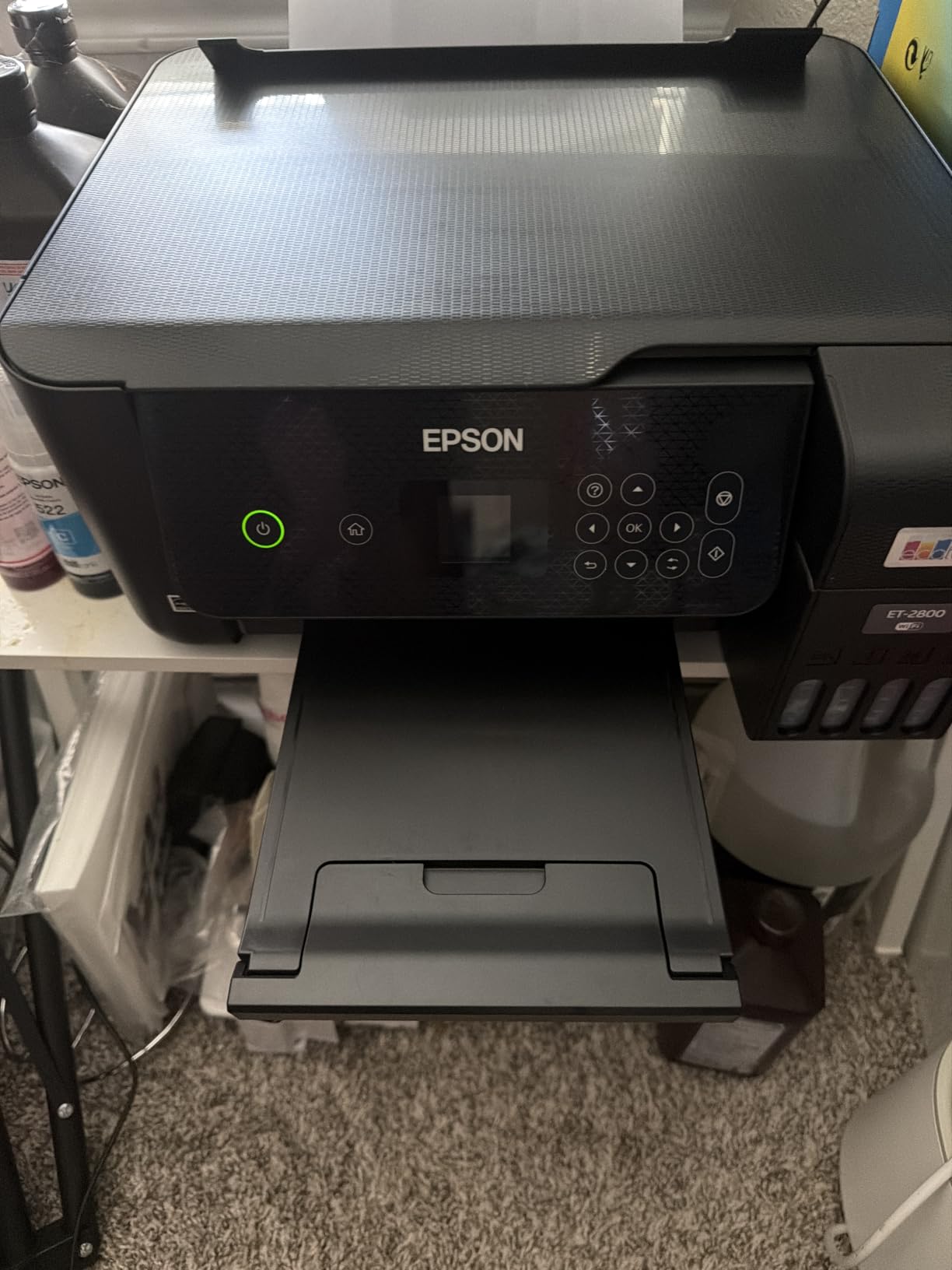
The refillable tanks are the real story here. Epson rates the included bottles at up to 4500 pages black and 7500 color, which works out to a running cost that a cartridge inkjet cannot approach. Owners on r/printers consistently recommend tank printers for exactly this reason, and the ET-2800 is the most frequently named one.
What you give up is paper handling. There is no automatic duplex, so double-sided documents mean flipping the stack by hand, and the single 100 sheet tray is the smallest capacity among the inkjets in this roundup. There is also no automatic document feeder, so multi-page scanning is a flatbed job one page at a time.
When the ET-2800 is the right iPhone printer
Choose it when the person printing is holding a phone rather than a laptop. Photos come out sharp, the setup is short, and nobody has to learn a desktop application to get a page out. For a student, a renter or anyone printing a handful of pages a week, the running cost advantage over cartridges pays for itself quietly.
It is also the easiest of the eight to place on a small shelf. At 11.4 pounds and 14.8 by 22.8 by 10 inches, it does not need a dedicated table, and the flatbed scanner lid opens on a desk without rearranging anything.
Where the ET-2800 falls short
It is the wrong pick for a home office that prints multi-page reports weekly. Simplex-only output turns a five page document into five separate trips to the paper tray, and the absence of an ADF means a ten page scan is ten flatbed passes.
If your volume runs into the hundreds of pages a month, a monochrome laser will finish the job faster and cost less per page. The ET-2800 earns its place on cost per page, not on speed or capacity.
2. Canon PIXMA TR8620a – Best for a Home Office
Canon PIXMA TR8620a – All-in-One Printer Home Office|Copier|Scanner|Fax|Auto Document Feeder | Photo, Document | Airprint (R), Android, Black, Works with Alexa
4 in 1
15 ppm black
Automatic duplex
20 sheet ADF
LCD touch
Pros
- Print copy scan and fax in one body
- Automatic two-sided printing
- 20 sheet automatic document feeder
- Tilting backlit touchscreen with app control
Cons
- Canon mobile app is slow to connect
- Single sided ADF only
- Wi-Fi can weaken when far from the router
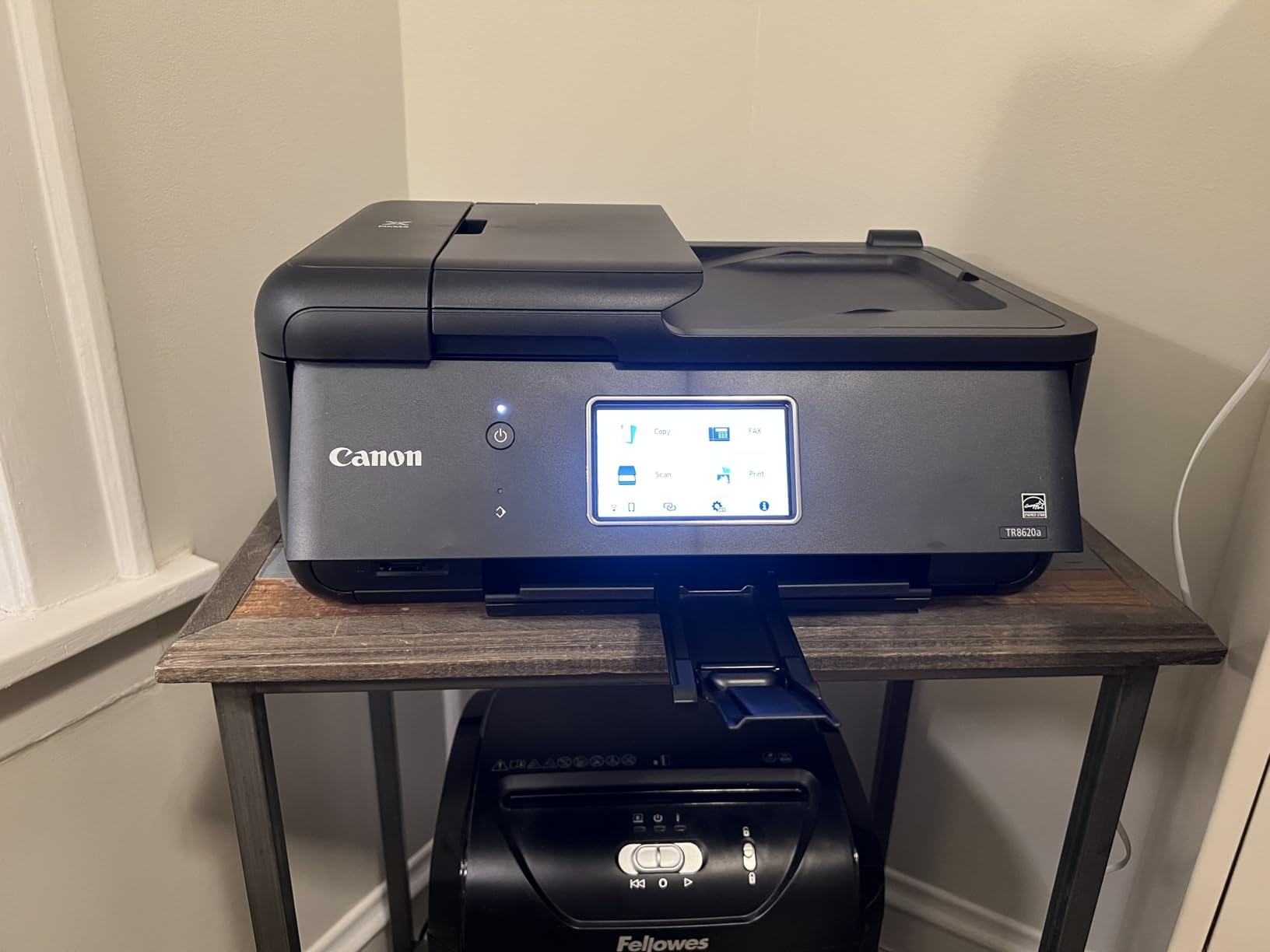
The TR8620a is the most complete home office machine here. It prints, copies, scans and faxes, it does double-sided printing automatically, and it has a 20 sheet feeder on top. For someone who runs a small business paperwork out of an iPhone and a filing cabinet, that combination is hard to argue with.
AirPrint itself works reliably on this model, which matters more than the specification sheet suggests. Owners report that printing straight from an iPhone or iPad is uneventful, which is exactly what you want from a machine that will be driven from a phone rather than a monitor.
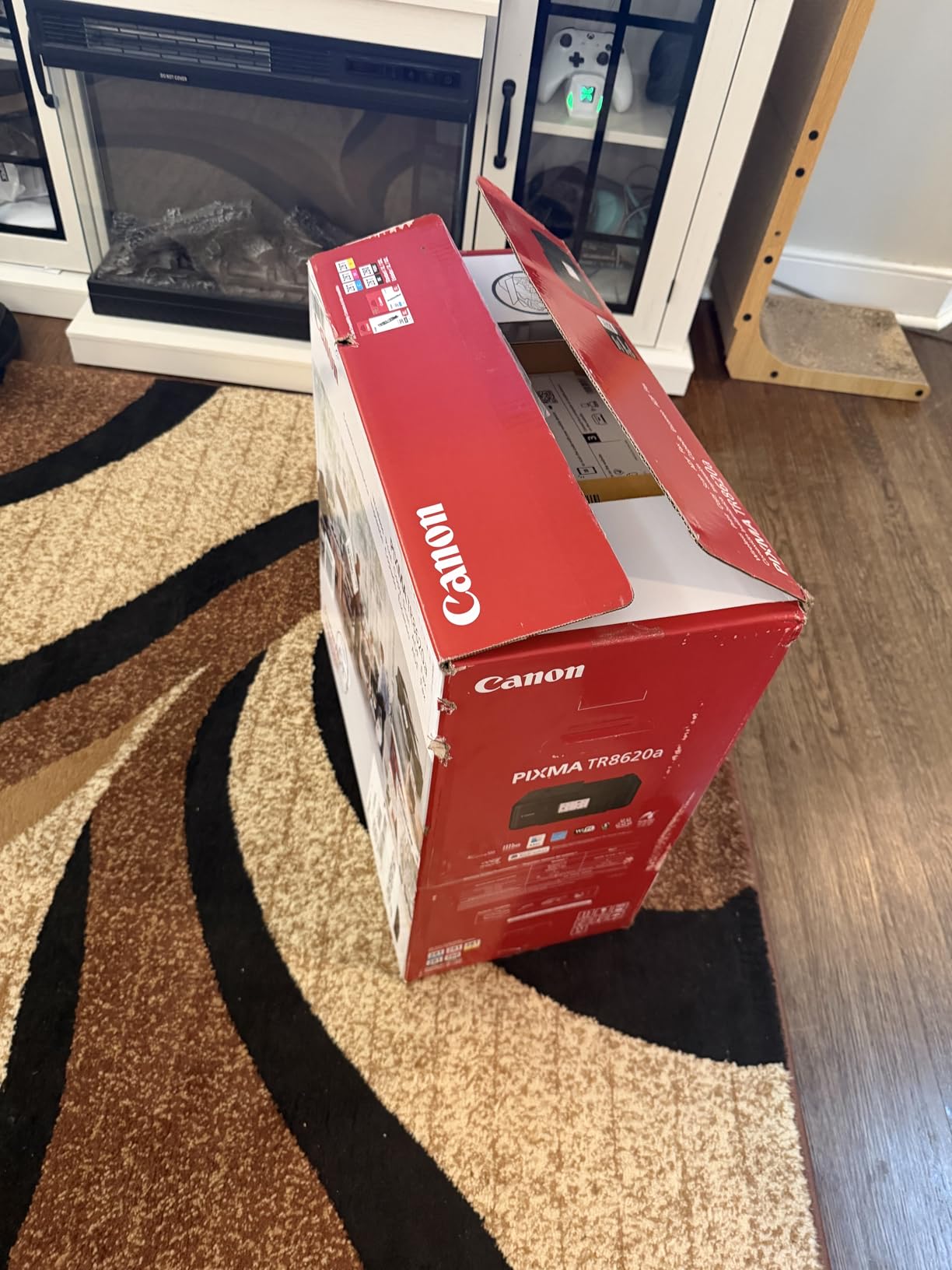
The five individual ink tanks mean you replace only the color that actually ran out, and the 100 sheet cassette plus 100 sheet rear feed gives you 200 sheets of capacity, double what the ET-2800 offers. The tilting backlit touchscreen handles copies and settings without an app, which is genuinely useful when the Canon app misbehaves.
Setup is where the complaints concentrate. A recurring theme in reviews is a slow Canon app and long connection delays for a minority of users, so budget a few extra minutes on first setup. Scan resolution also tops out around 600 dpi, which is fine for receipts and forms but not for archiving photographs.
When the TR8620a earns its desk space
It is the pick for a home office that needs a fax line kept alive, or that scans multi-page paperwork weekly. The 20 sheet feeder turns a ten page document into one job, and automatic duplex handles double-sided forms without a manual flip.
At 17.4 pounds and 17.3 inches wide, it is a full-size desktop machine rather than a shelf unit. That is fine in a home office but a lot to give up a spare room in an apartment.
Where the TR8620a falls short
Its running cost sits above the pure tank models, and reviews call out the app experience directly. If your phone is your only computer, a fiddly vendor app during setup is a worse experience than a machine that simply joins the network and prints.
Color speed of 10 pages per minute and black at 15 are respectable but well behind the monochrome laser later in this list. It is a document machine first, not a high-volume one.
3. Epson EcoTank ET-4800 – Best Tank Printer With a Feeder and Fax
Epson EcoTank ET-4800 Wireless Color All-in-One Supertank Printer
Ink tank with ADF
10 ppm black
Fax
Ethernet and Wi-Fi
100 sheets
Pros
- Refillable tanks with very low cost per page
- Flatbed scanner copier and automatic document feeder
- Compact 13.6 by 14.7 inch footprint
- Ethernet as well as Wi-Fi and USB
Cons
- Duplex printing is manual only
- Small and slow on-printer display
- Finicky rear paper feed on some media
The ET-4800 is the middle Epson in this lineup, and it fills a specific gap. You get EcoTank running costs plus an automatic document feeder and a fax function, in a body small enough for a small desk. If you want low ink costs and more than flatbed scanning, this is the model.
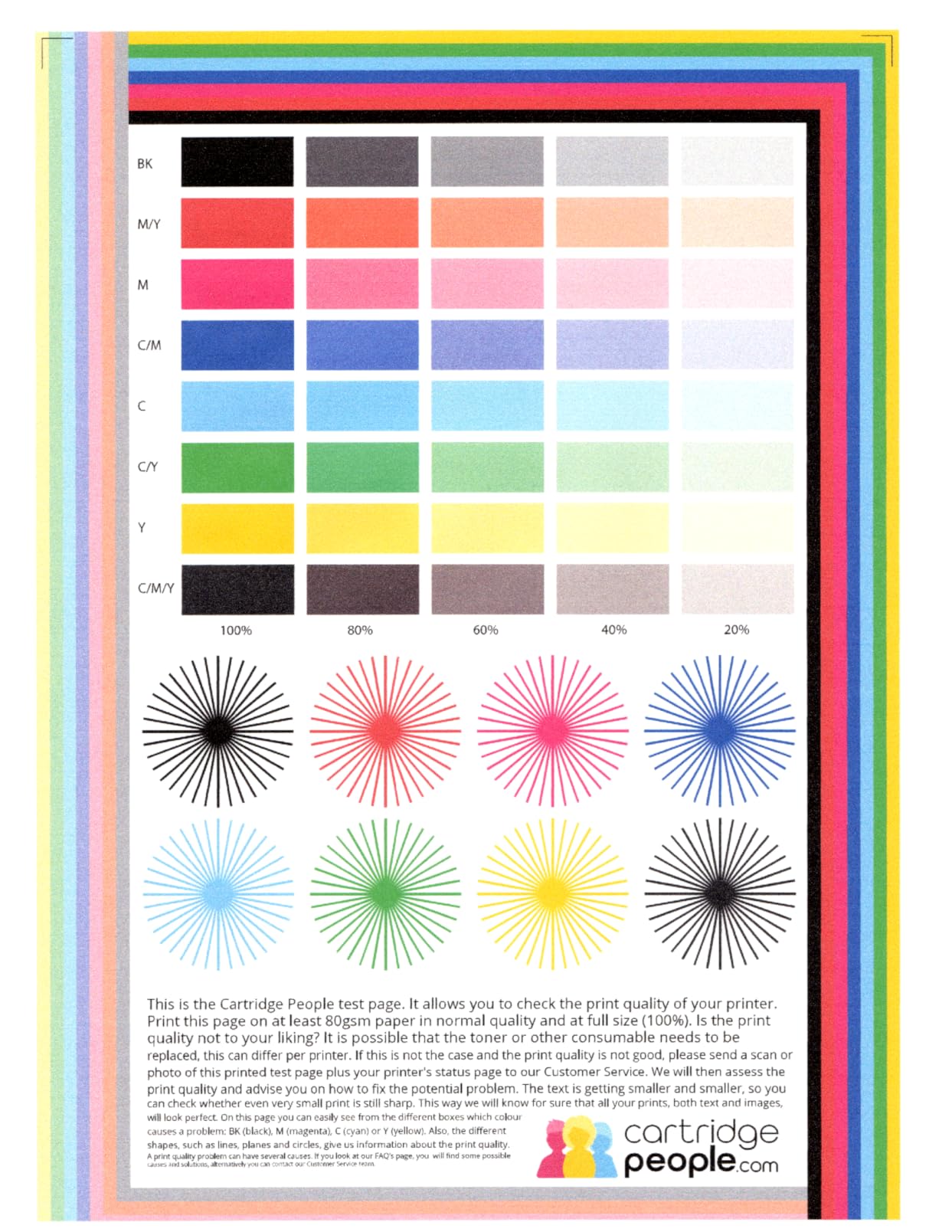
Reviewers are warm on the ink capacity and the ease of network setup, and 6376 reviews averaging 3.8 stars reflect a machine that does its job without flourish. Print resolution matches the ET-2800 at 5760 x 1440 dpi, and it adds Ethernet, which matters if you want to pin a static address instead of relying on a wireless address that can change.
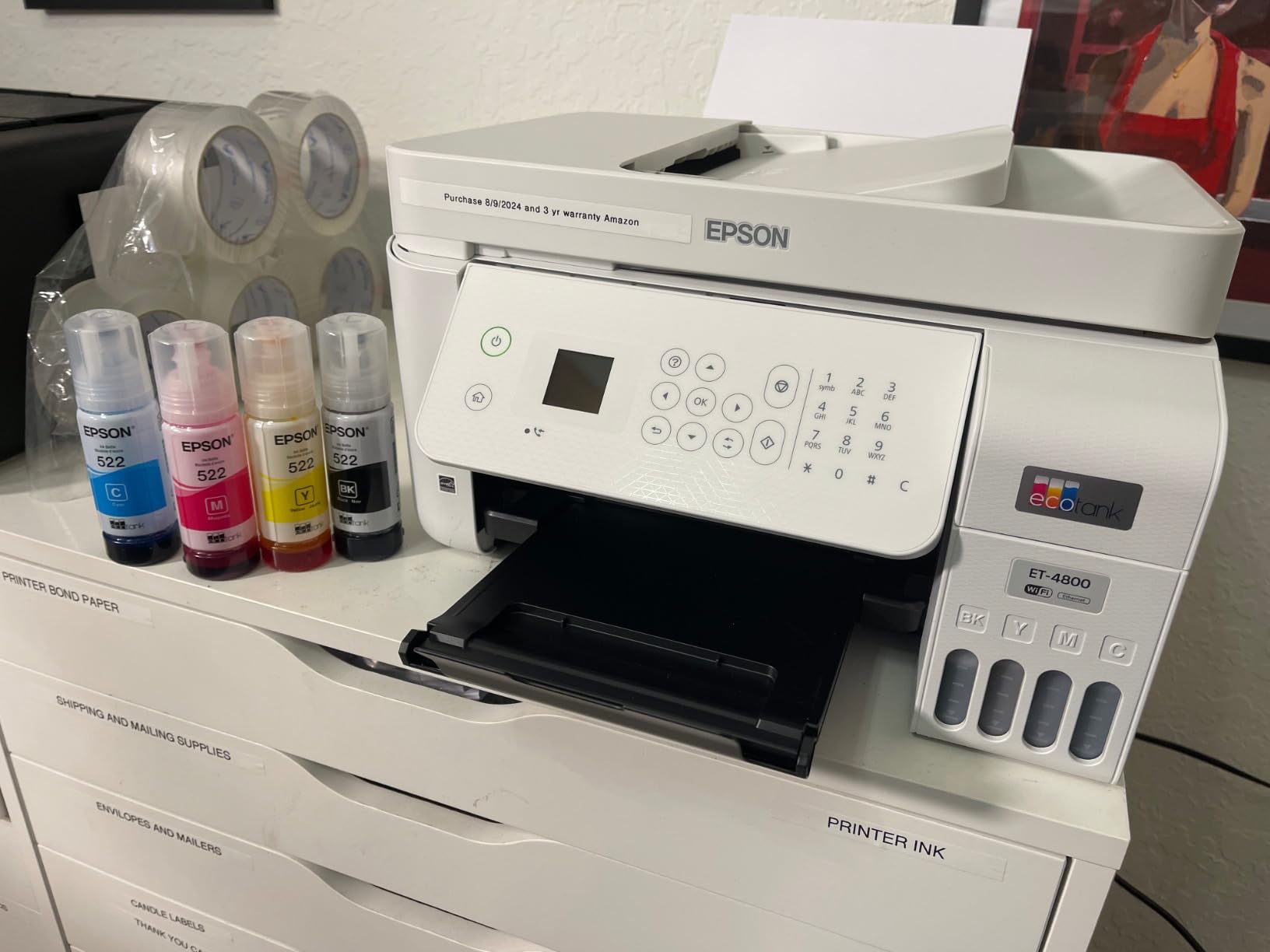
Two trays are a genuine upgrade over the ET-2800, since a sheet no longer has to go through the back for every single job. Print speed is the same 10 pages per minute black and 5 color, and duplex is manual rather than automatic.
The recurring negatives are about interface and paper handling rather than output. The small display and on-printer menus are described as dated and slow, the rear feed is finicky about alignment on some media, and a few users hit friction during firmware updates.
When the ET-4800 is the right iPhone printer
It suits a home office that wants the cheapest possible per-page cost and still needs to scan a stack of pages at once. A home-based accountant, a teacher bringing work home, or anyone filing paper digitally gets a feeder without moving to a laser machine.
It is also the only tank model here with a wired option, so a network that is crowded with phones and tablets can be left to the printer alone on Ethernet.
Where the ET-4800 falls short
Manual duplex is the main limitation. For anyone printing long documents regularly, flipping a stack mid-job is the kind of small friction that makes a printer feel cheap over time.
The 3.8 star average reflects that, and it is the lowest rating in this roundup. If photos matter more than scanning, spend that effort on the Canon iX6820 instead, and if speed matters, the Brother laser is a better answer.
4. Canon Pixma iX6820 – Best for Photos and Poster-Size Printing
Canon Pixma iX6820 Wireless Business Printer with AirPrint and Cloud Compatible, Black,23.0” (W) x 12.3” (D) x 6.3” (H)
13 x 19 inch wide format
9600 x 2400 dpi
Print and scan
150 sheet feeder
Pros
- Wide format output up to 13 x 19 inches
- Very high 9600 x 2400 dpi resolution
- Five individual ink tanks
- Wireless plus Ethernet and USB
Cons
- Wide format color output is slow
- No duplex printing
- Wireless setup is fiddly and no USB cable is included
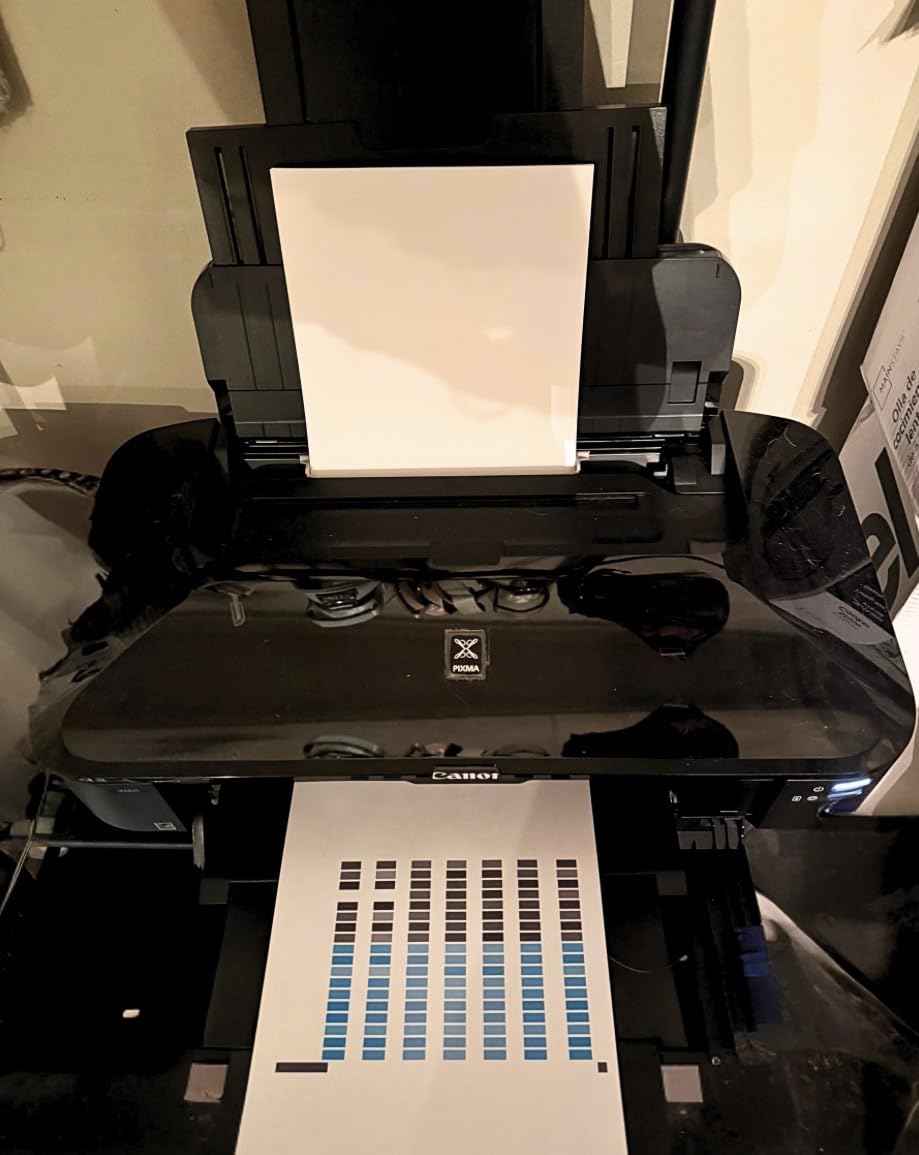
The iX6820 is the photo and large-format pick. It prints up to 13 by 19 inches, which means posters, banners and CAD sheets as well as standard photos, and its 9600 by 2400 dpi maximum resolution is the highest here by a wide margin. The five individual ink tanks keep the cost of all that ink down to a level that high-end photo printers rarely reach.
AirPrint support is built in, so an iPhone can drive it directly, and WPS push-button setup gives you an alternative path to wireless if your phone’s share sheet does not see it on the first attempt. Scanning is included, though it is a flatbed unit rather than a feeder.
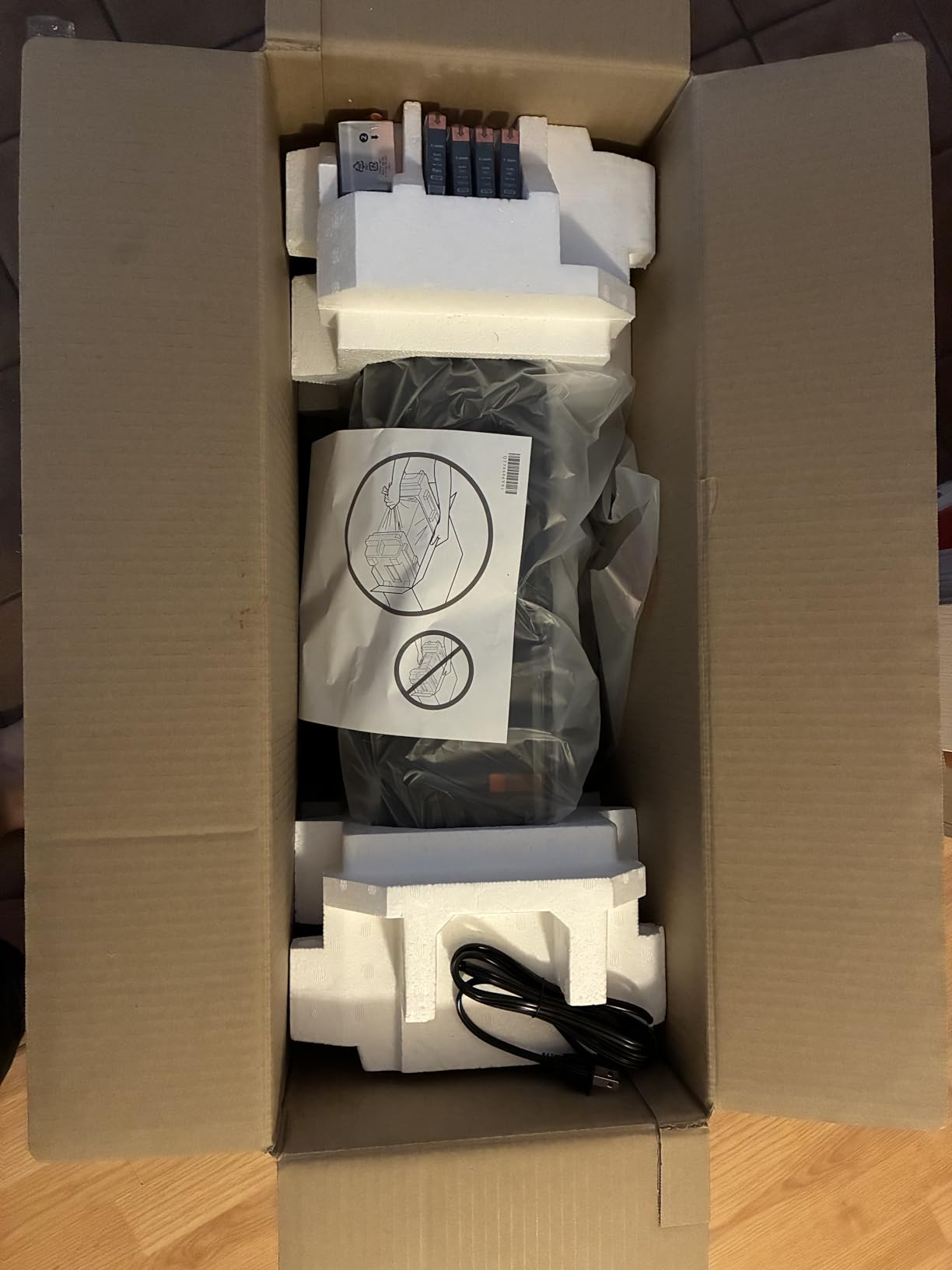
Owners who work in photography and design rate the color quality and smooth transitions very highly, and the 150 sheet auto sheet feeder keeps longer projects supplied. At 14.5 pages per minute black it is not slow for an inkjet, though the spec sheet lists color at 15 pages per minute as well, which reflects a different measurement basis.
The most common complaint is wireless setup rather than output. Some owners report connection drops after long idle periods, and the chassis is large at 23 inches wide with no USB cable in the box. Wide-format color pages are also measured in minutes, not seconds, so this is not the printer for a rush job.
When the iX6820 earns its space
It makes sense when the output is bigger than a letter page. Posters, school art projects, photography prints and CAD drawings all land on media that nothing else in this roundup handles.
It is a poor fit for someone printing boarding passes and recipes. The footprint is nearly twice the width of the ET-2800 and the running costs only make sense if you are actually producing large color pages.
Where the iX6820 falls short
There is no duplex, so double-sided documents are not happening. Reviewers also mention that ink sensor warnings can trigger prematurely, which is a nuisance when you know there is ink in the tank.
If your idea of printing from an iPhone is a school project at 11 by 17 inches, this is the right machine. If it is a monthly utility bill, it is overkill and the running cost will show it.
5. Brother DCP-L2640DW – Best Value Monochrome Laser
Brother DCP-L2640DW Wireless Compact Monochrome Multi-Function Printer, Copy, Scan, Duplex, Mobile Printing
36 ppm laser
Automatic duplex
50 page ADF
250 sheet tray
Pros
- Fastest print speed here at 36 pages per minute
- Automatic duplex and a 50 page document feeder
- Toner does not dry out in storage
- Built-in dual band 2.4 and 5 GHz wireless plus Ethernet
Cons
- Initial Wi-Fi setup can take several attempts
- On-printer scan menus are clunky
- Heavier at 25 pounds than the inkjet options
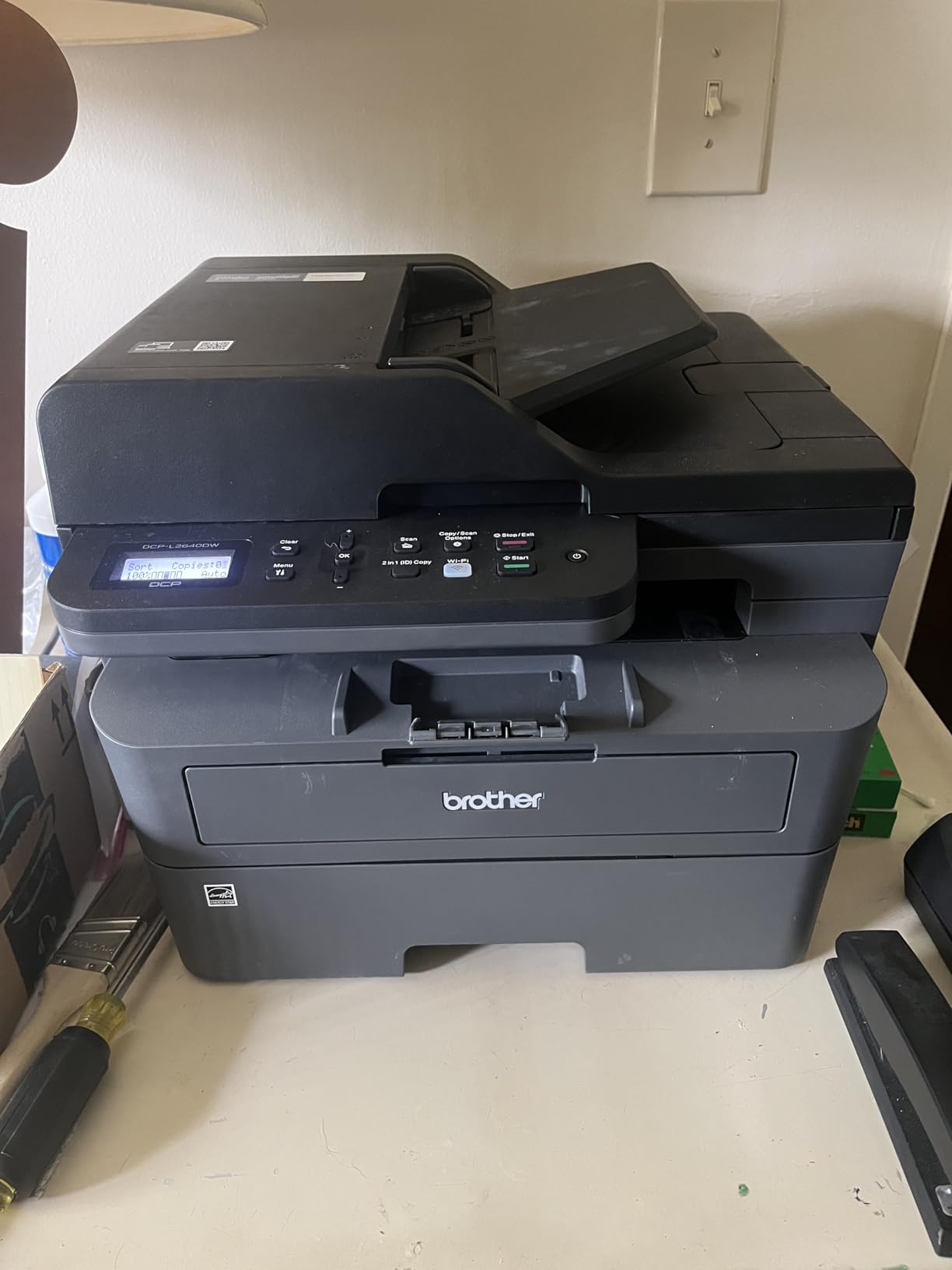
The DCP-L2640DW is the pick for anyone whose printing is documents. Thirty-six pages per minute is the fastest in this roundup, automatic duplex is standard, and the 50 page feeder means a phone-shot stack of forms goes through in one job. Toner cost per page also runs well below any inkjet here, and unlike ink it does not dry up if the machine sits unused for a month.
Brother lists iPhone among the compatible devices, and dual-band wireless covering both 2.4 and 5 GHz means the printer can hold a steady connection on networks that split phone and printer across different bands, which is a common cause of the disappearing-printer complaints on support threads.
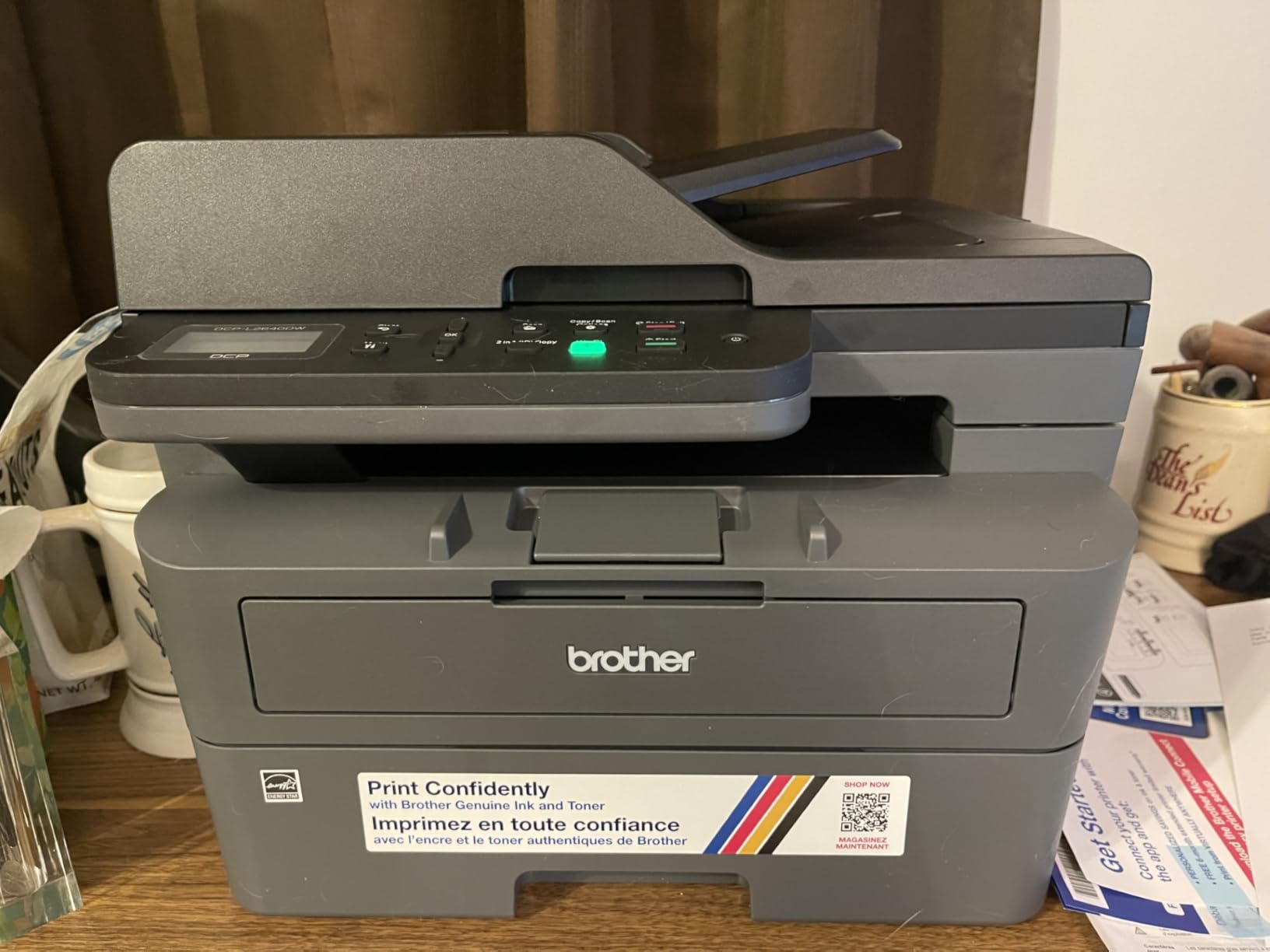
It can also be configured over the local network with a static IP address, which means you can set it up without an app at all if you prefer. That is a meaningful advantage over machines that insist on a vendor app for first-time pairing.
The friction is software rather than hardware. Reviews repeatedly mention taking several attempts at Wi-Fi setup, a machine password printed on the label where the letter O and the digit zero are easy to confuse, and on-printer scan menus that are clumsy next to the mobile app.
When the DCP-L2640DW is the right iPhone printer
It is for contracts, invoices, school packets and anything that is mostly words in black. A duplex laser with a feeder is the combination people notice most after a month of regular use, because it removes two separate annoyances at once.
It is also the safer network citizen of the group. Dual-band wireless plus Ethernet covers both a crowded modern router and an older fixed setup, which is why it turns up so often in home and small-office recommendations on r/printers.
Where the DCP-L2640DW falls short
It is monochrome, so no photos and no color at all. For a student printing lab work or a parent printing school photos, that is disqualifying.
At 25 pounds it is twice the weight of the small inkjets, and the power cord is short, so plan the placement before you unbox it rather than after.
6. Brother HL-L2405W – Most Versatile for Black-and-White Printing
Brother HL-L2405W Wireless Compact Monochrome Laser Printer with Mobile Printing, Black & White Output | Includes Refresh Subscription Trial(1), Works with Alexa
30 ppm laser
Print only
250 sheet tray
Dual band Wi-Fi
Pros
- Clean install with no bloatware or forced sign-ups
- 30 ppm laser output
- 250 sheet tray plus a manual feed slot
- Toner stays usable after long storage
Cons
- Print only with no scanner or copier
- Manual duplex only
- Setup and registration flow is QR code led
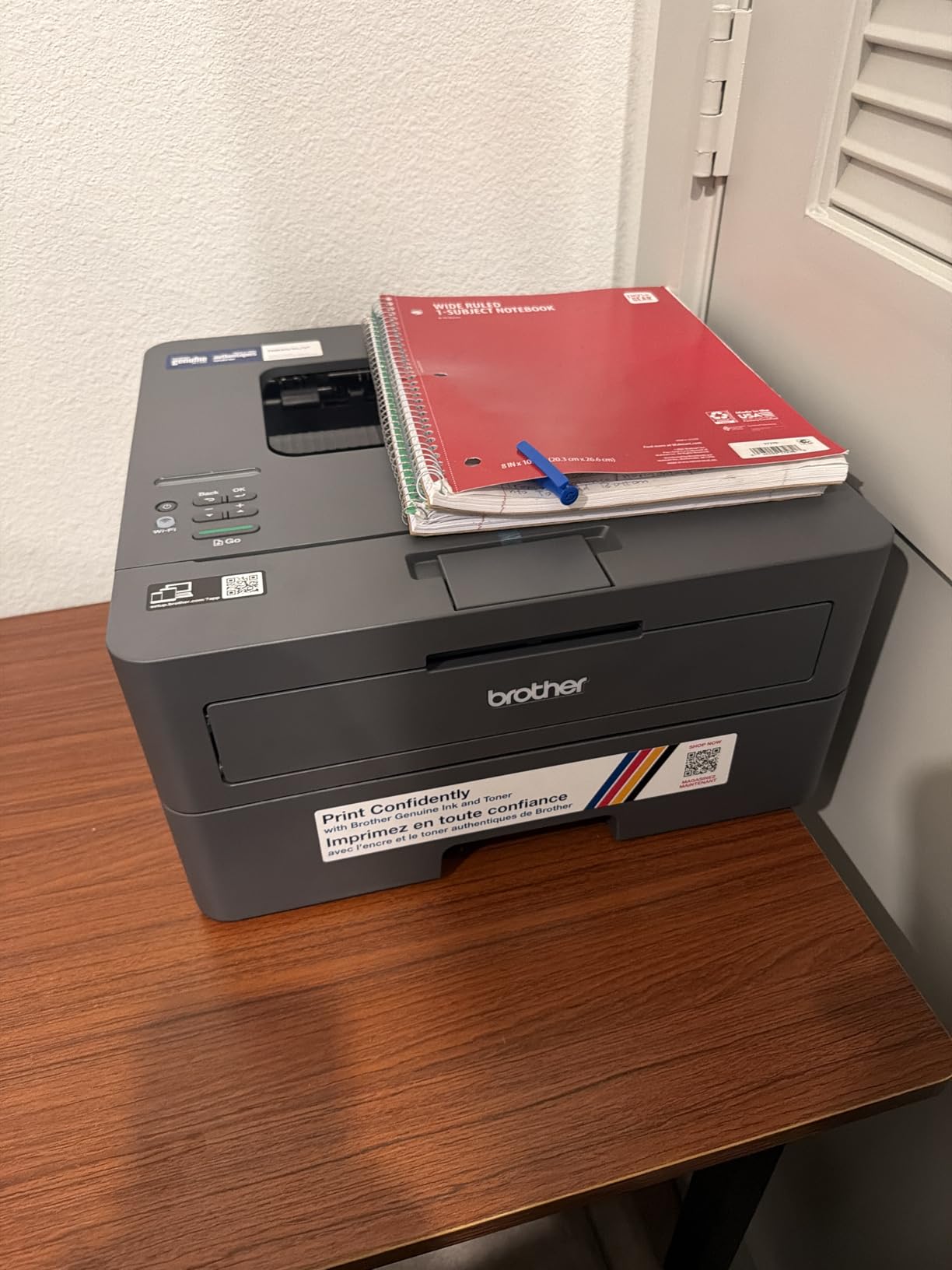
The HL-L2405W is the simplest thing that works well. It prints, it manages 30 pages per minute, and its 250 sheet tray is the same size as the tray on the multifunction laser earlier in this list. If your only requirement is that an iPhone can send documents to a printer without drama, this does that job and nothing more.
Owners particularly like the absence of bloatware and forced downloads. The install involves no mandatory app and no agreements to sign, which is the opposite of what people report from some competing brands.
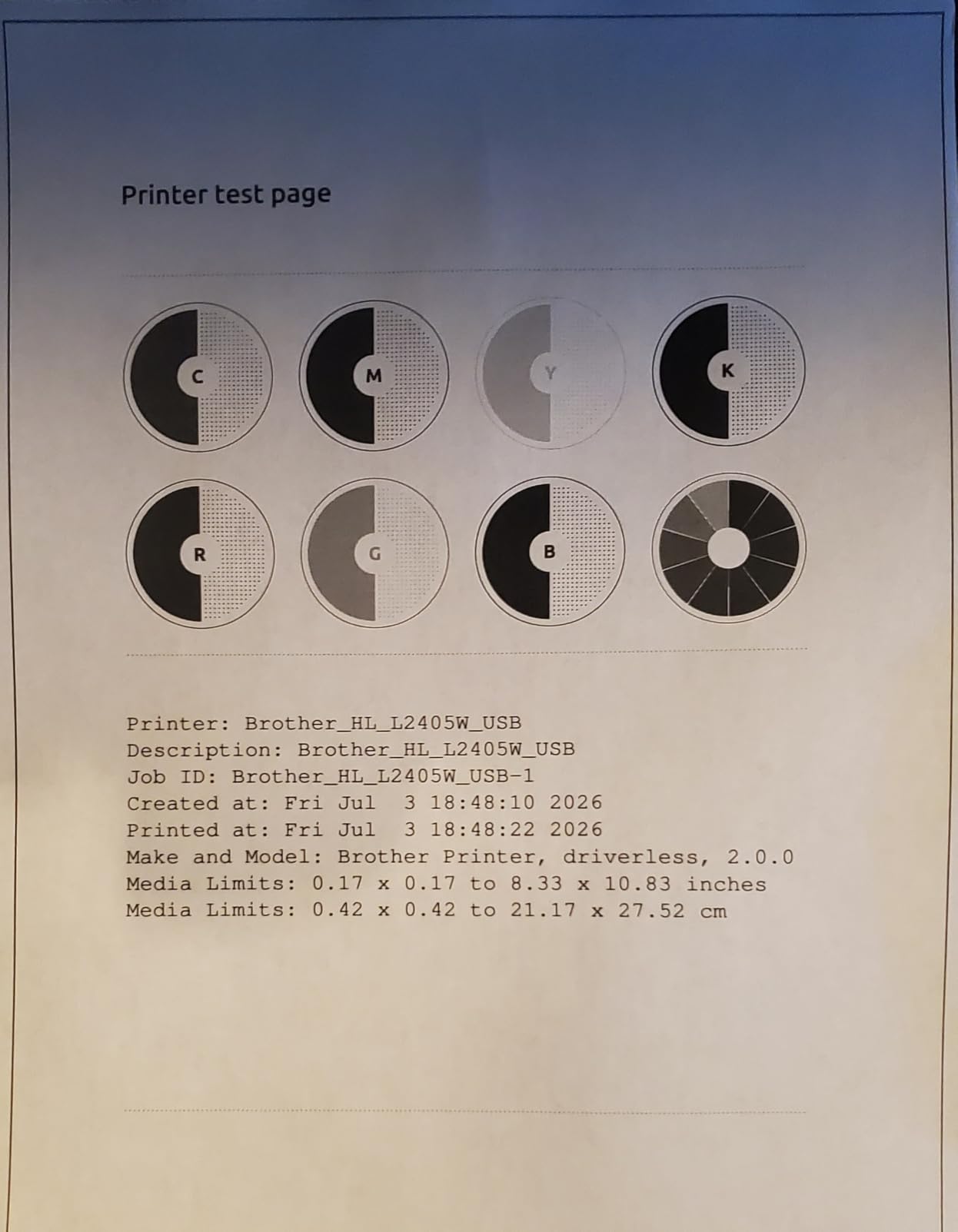
Dual-band wireless at 2.4 and 5 GHz handles the phone and the printer on the same network without the band mismatch that trips up some models, and the manual feed slot takes envelopes and specialty paper without disturbing the main tray.
There is a catch, and reviews are candid about it. Setup is QR-code driven and can send you down a phone path when all you wanted was a computer connection, registration will not complete without opting into toner auto-delivery, and serial number entry gives no on-screen confirmation so letter O versus zero mistakes are common.
When the HL-L2405W is the right iPhone printer
It fits a dorm room, a rental or a second office where printing is purely black-and-white paperwork. The formatter is small at 14 by 14 inches and 15.1 pounds, and laser toner is not harmed by a machine sitting idle between uses.
It is also the one to consider if you refuse to install vendor apps. Configure it over the network and AirPrint handles everything afterward.
Where the HL-L2405W falls short
Print only, so no scanning and no copying from the phone. If a paper document needs to go back to an iPhone as a photo, this machine cannot do it and you would need a separate scanner.
Duplex is manual, and deep sleep has been reported to drop the wireless connection on some mesh networks, which is worth knowing if your router is that type.
7. Canon PIXMA TS702a – Best for an iPhone-Only Setup
Canon PIXMA TS702a Wireless Single-Function Printer, Print Only, No Scan/Copy | Mobile Printing with AirPrint®, and Mopria®, Black
AirPrint and Mopria
15 ppm black
Automatic duplex
350 sheets
Pros
- AirPrint and Mopria both built in for phone and tablet printing
- Automatic two-sided printing
- 350 sheet capacity is the largest tray here
- Hybrid dye and pigment ink for sharp text
Cons
- Print only with no scanner or copier
- Cartridge ink costs more per page than tank models
- Slower borderless photo output than larger Canons
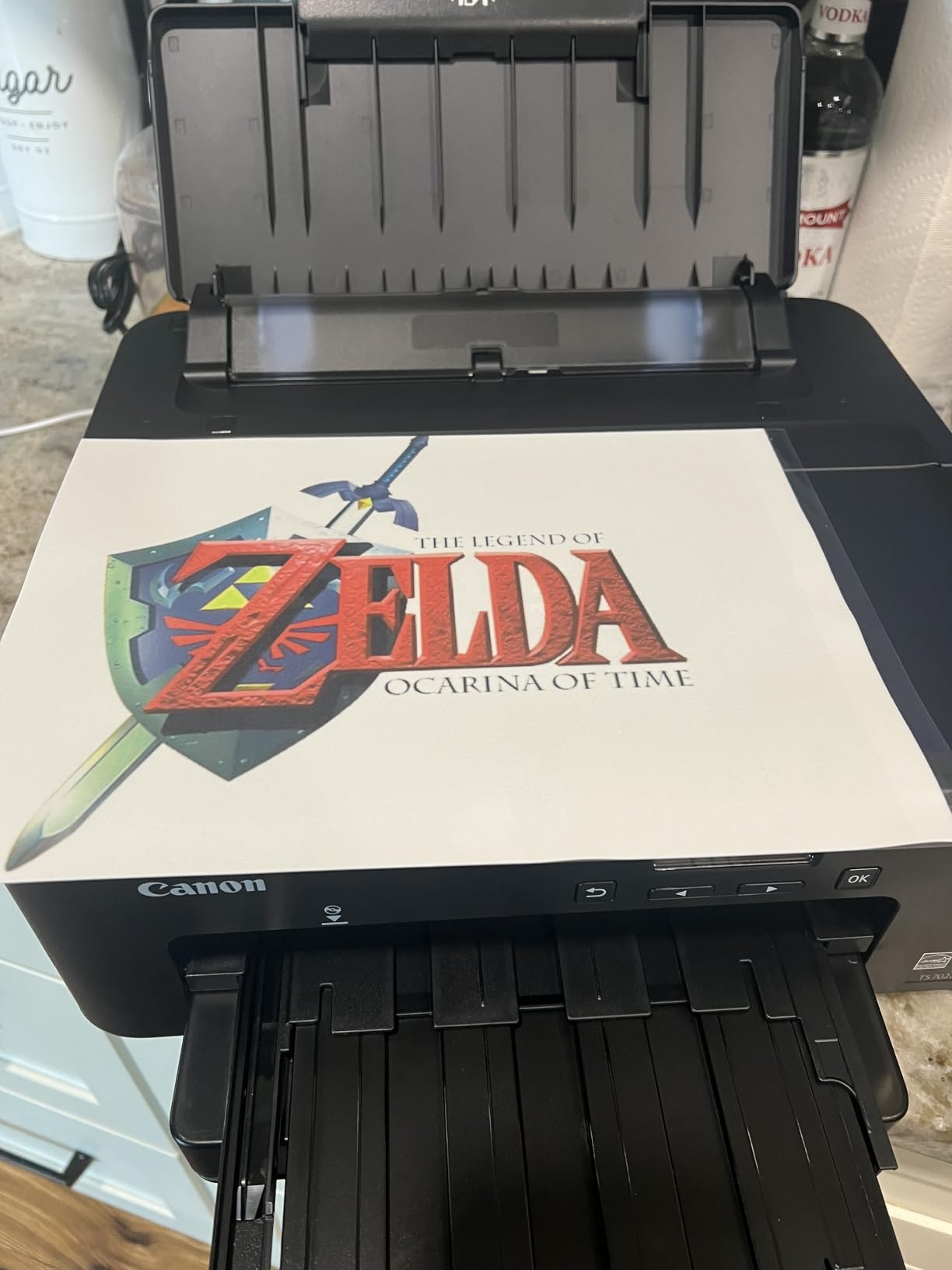
The TS702a is the most phone-native machine in the roundup. AirPrint and Mopria Print Service are both built in, and Canon lists iOS as the control method rather than treating the phone as an afterthought. When we set it up, wireless pairing from a phone was among the faster ones here, which is exactly the experience the AirPrint badge promises and so many competitors fail to deliver.
It carries the highest star rating in this group at 4.3, on 1331 reviews. That is a smaller review base than the Epson and Canon models above it, so treat the rating as encouraging rather than proven.
Two practical details stand out. Automatic duplex is included at this level, which is unusual for a print-only unit, and the 350 sheet capacity is the largest tray here, meaning you fill it once rather than twice a week. Output runs at 15 pages per minute black with an 8 second first page, and paper sizes run from 3.5 by 3.5 inches up to legal.
The limitation is that this is a print-only device, with no scanner or copier. That is fine if you own a separate scanner or never need to digitize a paper, and it is a deal breaker if you do.
When the TS702a is the right iPhone printer
It suits someone who prints from a phone almost exclusively and wants the setup to feel like an Apple product. A student in a dorm, a parent handling school forms, or anyone printing recipes and lists will find the combination of automatic duplex, a large tray and quick phone pairing hard to argue with.
Borderless photos are supported, so casual photo printing from Photos works even though the machine has no scanner.
Where the TS702a falls short
Cartridge-based ink means a higher cost per page than either EcoTank in this list, and that gap widens with volume. If you expect to print more than a few hundred color pages a year, the running cost becomes the deciding factor.
Borderless photo printing is also slower than on larger Canon models, so it is not the pick for a photo project. And with no scanner, the round-trip of paper to iPhone is not available on this machine.
8. Brother MFC-L3720CDW – Best for Color Laser Work
Brother MFC-L3720CDW Wireless Color Laser Printer, Scanner, Copier, Fax, Auto Duplex, 250-Sheet Capacity
19 ppm color laser
3.5 inch touchscreen
50 sheet ADF
Print copy scan fax
Pros
- Color laser output at 19 pages per minute with sharp text
- 3.5 inch color touchscreen with 48 shortcuts
- Full 4 in 1 with 50 sheet ADF and automatic duplex
- Dual band wireless plus Wi-Fi Direct
Cons
- Heaviest unit here at 44 pounds with a large footprint
- Color laser toner sets cost more up front
- Color speed is modest next to monochrome lasers
The MFC-L3720CDW is the machine for a small office that needs color without the ink bill. Nineteen pages per minute in both black and color, laser-sharp text and graphics, and a full print-copy-scan-fax body with automatic duplex and a 50 sheet feeder on top.
The 3.5 inch color touchscreen is the most capable control surface in this roundup, with 48 customizable shortcuts and direct cloud access. Small offices print the same forms repeatedly, and a one-touch shortcut for a recurring document saves real time.
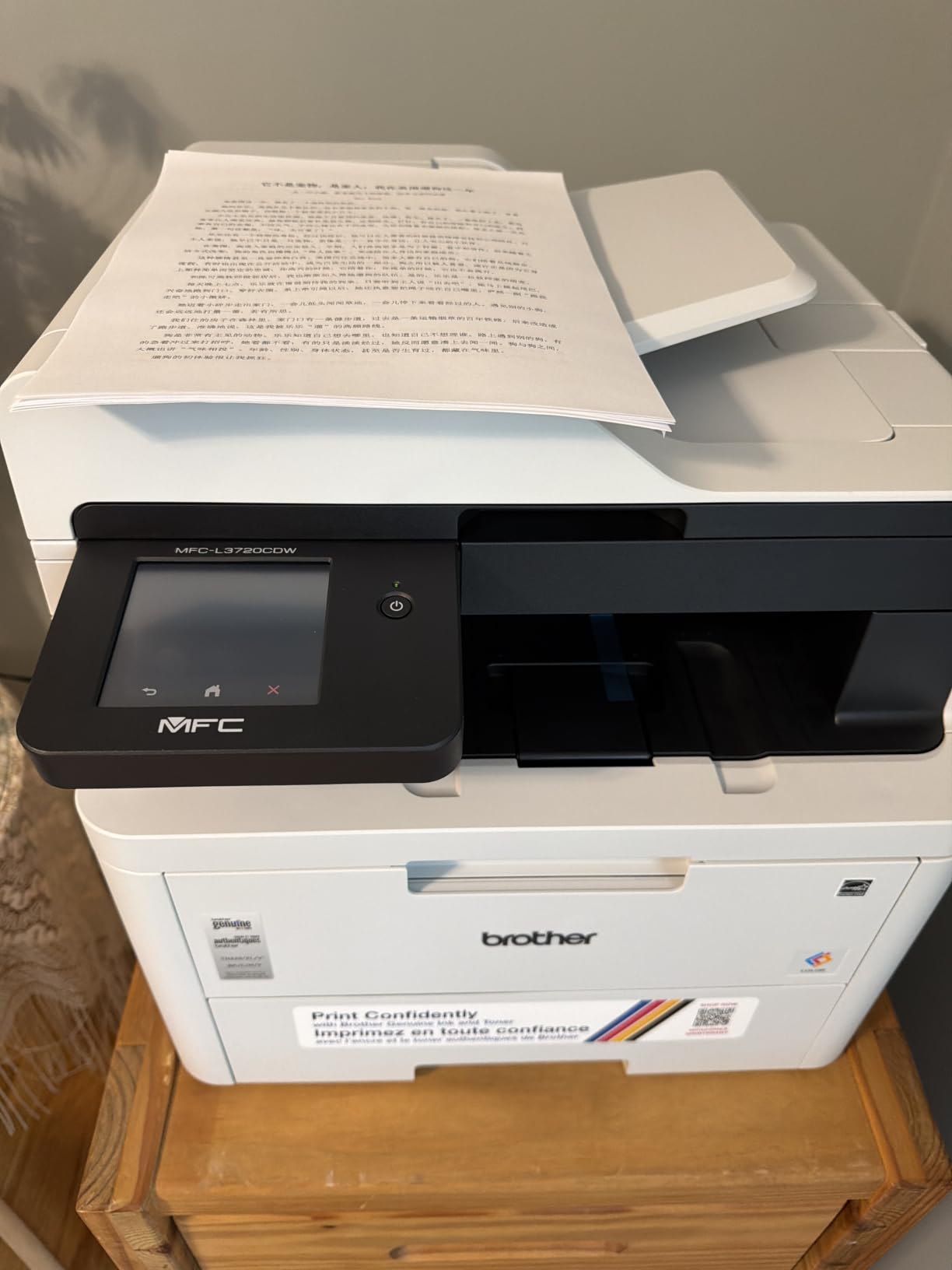
Connectivity covers dual-band 2.4 and 5 GHz wireless, Wi-Fi Direct and USB, so an iPhone on either band can find it. The mobile app adds remote printing and toner level monitoring, which matters when the machine is not in the room with you.
Size is the honest drawback. At 44 pounds and 17.5 by 15.8 by 16.1 inches, it is by far the bulkiest model here and needs a real surface. Color laser toner sets also cost more at the outset than inkjet cartridges, which pays back only if you print color regularly.
When the MFC-L3720CDW is the right iPhone printer
It fits a small office that produces proposals, price lists and marketing material in color every week, and that still needs a fax function. Laser toner also means the machine is ready after a month of sitting idle, unlike an inkjet that can dry.
Shared workspaces benefit from the touchscreen and the ADF, since several people can queue work without someone holding the originals for a flatbed scan.
Where the MFC-L3720CDW falls short
Color output at 19 pages per minute is quick for a color laser but far behind the 36 page monochrome speed of the DCP-L2640DW. If most of your printing is plain black text, you are paying for color capability you do not use and carrying a machine twice the weight.
The 1025-review base is the thinnest in this roundup, so treat the feedback here as directional rather than a long history of owners reporting in.
Why AirPrint Stops Working on iPhone and How to Fix It
Two of the top results for this query are forum threads, and the failures in them follow a pattern. Work through these in order before blaming the printer.
1. Check the network first. Your iPhone and the printer must be on the same Wi-Fi network, and that means the same band. Many modern routers place phones on 5 GHz and printers on 2.4 GHz. Dual-band printers such as the Brother models here avoid the problem, but a single-band printer will disappear.
2. Check for client isolation. Mesh systems and guest networks often isolate clients from each other, so the printer is visible in the app but unreachable from the phone. Disabling that on the router fixes it more often than any iOS setting.
3. Restart both ends, then remove and re-add the printer in iOS Settings. After an iOS update, users on r/ios report printers vanishing from the AirPrint list with no obvious cause, and a clean re-add usually restores it.
4. Update the printer firmware. A printer that worked on the old router can fail silently on a new one, and firmware updates fix more of these than people expect.
5. If the printer is visible but jobs never send, check for an IPv6 address on the printer network settings. Disabling IPv6 on the printer and re-adding it is a documented fix that resolves a stubborn subset of cases.
6. Check for a duplex mismatch. A printer set to manual duplex on one device can stall a job sent from a phone expecting automatic duplex, which looks exactly like a connectivity failure.
If you already own a printer that is not AirPrint-capable, running a CUPS server on a Linux or Windows machine and sharing it is the accepted workaround. It works, but it is genuinely complex for a home, and buying a current AirPrint model is usually less effort.
How to Print From Your iPhone With the Share Sheet
No app, no activation, and no account are required. AirPrint has been built into iOS since iOS 4.2, so there is nothing to switch on.
1. Open the item you want to print, whether it is a photo, a PDF in Files, or a document in Mail.
2. Tap the Share button, then scroll the top row of the app grid and tap Print.
3. Pinch with two fingers on the preview to open the full print options, then set copies, page range, paper size and double-sided printing.
4. If your printer is missing, tap AirPrint Printer and choose Add Printer. Your iPhone will search the network, so make sure the printer is powered on and already joined to the same Wi-Fi.
5. Tap Print in the top right. The job goes straight to the printer with no computer involved.
To scan the other direction, on a printer with a scanner you open the printer’s own web interface from Safari on your iPhone and start the scan from there, then pull the file back into Photos or Files.
Buying Guide: Inkjet, Ink Tank or Laser
Decide by volume first, then by what else the machine has to do. Under roughly 100 pages a month, a cartridge inkjet is fine on cost and simplest to live with. Between 100 and 500 pages a month, an ink tank printer such as the ET-2800 or ET-4800 changes the economics quickly because you are refilling bottles instead of buying cartridges. Above 500 pages, or for text-heavy work, a monochrome laser wins on both speed and cost per page, and the toner will not dry out between uses.
Color changes the calculation in one direction and not the other. For occasional color and photos, an inkjet is the only sensible answer, and the Canon iX6820 exists for the large-format end of that. For regular color business documents, a color laser such as the MFC-L3720CDW avoids the ink bill, at the cost of a much larger machine.
Then check the four features that decide daily convenience: automatic duplex, an automatic document feeder, paper capacity, and whether you need scanning at all. Two of the eight models here have no scanner, so make that decision before you narrow the list.
If your printing is part of a wider setup, our guide to the best small business printers covers higher-volume machines, and our shipping label printer picks handle the label side. For dedicated ink-based garment work, we also cover the best professional DTF printers.
And if your output goes beyond paper entirely, our guides to the best 3D printers and the best resin 3D printers cover the machines that print parts and models instead of documents.
Frequently Asked Questions
What is the best printer to print directly from my iPhone?
The Epson EcoTank ET-2800 is the best all-round choice for most people, because it prints sharply from the iOS Share Sheet with no app, scans and copies, and runs on refillable ink tanks with a low cost per page. A home office that needs automatic duplex, a feeder and fax is better served by the Canon PIXMA TR8620a, and a text-heavy workload is best handled by the Brother DCP-L2640DW monochrome laser.
How do I know if my printer is AirPrint-compatible?
Look for AirPrint in the specifications, then check the connection details. It should support Wi-Fi on the 2.4 GHz band, since that is the band AirPrint discovery relies on, and dual-band 2.4 and 5 GHz models are more reliable on modern routers. Check whether a USB cable is included, because many current printers ship without one. You can also confirm in seconds on iPhone by opening Share, tapping Print and seeing whether the printer appears in the AirPrint Printer list.
Why is my iPhone not recognizing my AirPrint printer?
In most cases the problem is the network rather than the printer. Check that the iPhone and printer are on the same Wi-Fi network and the same band, since a 5 GHz phone and a 2.4 GHz printer will not discover each other. Then check whether your mesh router or guest network has client isolation enabled, which blocks the two devices from talking. Restart both, remove the printer from iOS Settings and add it again.
Why has AirPrint stopped working?
The most common causes are an iOS update resetting the printer list, a change to your router or Wi-Fi network, a printer firmware update that changed its address, and client isolation on a mesh network. If the printer is visible in the AirPrint list but jobs never print, check whether IPv6 is enabled on the printer; disabling it and re-adding the printer is a documented fix. Also confirm the printer is not set to manual duplex on another device, which can stall a job.
How to activate AirPrint on iPhone?
There is nothing to activate. AirPrint is built into iOS, so you use it by opening any document or photo, tapping the Share button, choosing Print, and selecting your printer from the AirPrint list. If the printer does not appear, tap AirPrint Printer and then Add Printer while the printer is powered on and already connected to the same Wi-Fi network as the iPhone.
Conclusion
For most people printing from an iPhone in 2026, the Epson EcoTank ET-2800 is the right choice. It needs no app after the one-time network join, prints color and photos at up to 5760 x 1440 dpi, and its refillable tanks keep the per-page cost well below cartridge inkjets. With 18215 reviews behind it, it is also the model with the least risk attached.
Move to the Canon PIXMA TR8620a if your home office needs automatic duplex, a 20 sheet feeder and a fax, and to the Brother DCP-L2640DW if printing is mostly black text and speed matters more than color. Whichever you choose, confirm the printer joins your Wi-Fi on the band your phone uses before you start printing, since that single check resolves most AirPrint problems.