
A Chromebook prints wirelessly without a single driver, installer or CD, but only if the printer speaks a modern network printing standard. The best wireless printers for Chromebooks in 2026 are the models that Chrome OS can find and add on its own over Wi-Fi, and every one of our ten picks does exactly that.
That last sentence matters more than any spec sheet. A Chromebook has almost no USB ports and cannot install proprietary printer software, so a printer that depends on a USB cable or a vendor desktop app is not a cheaper option, it is a dead end. Compatibility is a hard filter here, and ink cost per page is the filter that decides how the printer feels six months later.
We went through ten candidates across HP, Canon, Brother and Epson, all of which dominate the retail shelves Chromebooks are usually bought alongside. Below you get each one with the real trade-offs, plus the Chrome OS setup steps, the scanning method and a rescue path for the printer you already own. Our broader picks for wireless printers for remote work cover office setups in more depth if that is your use case.
Table of Contents
Top 3 Best Wireless Printers for Chromebooks (October 2026)

Epson EcoTank ET-2800
- Refillable ink tanks
- 4500 black pages per tank set
- All-in-one print copy scan


Canon PIXMA TS6520
- Automatic duplex in a small body
- 1.42 inch OLED display
- Dual-band Wi-Fi
The Epson EcoTank ET-2800 takes the top spot because it solves the two things Chromebook households complain about most: ink that costs a fortune, and inkjets that need babysitting. Refillable tanks mean one bottle set is equivalent to roughly 90 individual cartridges, and the box is rated for up to 2 years of ink. Chromebooks see it as a plain network printer and add it in about a minute.
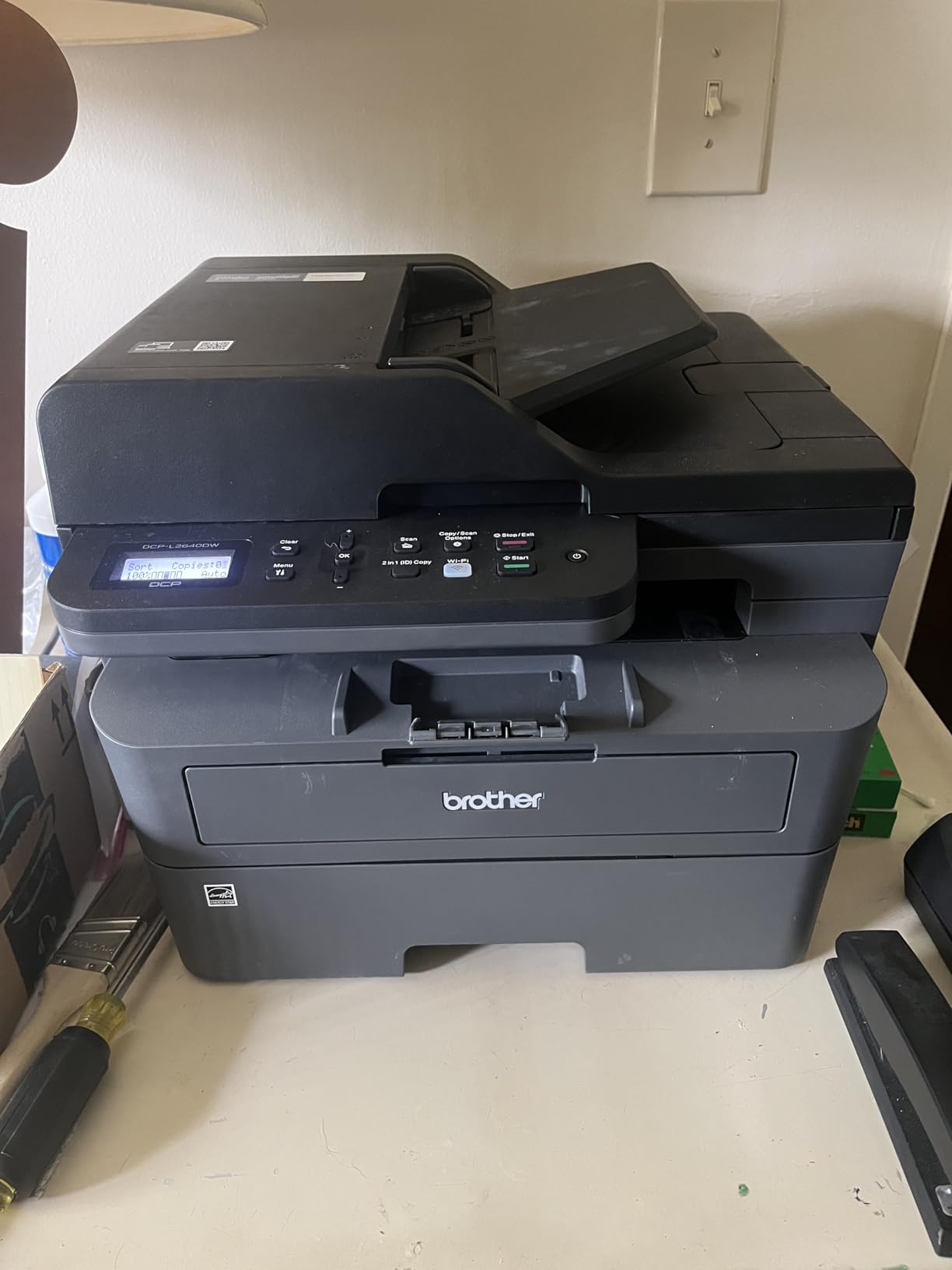
The Brother DCP-L2640DW is the value answer for anyone who prints mostly black documents. Laser toner, 36 pages per minute, automatic duplex and a 50-page feeder in one box, and no ink subscription to forget about.
The Canon PIXMA TS6520 does something the cheap inkjets rarely manage: automatic two-sided printing in a body small enough for a dorm desk, with a status screen that shows ink levels without an app.
Quick Comparison of All 10 Picks in 2026
| Product | Specifications | Action |
|---|---|---|
| Epson EcoTank ET-2800 |
|
Check Latest Price |
| Brother DCP-L2640DW |
|
Check Latest Price |
 Epson EcoTank ET-2400 Epson EcoTank ET-2400 |
|
Check Latest Price |
 Canon PIXMA TS3720 Canon PIXMA TS3720 |
|
Check Latest Price |
 Brother HL-L2460DW Brother HL-L2460DW |
|
Check Latest Price |
| Canon PIXMA TS6520 |
|
Check Latest Price |
 Canon PIXMA TR7120 Canon PIXMA TR7120 |
|
Check Latest Price |
 HP Envy 6155 HP Envy 6155 |
|
Check Latest Price |
 Brother Work Smart 1360 Brother Work Smart 1360 |
|
Check Latest Price |
 Epson EcoTank Photo ET-8550 Epson EcoTank Photo ET-8550 |
|
Check Latest Price |
Two columns are worth reading twice before anything else. The first is duplex, because single-sided-only models push a two-sided job into manual paper flipping, which is a poor match for a laptop with an 11-to-14 inch screen and a small desk. The second is the ink system, because cartridge models and refillable tank models look similar on the shelf and behave nothing alike over a year of use.
1. Epson EcoTank ET-2800 – Best Overall for Chromebooks
Epson EcoTank ET-2800 Wireless Color All-in-One Supertank Printer – Black
Inkjet all-in-one
10 ppm black and 5 ppm color
100-sheet tray
11.4 pounds
5760 x 1440 dpi
Pros
- Refillable tanks with up to 2 years of ink in the box
- Sharp color up to 5760 x 1440 dpi
- Compact all-in-one that prints copies and scans
- Prints 4 inch by 6 inch photo paper
Cons
- Single-sided printing only with no automatic duplex
- Small 100-sheet paper tray
- Modest 10 ppm black output
This is the printer I would put on a family Chromebook desk first. It prints at 10 pages per minute in black and 5 in color, and at 11.4 pounds with a flatbed scanner it is small enough that nobody has to clear a shelf to make room for it.
Setup took under a minute on Chrome OS once the machine was on the same Wi-Fi network. Chrome OS found it, offered it in the printer list, and the print dialog in Docs and the browser both picked it up. There is no app to install and no account to create, which matters when the person using the Chromebook is a child or a parent who did not grow up with drivers.
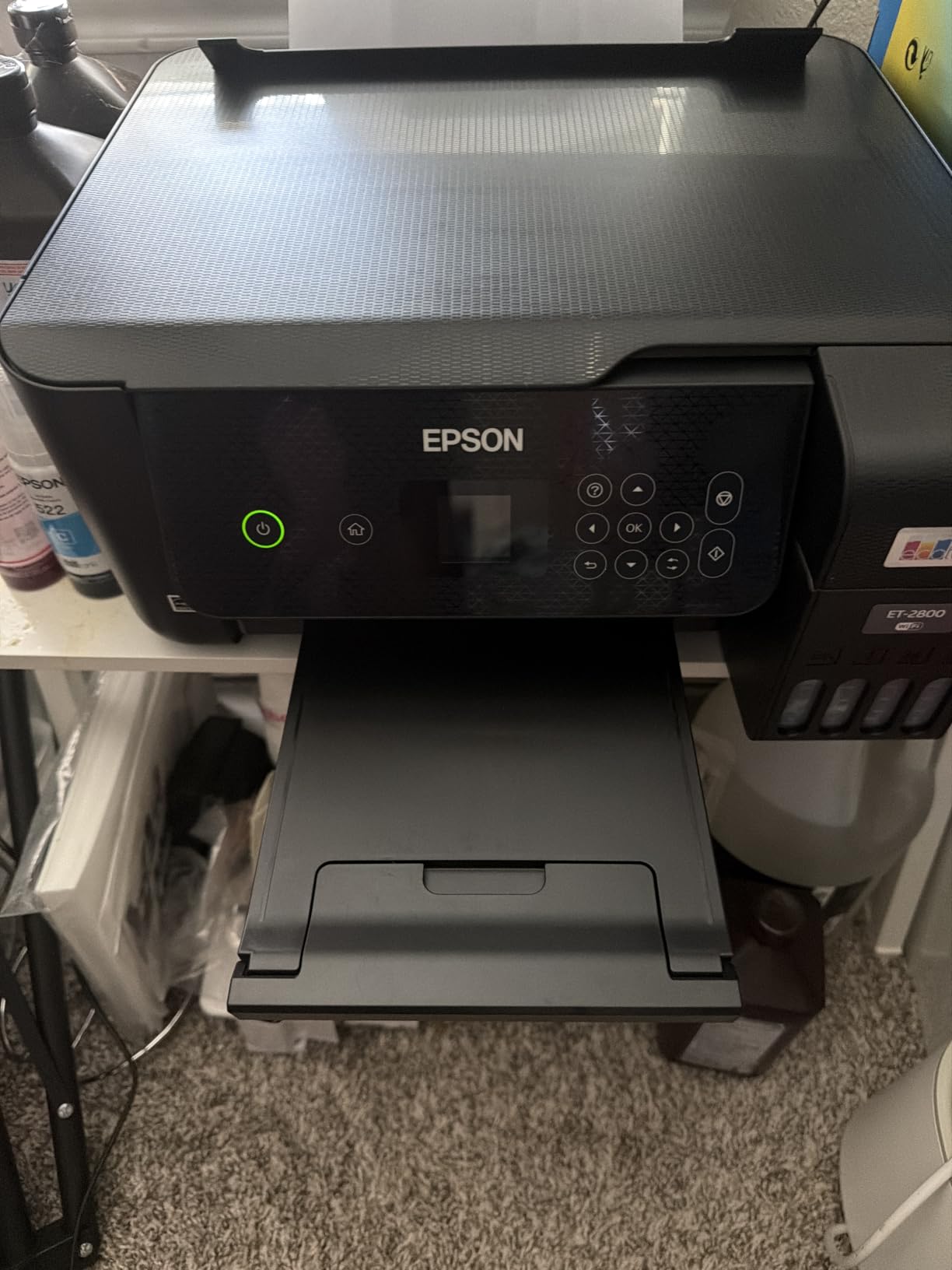
The ink economics are the real argument. One bottle set is equivalent to about 90 individual cartridges and covers up to 4,500 black pages or 7,500 color pages, and Epson rates the box contents at up to 2 years of ink. Owners consistently point to running cost and consistent color as the reasons they would buy it again, and the 4.0 average across more than 18,000 reviews reflects broad satisfaction rather than enthusiasm.
Two limits shape who should buy it. Printing is single-sided only, so a 40-page double-sided report means 40 sheets and a manual flip. The 100-sheet tray also runs out faster than a family with weekly homework in it will like, which is why it is less convincing as a small office machine.
Why the refillable tanks matter more than the price gap
Cartridge inkjet cost per page is the regret that shows up in printer forums years after the purchase. The EcoTank line removes the small individual cartridges entirely, so the only thing you replace is the bottle, and you replace only the colour that actually ran dry.
That changes the maths for a Chromebook household in a specific way. School projects, permission slips, recipe cards and scanned worksheets are small colour jobs, which is exactly the workload that punishes cartridge printers hardest because a partially used colour cartridge usually gets binned.
Where it falls short
The missing duplex unit is the one feature that keeps this out of small-office territory. Two-sided documents have to be reloaded by hand, and a 100-sheet tray on a shared family machine means refilling more often than a household that prints a lot will enjoy.
Its 10 ppm black speed is slower than the Canon PIXMA TS6520, the TR7120 and both Brother lasers, so it is not the right pick for someone running off 300 pages at once.
2. Brother DCP-L2640DW – Best Value Monochrome All-in-One
Brother DCP-L2640DW Wireless Compact Monochrome Multi-Function Printer, Copy, Scan, Duplex, Mobile Printing
Monochrome laser all-in-one
36 ppm print and 23.6/7.9 ipm scan
250-sheet tray
25 pounds
Pros
- Fast 36 ppm monochrome output with automatic duplex
- 50-page automatic document feeder
- Dual-band 2.4GHz/5GHz Wi-Fi plus Ethernet
- Sharp 1200 x 1200 dpi text
Cons
- Monochrome only with no colour printing
- On-printer menu navigation is awkward for scanning
- Machine password and firmware prompts add setup friction
This is the machine for a remote worker or a parent who prints forms, invoices and lesson plans rather than photographs. It is a monochrome laser, which changes the running cost profile completely, and it combines printer, scanner and copier in one 25-pound body with a 250-sheet tray.
Chrome OS connects to it the same way it connects to anything else on the network. Its built-in dual-band wireless at 2.4GHz and 5GHz is one of the reasons Brother models show up so often in Chromebook troubleshooting threads, and Ethernet is there if the Wi-Fi in an older house is the weak link.
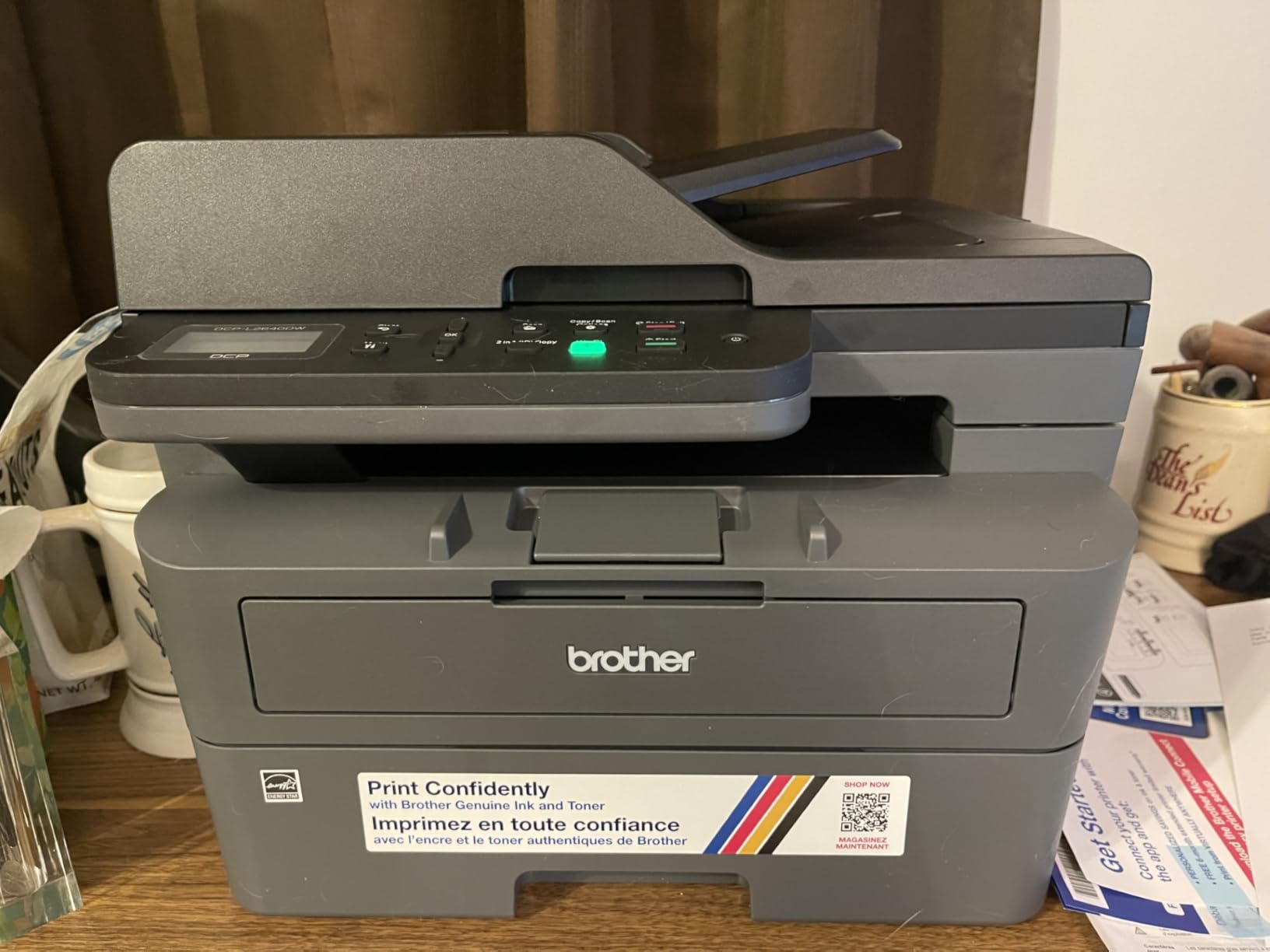
Owners consistently praise speed, print sharpness, toner economics and network reliability, and the 4.1 average across 3,904 reviews reflects a settled, workhorse experience. The 50-page automatic document feeder is what makes it a genuine all-in-one: you can scan a stack of receipts in one pass instead of lifting the flatbed lid 50 times.
Its 8.5-second first page means a short job is not a long wait, and the TN830 and TN830XL toner options mean you are not tied to a subscription to keep it fed.
Why duplex matters more on a laptop than on a desktop
Automatic two-sided printing is worth more on a Chromebook than on a desktop PC, for a reason that is about the screen rather than the printer. Working through a two-sided handout on an 11-inch or 13-inch panel means scrolling and rotating constantly, and the same is true when your browser is showing a preview of a print job.
The 250-sheet tray is the other quiet advantage. A tray that holds a full ream means fewer refills, which is exactly what a remote worker printing monthly reports and a student printing a term’s worth of notes both need.
Where it falls short
It prints black only. A school project with a colour diagram, a birthday card or a recipe with photographs simply cannot be produced, and no setting changes that.
The on-printer menu is also the weak spot, with owners describing scanning navigation as awkward compared with the mobile app. If you mainly scan, choose a model where scanning is driven from a screen or the app instead of a physical menu.
3. Epson EcoTank ET-2400 – Lightest All-in-One at 8.6 Pounds
Epson EcoTank ET-2400 Wireless Color All-in-One Supertank Printer
Inkjet all-in-one
10 ppm black and 5 ppm color
100-sheet tray
8.6 pounds
Pros
- Refillable tanks cut running cost sharply
- Replace only the colour that ran out
- Lightest all-in-one here at 8.6 pounds
- Sharp 5760 x 1440 dpi colour
Cons
- No automatic duplex only manual two-sided
- No display screen just status LEDs
- Prone to paper jams versus comparable Canon models
The ET-2400 is the lighter, simpler sibling of the ET-2800, and for some desks it is the better fit. At 8.6 pounds it is the lightest all-in-one in this group, which matters in a dorm room or a small bedroom office where a 25-pound laser is simply too much machine.
The ink story is the same idea, with slightly smaller numbers: one bottle set is equivalent to about 80 individual cartridges and covers up to 4,500 black-and-white pages or 7,200 colour pages, with up to 2 years of ink in the box. Reviewers repeatedly name the ink economics and colour quality as the reasons to buy, particularly for students and home offices.

Initial page print time is 7 seconds, so short documents come out fast, and the flatbed scanner handles the occasional worksheet scan without any setup at all from Chrome OS.
What you give up is refinement. There is no screen, only status LEDs, and when something goes wrong you have no message to read. Envelope handling also means emptying the tray and readjusting the guides, which is a small annoyance that comes up in reviews more than the specification sheet would suggest.
Who should accept manual duplex
Manual two-sided printing is fine if your printing is mostly single-sided short jobs: a permission slip, a recipe, a single worksheet. It stops being fine the moment a child hands you a 20-page double-sided reading pack.
The answer for most households is a rule of thumb. Under roughly 50 pages a month, manual duplex is an acceptable irritation. Above that, an automatic duplex unit pays for itself in saved paper alone, and two Canon PIXMA models in this list include one.
Where it falls short
The missing screen is the thing owners mention most. Diagnosing a Wi-Fi problem with four little LEDs is guesswork, and on a Chromebook the usual answer is to remove the printer from Chrome OS settings and add it again, which is harder to do well when the printer cannot tell you what state it is in.
Some owners also report more frequent paper jams than with comparable Canon models, so a household that prints heavy card or craft paper may prefer an inkjet with a sturdier feed path.
4. Canon PIXMA TS3720 – Best Budget Chromebook Pick
Canon PIXMA TS3720 Wireless All-in-One Printer for Basic Home Printing, White
Color inkjet all-in-one
7.7 ppm black and 4 ppm color
60-sheet tray
8.7 pounds
Pros
- Explicitly listed as working with Chromebook
- Stable dual-band 2.4GHz/5GHz Wi-Fi with computer-free setup
- Canon PRINT app plus AirPrint and Mopria Print Service
- 1.5 inch segment LCD screen
Cons
- Single-sided printing only
- Small 60-sheet paper capacity
- Slower output than the laser and higher-end inkjet options
This is the only model in our list that its own manufacturer states works with Chromebook, and that single line in the feature list is a good deal of the reason to pick it. Canon builds Chromebook support into the product description rather than leaving it to be inferred, which is exactly the clarity a first-time buyer wants.
It is also one of the smallest and flattest options here, at 8.7 pounds and 5.8 inches tall, and its 1.5-inch segment LCD gives you ink status and basic controls without an app. Setup is computer-free through dual-band Wi-Fi at 2.4GHz or 5GHz, so the Chromebook just needs to join the same network.
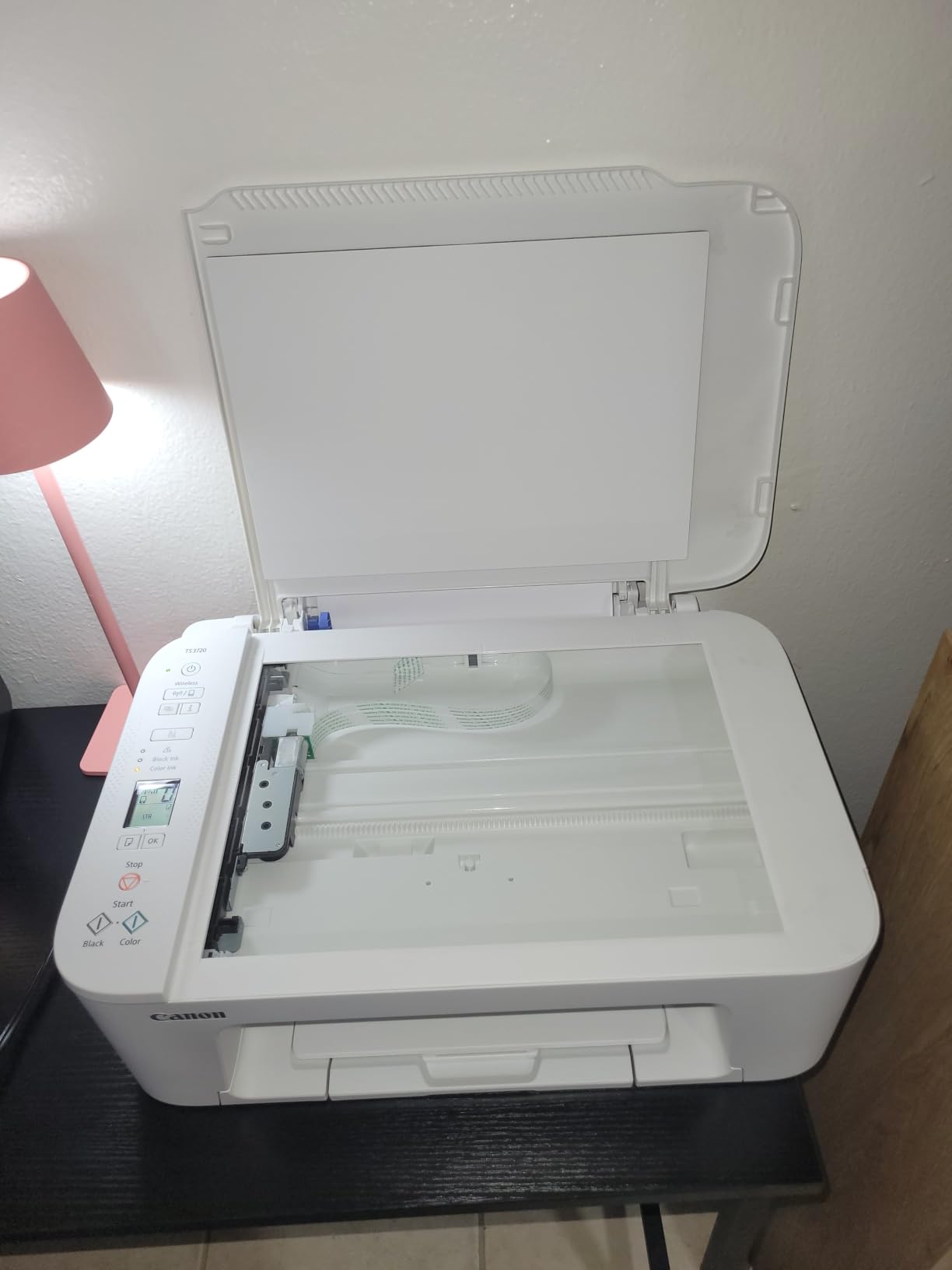
It prints approximately 7.7 pages per minute in black and 4 in colour, and borderless photos up to 5 inch by 7 inch are supported, which is enough for school projects and snapshot prints. Owners highlight the easy wireless setup and Chromebook compatibility as the deciding factors, and accept the small tray and single-sided output as the trade.
It runs on two easy-to-replace cartridges, Canon CL-276 and PG-275, and carries a 1-year warranty.

Why Mopria and AirPrint support still matter on a Chromebook
Chrome OS discovers printers using the same modern standards that AirPrint and Mopria rely on, so a printer that advertises those services is speaking a language your Chromebook already understands. The TS3720 lists AirPrint and Mopria Print Service alongside the Canon PRINT app, which means the browser-based print path works even if the app is never installed.
This is also why you should be sceptical of any printer that only offers a vendor app for wireless printing. An app-based route is a workaround, and it is the workaround Chromebook owners complain about most, because it adds steps to something that should be one.
Where it falls short
The 60-sheet tray is the smallest here, and single-sided-only output means double-sided homework is manual work. Speed is the lowest of the Canon group, so a 50-page print is a considerably longer wait than on the TS6520 or TR7120.
For a household that prints a few pages a week, none of that matters much. For a parent who ends up handling a term of full printouts, the next model up is the smarter purchase.
5. Brother HL-L2460DW – Monochrome Workhorse With a 250-Sheet Tray
Brother HL-L2460DW Wireless Compact Monochrome Laser Printer with Duplex, Mobile Printing, Black & White Output | Includes Refresh Subscription Trial(1), Works with Alexa
Monochrome laser printer only
36 ppm with auto duplex
250-sheet tray
15.6 pounds
Pros
- Fast 36 ppm output with automatic duplex
- 250-sheet tray plus manual feed for envelopes
- Dual-band Wi-Fi plus Ethernet and USB
- Crisp 1200 x 1200 dpi text at low cost per page
Cons
- Monochrome only with no scanning capability
- On-screen Wi-Fi setup is tedious with the limited buttons
- Refresh subscription trial can generate unexpected charges
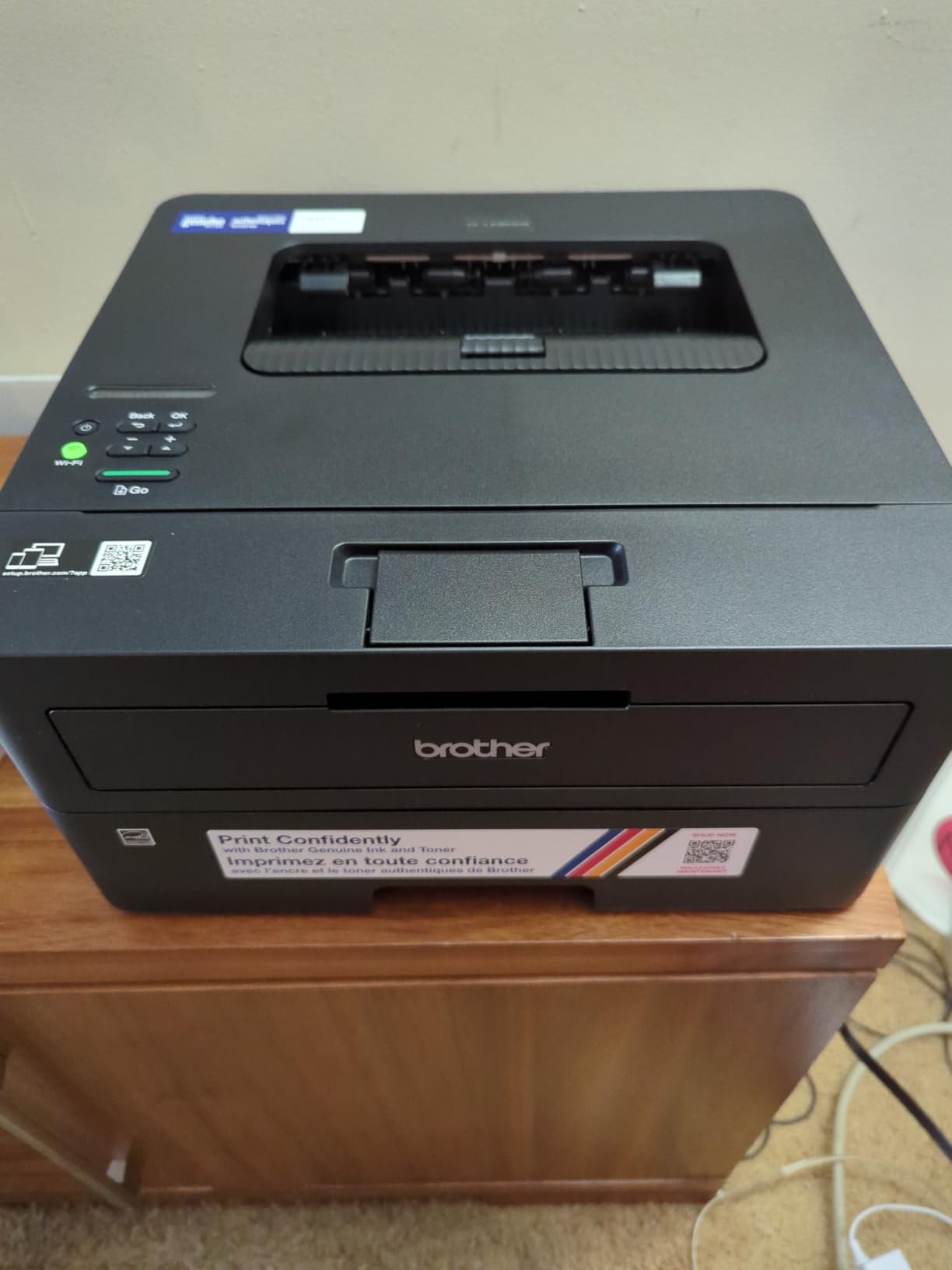
If your printing is entirely black documents and you want them fast, this is the pick. It is a printer with no scanner and no colour, which sounds like a downgrade until you realise it means a smaller body, a 250-sheet tray and toner economics that suit a high page count.
It matches the DCP-L2640DW’s 36 pages per minute and automatic duplex, and its 14.2 by 14 by 7.2 inch body is considerably smaller than the 25-pound all-in-one it shares a speed with. It prints up to 8.5 by 14 inch media and reaches 1200 x 1200 dpi for text.
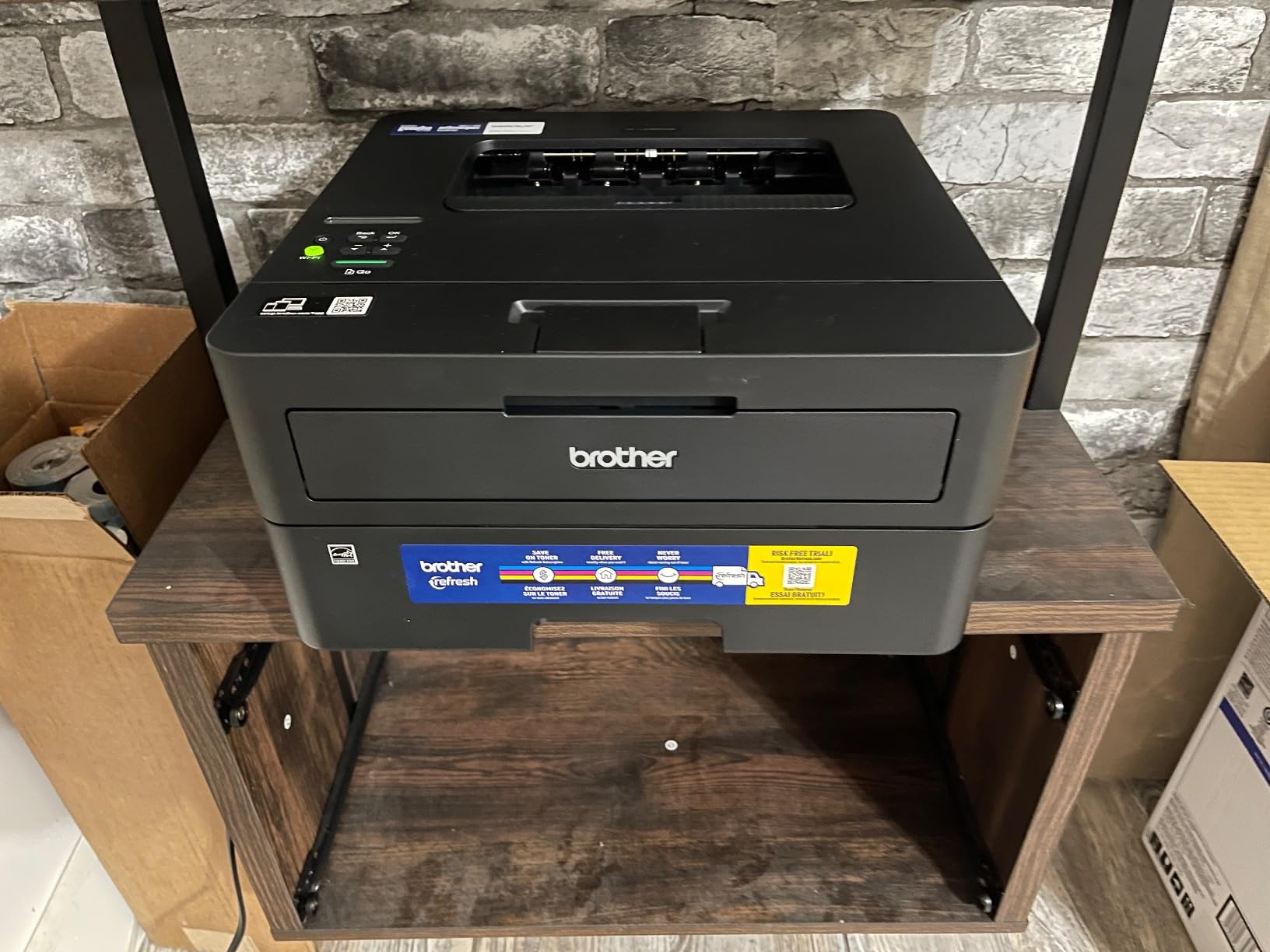
Owners describe it as dependable and economical, with no recurring jams in long-term use. On a Chromebook the browser print dialog exposes the useful options, and the 8.5-second first page keeps short jobs responsive.
One thing to know before you buy: it includes a Refresh subscription trial, and users report being surprised by what happens after that period. Check the terms on the listing page before you accept anything.
When a single-function printer is the right answer
A printer that cannot scan is a limitation only if you need to scan. Many people do not, and the ones who need to occasionally can always use a phone or a flatbed model as a second device rather than paying for a scanner they would use twice a year.
The other reason to accept this trade is paper handling. With no scanner and no feeder, the machine has fewer moving parts and a shallower body, which is why it fits on a small desk that could not hold a 12.5-inch-tall all-in-one.
Where it falls short
No colour means no photographs, no diagrams and no coloured homework highlights. It also means no way to copy a document, which quietly rules it out for anyone who occasionally duplicates a permission slip or a recipe card.
The button-driven on-screen Wi-Fi setup is also described by owners as tedious, so expect a few minutes in the printer’s own menus before it joins the network.
6. Canon PIXMA TS6520 – Duplex Inkjet That Fits a Small Desk
Canon PIXMA TS6520 Wireless Color Inkjet Printer, Duplex Printing, Copier/Scanner, 1.42″ OLED Display, Compact, White
Color inkjet all-in-one
14 ppm black and 9 ppm color
Automatic duplex
1.42 inch OLED
Pros
- Automatic two-sided printing in a compact low-cost body
- Stable dual-band 2.4GHz/5GHz Wi-Fi
- 1.42 inch monochrome OLED display shows ink levels
- Flatbed scanner and copier built in
Cons
- Two-cartridge system means colour printing can force a black replacement
- Letter-size media only
- No automatic document feeder
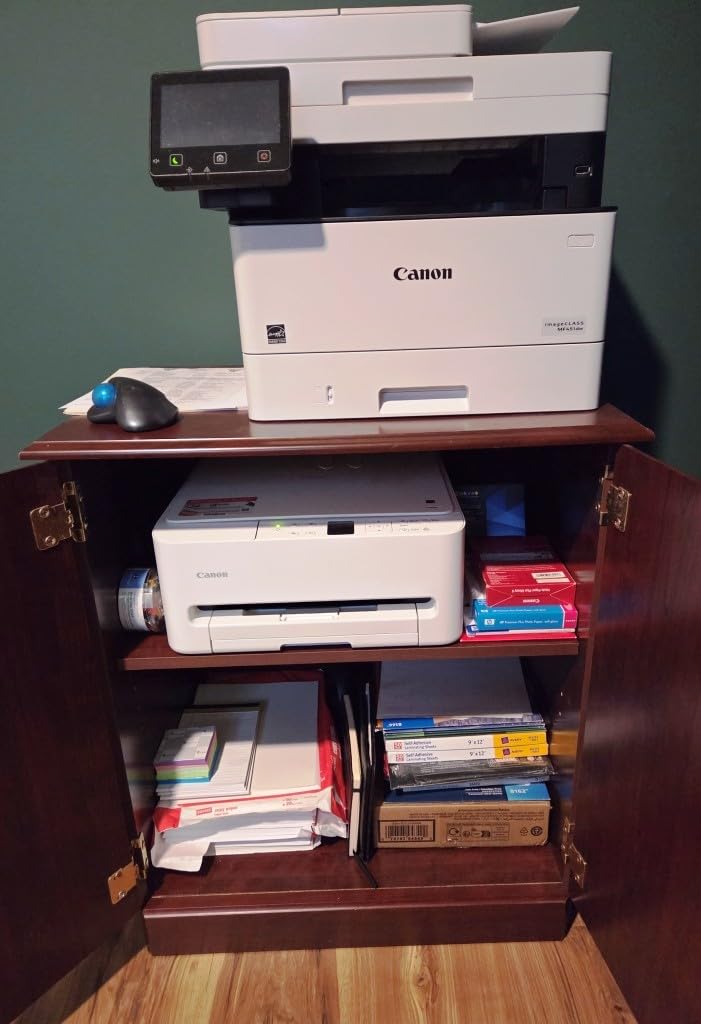
This is the printer that solves the most common complaint about budget inkjets, which is the absence of automatic duplex. It prints 14 pages per minute in black and 9 in colour, flips both sides by itself, and still measures 14.8 by 14 by 6.7 inches.
The 1.42-inch monochrome OLED display is the detail that makes it feel like a different class of machine. It shows ink levels and printer status at a glance, which means when something stalls you can see why instead of guessing, and that matters on Chrome OS where troubleshooting is otherwise guesswork from the browser side.
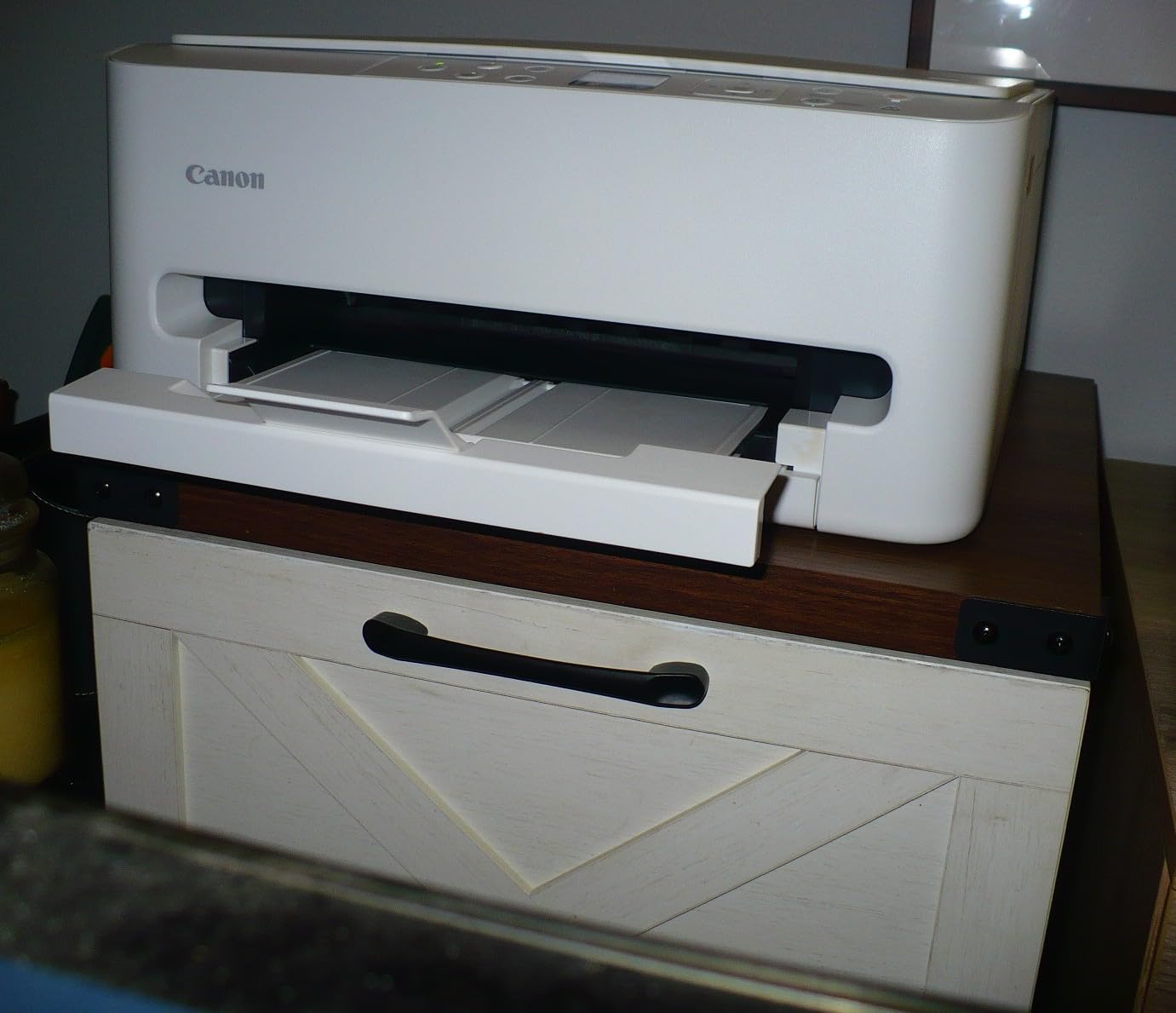
Its 4.2 average sits above the group average, and reviewers single out the combination of duplex, the status screen and dual-band Wi-Fi as what justifies stepping up from the cheaper PIXMA models. Canon PRINT, AirPrint and Mopria Print Service are all supported, and there is a 3-year manufacturer warranty behind it.
The 2-cartridge hybrid ink system, using a PG-295 pigment black tank and a CL-286 colour tank, produces sharp text and vivid colour for documents and photos alike.
Why a status screen changes the Chromebook experience
Chrome OS gives you a printer entry and a print dialog, and that is genuinely all. If a job sits in the queue, the reason is nearly always on the printer itself: out of ink, a paper type mismatch, a door that is not fully closed. A model with a display tells you which of those it is.
That is a small thing to pay for in a house where someone else does the printing. It converts a five-minute troubleshooting session into a one-second glance, and it is the single most useful difference between this model and cheaper inkjets with indicator lights only.
Where it falls short
The two-cartridge hybrid system is a real cost consideration. There is no separate colour cartridge, so a magenta-heavy project can leave you with colour ink in a tank and still push you toward replacing the black cartridge, which is the classic cartridge-inkjet trap.
It also handles Letter media only and has no document feeder, so multi-page scanning means lifting the flatbed lid each time. If you scan often, the next model is the better buy.
7. Canon PIXMA TR7120 – Best for Scanning and Copying
Canon PIXMA TR7120 Wireless Color Inkjet Printer, Duplex Printing, White – Home Printer with Copier/Scanner, Auto Document Feeder, Compact Design, Intuitive Control Panel
Color inkjet all-in-one
14 ppm black and 9 ppm color
ADF plus auto duplex
1.42 inch OLED
Pros
- Auto document feeder plus automatic duplex in a compact footprint
- 1.42 inch monochrome OLED display for ink and status
- Dual-band 2.4GHz/5GHz Wi-Fi
- Supports Legal size and broad photo and envelope media
Cons
- Two-cartridge hybrid system rather than individual tanks
- Heavier and larger than the smaller PIXMA models
- Smaller installed base of reviews than the other picks
The TR7120 is the model to buy if scanning is a regular part of your routine rather than an occasional favour. It adds an automatic document feeder to everything the TS6520 already does, so a stack of worksheets or receipts goes through in one pass.
It shares the same 14 ppm black and 9 ppm colour speeds, automatic duplex, dual-band Wi-Fi and 1.42-inch OLED display, and adds Legal size support at 8.5 by 14 inches along with photo, card and envelope media handling. A 100-sheet tray is also a step up from nothing at all.
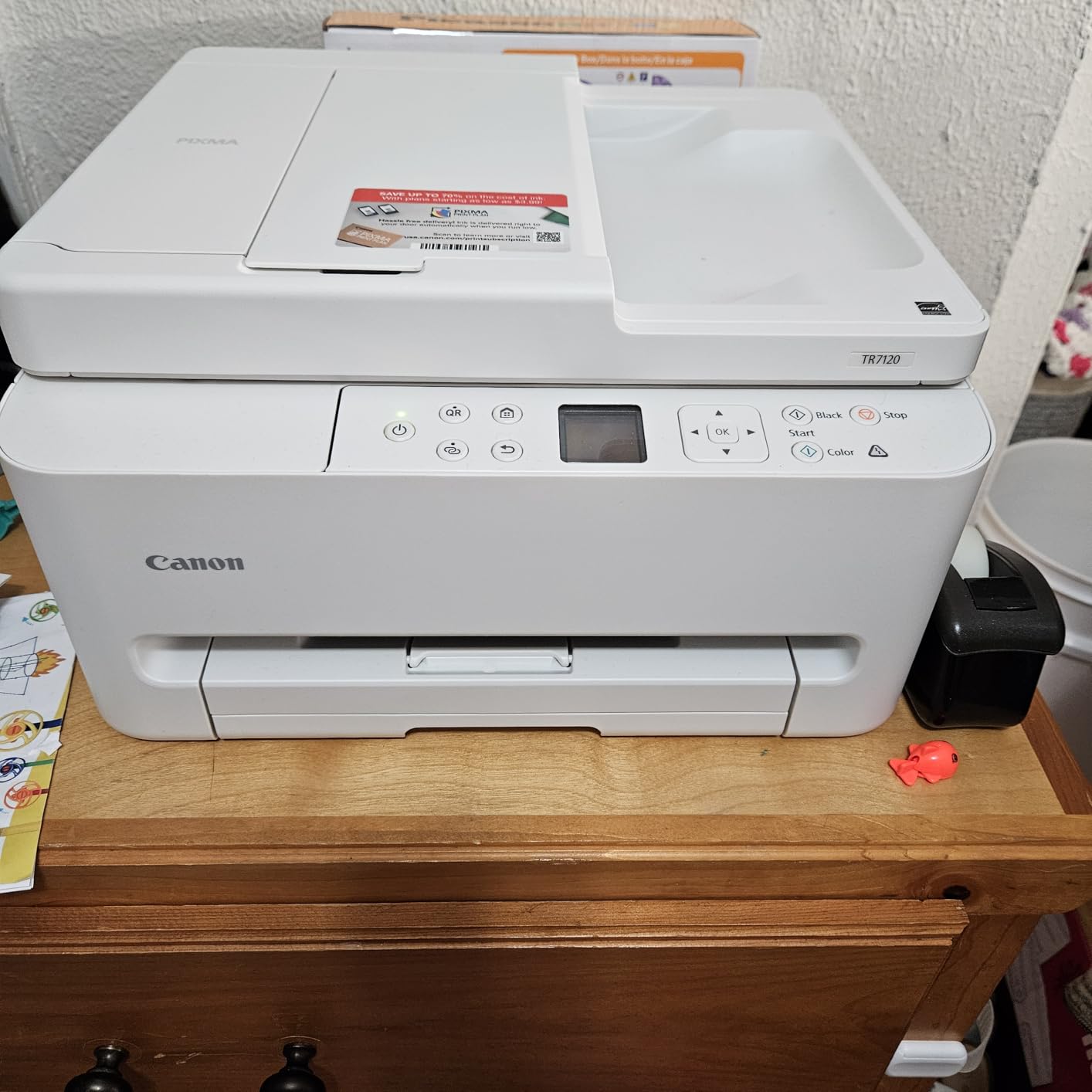
Its 4.3 average is the highest rating in this group, though it sits on a much smaller review base of 483 than the models around it, so treat the score as encouraging rather than settled. Buyers consistently name the feeder, the duplex unit and the control panel as the reasons to step up from cheaper PIXMA models.
It weighs 18.1 pounds and stands 8.2 inches tall, so plan for a real shelf rather than a floating shelf, and it carries a 1-year manufacturer warranty.
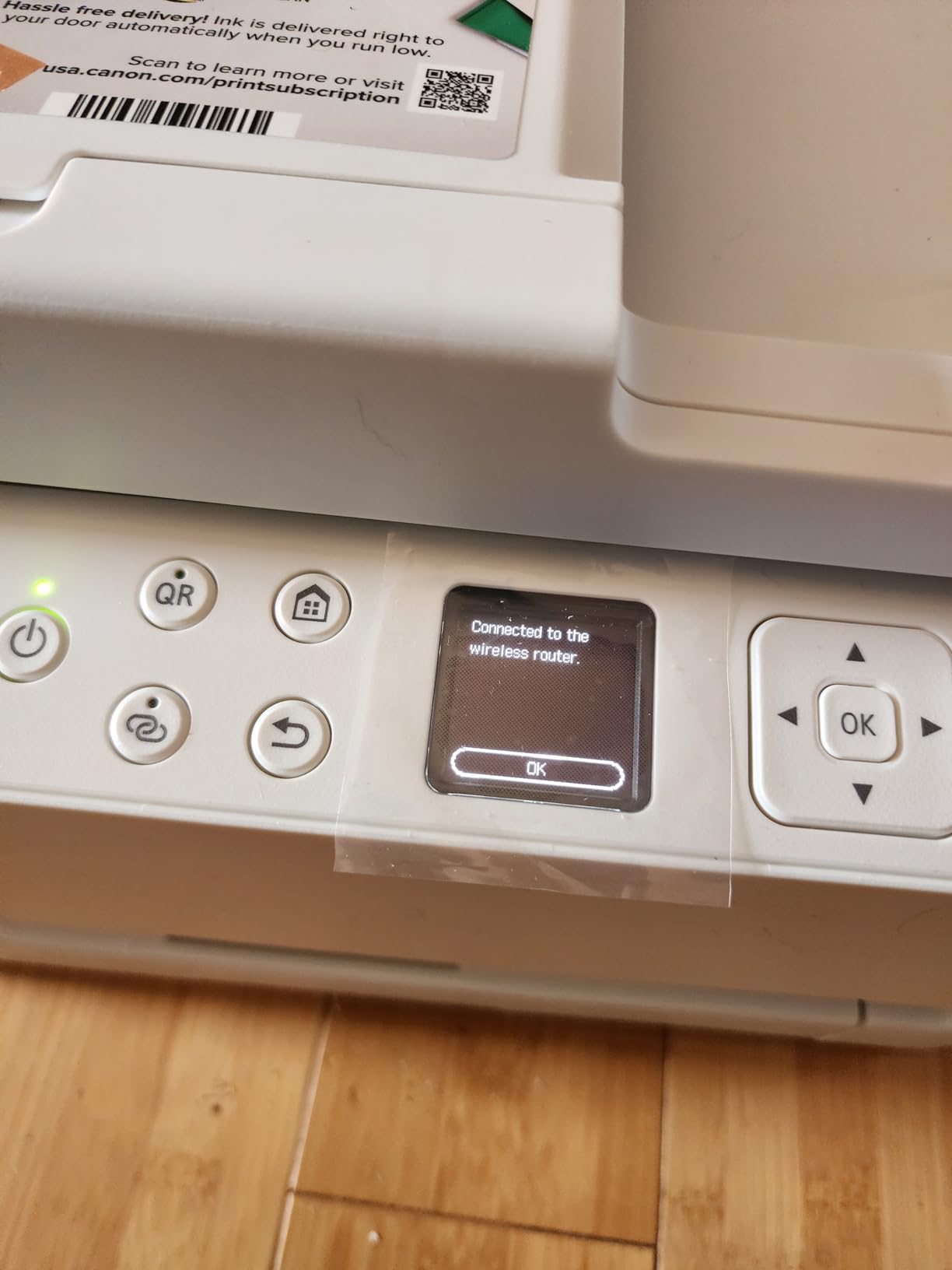
What a document feeder changes for a home office
A flatbed scanner means one page at a time, lid open, align the corner, close, wait, lift. A document feeder means you load a stack, press one button, and walk away. On a family Chromebook desk where the machine doubles as a photocopier for school paperwork, that difference is felt several times a week.
It also pairs well with how Chromebooks handle documents anyway. Scanning to a file and then working on it in Docs is a natural path, and a feeder-fed batch of receipts turns that from an afternoon project into a single action.
Where it falls short
It uses the same two-cartridge hybrid ink system as the TS6520, so the colour-versus-black replacement trade still applies. Owners also note it is heavier and larger than the smaller PIXMA models, which is a fair criticism in a small room.
Because its review base is thinner than the rest of the field, a cautious buyer should weigh the track record of the models above it alongside the rating here.
8. HP Envy 6155 – Best for a Touchscreen at Home
HP Envy 6155 Wireless All-in-One Color Inkjet Printer, Print, Scan, Copy, Duplex Printing Best-for-Home, 3 Month Trial of Instant Ink Included, AI-Capable (C2WR7A) Portobello
Color inkjet all-in-one
10 ppm black and 7 ppm color
2.4 inch touchscreen
100-sheet tray
Pros
- Automatic duplex plus a 100-sheet tray in a home-focused all-in-one
- 2.4 inch color touchscreen
- HP AI formats web pages and emails to avoid wasted pages
- Made with at least 60 percent recycled plastic
Cons
- Works only with cartridges containing original HP chips
- Instant Ink monthly fee applies after the 3-month trial
- Slower than the Canon PIXMA models at 10 ppm black
The Envy 6155 is the pick for a household where the printer gets used by several people, including people who find a browser print dialog fiddly. A 2.4-inch colour touchscreen means copying, scanning and setup are done on the machine itself rather than through a menu buried in Chrome OS settings.
It prints 10 pages per minute in black and 7 in colour, has automatic duplex, a 100-sheet tray and dual-band Wi-Fi that detects and resolves connection issues on its own. HP’s print formatting is also designed to clean up web pages and emails so you do not waste a sheet on a badly laid-out blog post, which is a Chromebook problem more than a desktop one.
The 4.2 average is solid, though on 415 reviews it is one of the thinner bases in this group. Buyers point to the touchscreen, the duplex unit and the app-based control as the differentiators for everyday home colour printing.
HP is one of the four brands that dominate this market, and its Chromebook story runs through the Smart app and cloud-connected models rather than through driverless printing alone. The Envy series is the mainstream entry point, and this model pairs a touchscreen with automatic duplex, which is rarer than it should be in this class.
Two ownership details deserve a careful read before you commit. It accepts only cartridges containing original HP chips, which rules out third-party ink. And the included 3-month Instant Ink trial becomes a monthly subscription unless cancelled, so the practical running cost depends entirely on whether you remember to leave it.
Why a touchscreen matters on a shared family Chromebook
Chrome OS gives you a print dialog and very little else. Everything a printer can do beyond that, including copying and scanning, has to be driven from the machine itself or from a phone app, and the Envy 6155 puts a 2.4-inch colour screen on the front of the box for exactly that job.
HP’s print formatting is also designed for the way people actually print from a browser. Web pages and emails get laid out to avoid wasted sheets and broken columns, which is a Chromebook problem far more often than a desktop one.
Where it falls short
Speed is the honest weakness, with 10 ppm black and 7 ppm colour putting it behind both Canon PIXMA models. Combined with cartridge-only ink and a subscription that becomes a recurring fee, it is a printer to buy for its interface rather than its running cost.
It also has no automatic document feeder, so multi-page scanning is flatbed-only, and media support tops out at Letter size.
9. Brother Work Smart 1360 – Best Cloud-Printing All-in-One
Brother Work Smart 1360 Wireless Color Inkjet All-in-One Print, Scan, Copy
Color inkjet all-in-one
16 ppm black and 9 ppm color
Auto duplex and 20-sheet ADF
150-sheet tray
Pros
- Automatic duplex
- 20-sheet feeder and 150-sheet tray in a compact body
- 1.8 inch color display for printing and scanning to Google Drive
- 16 ppm black and 9 ppm color output
- Page Gauge ink monitoring in the mobile app
Cons
- Lowest average rating in this group at 3.9
- 20-sheet feeder is small for multi-page scanning
- Standard cartridges rather than refillable tanks
At 16 pages per minute in black and 9 in colour, this matches the quickest inkjet output in the group, and it arrives with a feature most competitors leave out: direct printing and scanning to Google Drive, Dropbox, Box and OneDrive from a 1.8-inch color display.
For a student whose entire workflow lives in Google services, that is genuinely useful. The 150-sheet tray is the largest of the inkjets here, automatic duplex is included, and a 20-sheet automatic document feeder handles multi-page scanning on a small scale.
It is compact at 13.5 by 15.4 by 7.2 inches, Energy Star qualified, and connects over Wi-Fi or USB. The Brother Mobile Connect app provides on-screen menu navigation and Page Gauge ink monitoring, which is the closest thing here to the status screens on the Canon models.
Its 3.9 average is the lowest in this group, and that is worth taking seriously rather than explaining away. Reviewers are generally satisfied, with the small feeder and cartridge-based ink cited most often as limitations rather than the cloud connectivity, which is generally reported as working well.

What direct cloud scanning actually saves you
Scanning to Google Drive from the printer panel skips the middle step entirely. The usual route is scan to a file, find the file, upload it, then open it in Docs. Sending it straight to Drive from the 1.8-inch display removes the find-and-upload part, which is the part people give up on.
That matters more on a Chromebook than on a Windows laptop, because there is no desktop file manager to make the handoff obvious. If your household already lives entirely in Google accounts, this is the feature that decides the purchase.
Where it falls short
It uses standard ink cartridges rather than refillable tanks, so the running cost over a year is meaningfully higher than the Epson EcoTank models here, and it is the lowest-rated pick in the set.
The 20-sheet feeder is also small enough that a 30-page scan is two loads, and at 16.8 pounds it is not the lightest option on a small desk.
10. Epson EcoTank Photo ET-8550 – Best Wide-Format Photo Printer
Epson EcoTank Photo ET-8550 Wireless Wide-Format All-in-One Tank Printer
Wide-format ink tank all-in-one
16 ppm black and 12 ppm color
13x19 inch media
24.5 pounds
Pros
- Cartridge-free 6-color Claria ET Premium ink system
- Prints up to 13 by 19 inch photos and posters
- Large color LCD touchscreen with quick copy access
- Dedicated 4 by 6 inch photo paper slot
Cons
- Bulky at 24.5 pounds with a large desk footprint
- Long initial setup with ink filling and printhead alignment
- Flatbed scanner has no document feeder and rejects 11 by 17 originals
If you print photographs rather than documents, the ET-8550 operates on a different scale from everything else on this list. It prints up to 13 by 19 inches, and its six-colour Claria ET Premium ink system is cartridge-free, with 4 by 6 inch photos costing about 4 cents each according to Epson against roughly 40 cents with traditional cartridges.
It runs at 16 ppm black and 12 ppm colour, has automatic duplex, a large color LCD touchscreen with quick-access copy, a dedicated 4 by 6 inch photo paper slot, and a motorized output tray that retracts into the body. It also covers up to 6,200 colour pages per fill and is rated at up to 2 years of ink in the box.
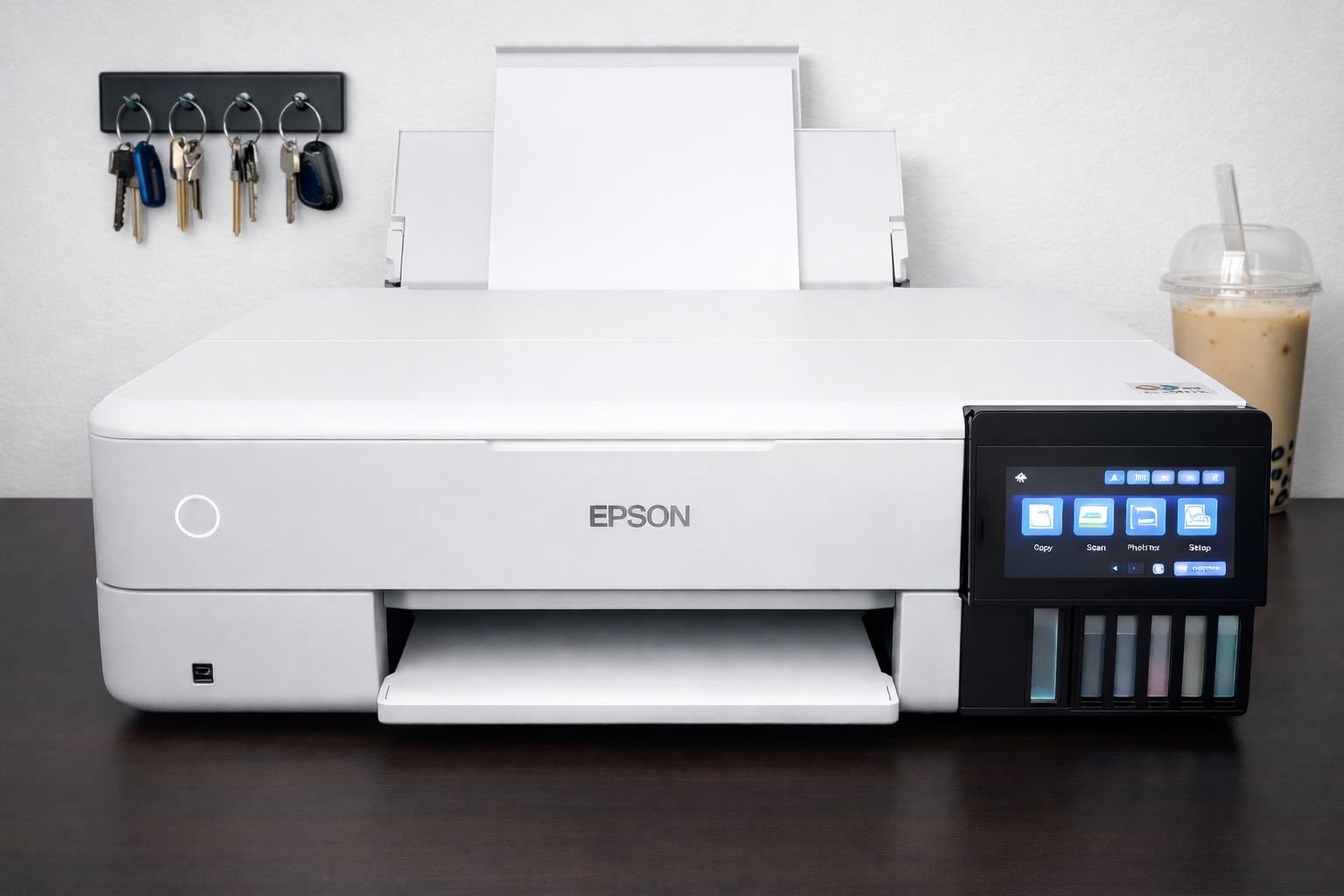
Owners consistently praise photo quality and the low per-print ink cost, and it is the only model here that solves poster and gallery-print sizing. If your Chromebook work involves producing visual material rather than paperwork, nothing else on the list comes close.
It is also the least convenient. At 24.5 pounds and 29.8 by 20.6 by 16.9 inches, it needs real desk space, and first-time setup is long: unboxing tape, filling the ink tanks and running printhead alignment.

Where the cost-per-print maths actually lands
Epson’s own figure puts a 4 by 6 inch print at about 4 cents from the tank system against about 40 cents with traditional cartridges, and that tenfold difference is the entire argument. It is the widest margin between any two picks in this list.
Set against a photo inkjet used for school projects, the ET-8550 is enormous overkill. Set against a machine used for a few hundred photographs a year, the saving on ink alone repays a large share of the difference in cost between it and a cartridge model.
Where it falls short
The flatbed scanner does not accept 11 by 17 inch originals and there is no document feeder, so this is not a machine for a paper-heavy office even though it can print on legal-size paper. Automatic tray selection is also reported as unreliable, meaning you may need to choose the tray yourself.
Inkjet output on cheap copy paper can look fuzzy and is not waterproof, so the output quality depends heavily on buying proper photo media.
How to Connect a Wireless Printer to a Chromebook
Connecting a wireless printer to a Chromebook takes under a minute in most cases, and the only real requirement is that the Chromebook and the printer are on the same Wi-Fi network. There is no driver to install, which is the entire point of Chrome OS printing.
Start with the printer itself. Put it in setup or wireless mode using the button or menu on the machine, and connect it to your 2.4GHz or 5GHz network. Most of the models here list dual-band wireless at 2.4GHz and 5GHz, and separating the bands during setup is worth doing on a crowded home network.
On the Chromebook, click the clock in the bottom-right corner, open Settings, and go to Printing. Under Advanced, choose Add Printer, and Chrome OS will show a list of everything it discovers on the network. Select your printer, give it a name you will recognise, and add it.
Once it is added, it appears in the print dialog of every app automatically. Press Control and P in the browser or in Docs, pick your printer from the destination list, and set the options such as copies, paper type and colour before sending the job.
If the printer does not appear in the discovery list, adding it by its network address is described in Chromebook communities as surprisingly easy and widely unknown. Open the printer’s built-in web page to find its IP address, choose Add Printer again, and enter the address manually instead of waiting for discovery.
There is one fallback worth knowing about before you need it. Every Chromebook can save any document to PDF through the Save as PDF destination in the print dialog, and that file can then be opened on any machine that can reach the printer.
Google Cloud Print Is Gone: What Replaced It
Google Cloud Print is no longer available, and any guide that still recommends it is out of date. The service that allowed you to print from any browser to any registered printer was shut down, which is why so much advice online leads people into dead ends.
What replaced it is built into Chrome OS rather than bolted on. Your Chromebook discovers printers on the local network directly, using the same standards that AirPrint and Mopria use, so there is nothing to enable and no account to link.
Three practical paths now cover the situations Cloud Print used to handle. If your printer supports AirPrint, Mopria or IPP, Chrome OS finds it by itself. If it is on your network but is not discovered, add it by IP address. If it is a genuinely old printer that only speaks USB, a print server or a small single-board computer such as a Raspberry Pi can share it to the network, which is a genuine fallback for legacy hardware that works once configured.
Printing from a different network, such as a hotel or a friend’s house, is a separate problem and has a separate answer. If the printer supports Wi-Fi Direct, the Chromebook can connect to it directly without any network at all.
How to Scan From a Chromebook
Scanning is not as native as printing on Chrome OS, and this is the question that catches most new Chromebook owners out. Printing is built in; scanning generally needs one of three routes, depending on what you own.
If your printer is a Brother with cloud connectivity, the on-printer display is the fastest route. Models like the Work Smart 1360 can send a scan straight to Google Drive, Dropbox, Box or OneDrive, skipping the download-and-upload step entirely.
For any other network printer with a flatbed scanner, scan it once to a computer on the network and then open it on your Chromebook. Canon’s PRINT app and Brother’s Mobile Connect both support sending a scan to a file, and Epson’s app covers the EcoTank models.
The dependable fallback is the same as with printing. Scan to any machine that can reach the printer, place the file in a shared location, and open it on the Chromebook. A phone is often the most convenient machine for the first step.
If you scan regularly rather than occasionally, this is where the presence of a document feeder in the buying decision becomes clear. The TR7120 and the DCP-L2640DW both handle a stack in one pass, and the Brother Work Smart 1360 does so at 20 sheets a load.
How to Fix a Printer That Stopped Working With Your Chromebook
The most common Chromebook printer problem is not incompatibility at all. It is an older printer that worked with a Windows laptop and stopped working when the laptop was replaced, which is the scenario driving a long-running thread on r/chromeos where a parent’s several-year-old Canon no longer connects to a new Chromebook.
Before buying anything new, work through these in order. Confirm the Chromebook and the printer are on the same network, since a printer on a guest network is invisible by design. Then check that the printer is powered and not asleep, and open Chrome OS Settings, go to Printing, and look at the saved list.
If the printer is listed but nothing prints, the entry has probably gone stale. Delete it, put the printer back into setup mode, and add it again from the Advanced section. Re-adding by IP address is the version of this fix that works most reliably.
If it will not discover at all, check the network band. Some routers put 2.4GHz and 5GHz on separate network names, and a printer can end up on one while the Chromebook sits on the other. Splitting the bands during setup resolves it.
For a printer that only connects by USB, a Chromebook with one USB-C port may need an adapter, and some models have none at all. That is the point at which a print server or a small single-board computer sharing the printer over the network becomes the realistic answer rather than a workaround.
As a last resort on any Chromebook, Save as PDF always works. Printing to PDF and then opening the file elsewhere keeps the job moving while you sort out the connection.
If you are choosing hardware rather than rescuing it, our Chromebook guide for students covers the laptop side of the same setup problem. If the desk is the constraint, our picks for wireless charging stations help you keep the surface around the printer clear.
Chromebook Printer Buying Guide: Inkjet, Laser or Ink Tank
The single most useful question before you pick anything is how many pages you print in a month. The answer decides the technology, and getting it wrong is the expensive mistake, because the printer itself is rarely the largest cost of ownership.
Under roughly 50 pages a month, a cartridge inkjet is the simplest sensible route, and a basic model like the Canon PIXMA TS3720 covers it. Between 50 and 200 pages, a refillable tank model changes the economics enough to matter, and the ET-2800 or ET-2400 are built for exactly that band.
Above 200 pages a month, especially in black and white, a monochrome laser wins on both speed and cost per page. The Brother DCP-L2640DW and HL-L2460DW both print 36 pages per minute with automatic duplex, and toner does not dry out in a drawer between uses.
Colour output is the branch point. If anything you print contains photographs, diagrams or highlighted text, you need colour, and then the question becomes cartridges or tanks. The 4-cent against 40-cent per 4 by 6 inch photo figure Epson publishes for the ET-8550 is the clearest illustration of the gap in this list.
Automatic duplex is worth paying for on a Chromebook specifically. Two-sided documents are awkward on a small laptop screen, and manual flipping roughly doubles the paper you use and the number of times you have to reload a small tray.
A scanner matters for the same reason. If anyone in the house scans more than occasionally, an automatic document feeder in the TR7120 or the DCP-L2640DW converts a tedious one-page-at-a-time task into a single action.
Finally, check the certification and the app question rather than the price. A printer that advertises AirPrint, Mopria or IPP support will be found by Chrome OS without any software at all. A printer that relies on a vendor app for wireless printing turns a one-step job into a multi-step workaround, and that is the difference people describe in forums as compatible versus not.
One more practical note for anyone printing for a non-technical relative: the models with a physical status display are worth more than they appear. If you are not the one troubleshooting it, the printer being able to tell you it is out of paper is worth the step up.
Frequently Asked Questions
Will a Chromebook work with a wireless printer?
Yes, as long as the printer connects over Wi-Fi and supports a modern network printing standard such as IPP, AirPrint or Mopria. Chrome OS discovers these printers automatically and needs no driver, installer or desktop software. A printer that only works over a USB cable, or that depends on a vendor app for wireless printing, will not work properly on a Chromebook.
What printers are compatible with Chromebooks?
Most modern Wi-Fi printers from HP, Canon, Brother and Epson are compatible, and all ten models in this guide connect to Chrome OS without extra software. Look for dual-band Wi-Fi and support for AirPrint, Mopria Print Service or IPP. Google’s Works With Chromebook certification attaches to specific model series, so verify your exact model number rather than the series name alone.
Why won’t my printer work with my Chromebook?
The usual causes are that the Chromebook and printer are on different networks, including a guest network, or that they are on separate 2.4GHz and 5GHz bands. A stale entry in Chrome OS printing settings is also common. Delete the saved printer, put the printer back into setup mode and add it again, entering its IP address manually if discovery does not find it.
Is Google Cloud Print still available?
No. Google Cloud Print has been shut down, so any guide recommending it is out of date. Chrome OS now prints directly to network printers over local Wi-Fi using standard protocols. If your printer is not discovered automatically you can add it by its IP address, and a USB-only printer can be shared to the network through a print server or a small single-board computer.
How do I scan from a Chromebook?
Scanning is less built into Chrome OS than printing. Brother models with cloud connectivity can send a scan straight to Google Drive, Dropbox, Box or OneDrive from the printer display. For other network printers, scan to a computer on the network through the vendor app and open the file on your Chromebook. A phone often works as the scanning device of first choice.
Best Wireless Printers for Chromebooks: Final Verdict
The Epson EcoTank ET-2800 is our pick as the best wireless printer for Chromebooks overall. It sets up on Chrome OS in under a minute, its refillable tanks remove the running-cost problem that makes cartridge inkjets painful over a year, and at 18,215 reviews it has the broadest owner history in this group. If you need two-sided printing, step up to the Canon PIXMA TS6520. If you print mostly black documents at volume, the Brother DCP-L2640DW is the better machine.
Whatever you choose, verify the exact model number rather than a series name, keep the Chromebook and the printer on the same network band, and check the subscription terms before you accept a trial. Those three steps prevent almost every problem people report with printers and Chromebooks in 2026.